SysManager
In support of the new Block Holds functionality new forms have been added to SysManager that give users the ability to define subcategories from within the Category edit form and assign items within that category to the subcategory.
Note: Subcategories are not part of the DCI structure.
Max4Sale limits can then be configured for the Category and these new subcategories. The items configured for the subcategories are used to hold back a certain number of tickets from being sold from the overall Category Max4Sale limit but allow sales of items in the subcategory up to the limit set. Additional changes have been made to the Max4Sale forms that are accessed from within the Sub-Category edit form that allow the user to configure an expiration time for the block hold as well as designating whether or not to allow the sale of subcategory items after the hold has expired.
Max4Sale subcategory setup
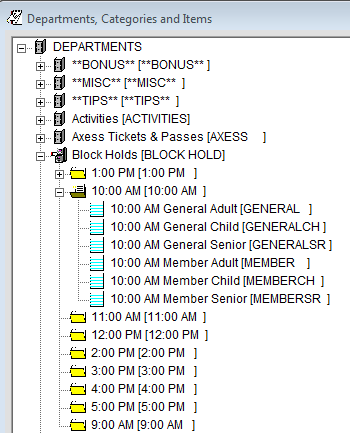
1. Establish an appropriate Department, in this example, “Block Holds.”
2. Establish time based Categories, in this example, “9:00 AM, 10:00 AM, 11:00 AM etc.”
3. Create your Items within each time based category, in this example, general admission child, adult and senior; member child, adult and senior.
Once you have established your basic DCI setup, you can now edit your categories and create Max4Sale subcategories.
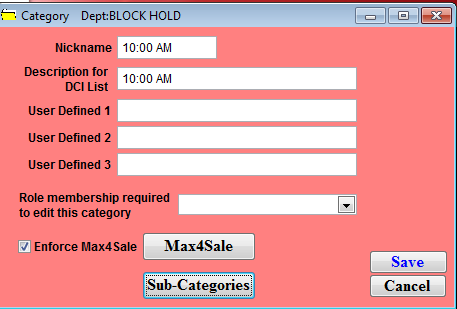
1. Check the Enforce Max4Sale check box and select the Max4Sale button.
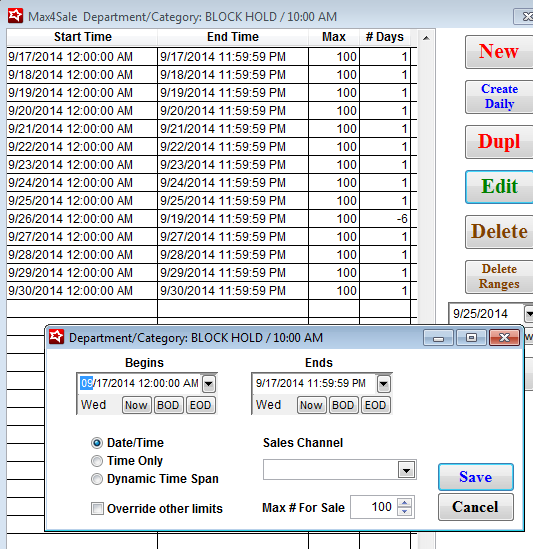
2. Establish your overall Max4Sale settings:
• Beginning and ending time
• Days
• Number available for sale, in this example, “100.”
After Max4Sale capability has been established for each category you can now create subcategories for your block holds.
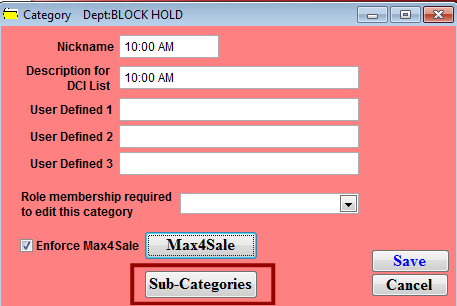
1. Select the Sub-Category button on the Category edit dialog.
2. You are presented with the category’s Sub-Categories edit list. From here you can select or create an appropriate subcategory.
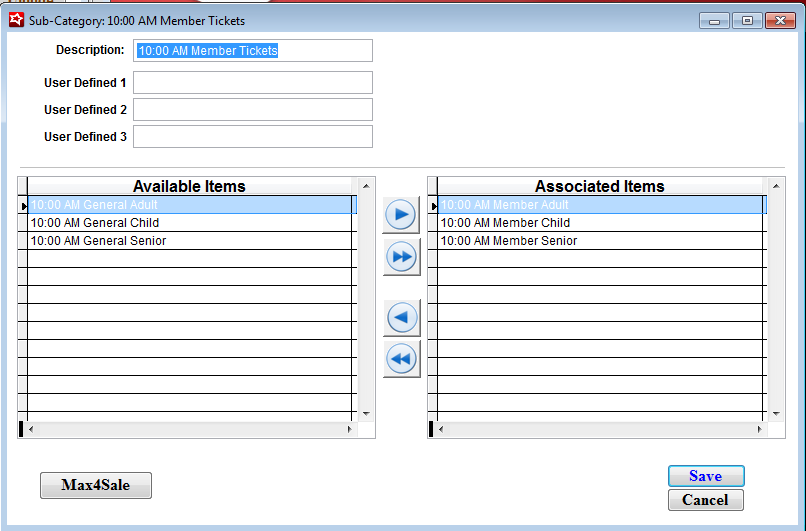
3. On the Sub-Category edit dialog you can:
• Provide a Description – The name of the subcategory
• Provide up to three User-Defined fields
• Select Associated Items from the Available Items box – Items that are created under each category populates the Available Items box, you can then highlight those items you wish to be associated with the subcategory and move them to Associate Items.
In the following example we have established a, “10:00 AM Member Ticket” subcategory. This category contains all of the associated member items. You can establish multiple subcategories as needed per category.
After you have associated the appropriate items to be included in the subcategory, you must establish Max4Sale limits.
1. Click on the Max4Sale button located on the lower left-hand corner of the Sub-Category edit dialog.
2. You can now create or edit particular parameters for the subcategory.
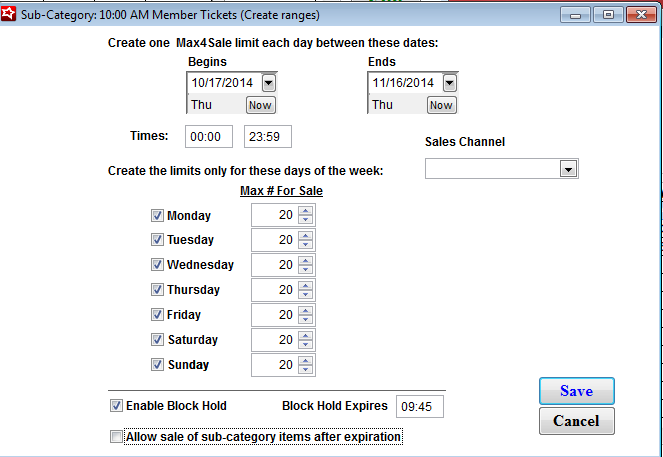
3. Select Create Daily to create a range of block hold settings such as:
• Begins and Ends dates – provides the date range for how many days the block hold is in effect
• Times – sets specific time range for the block hold to be in effect
• Sales Channel – Dropdown that limits at what location the block hold is available
• Daily limits –Sets limits for specific or all days of the week
• Max # For Sale – designates the amount of items to be reserved for each subcategory group
• Enable Block Holds – This check box is automatically populated when entering subcategories
Note: Disabling this check box produces unexpected behavior in Sales. If using subcategories please be certain to keep this box checked.
• Block Hold Expires – The time at which the block hold expires. At this established time, all remaining number of items moves to the overriding item (non-subcategory item), in this example, “General Admission (Adult, Child and Senior)” tickets.
Important: Block Holds are time dependent. You must establish a Block Hold Expires time. If no time is established, Sales does not perform as expected.
• Allow sale of sub-category items after expiration – by checking this box, this allows that subcategory amounts can be sold after the block hold expires, however it becomes first come-first serve for the overriding category and subcategory.