Copying files to the mobile computer/scanner
To copy files to the MC9090, MC9190, MC70 and MC55AO:
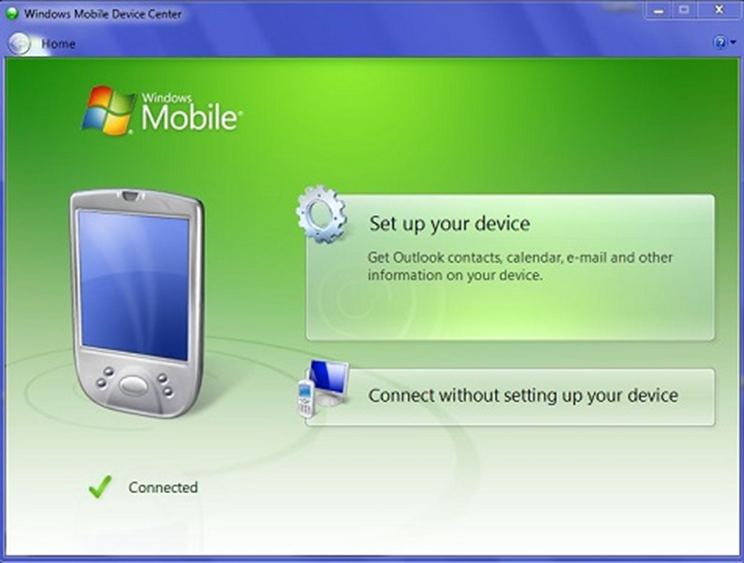
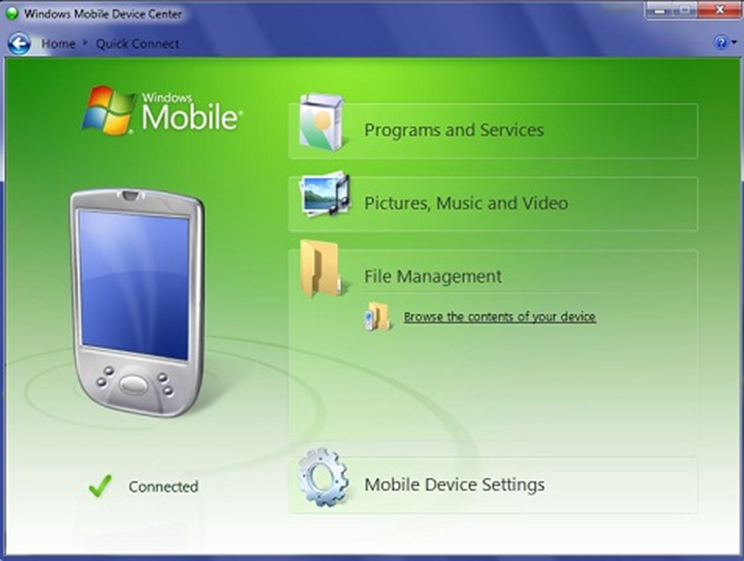
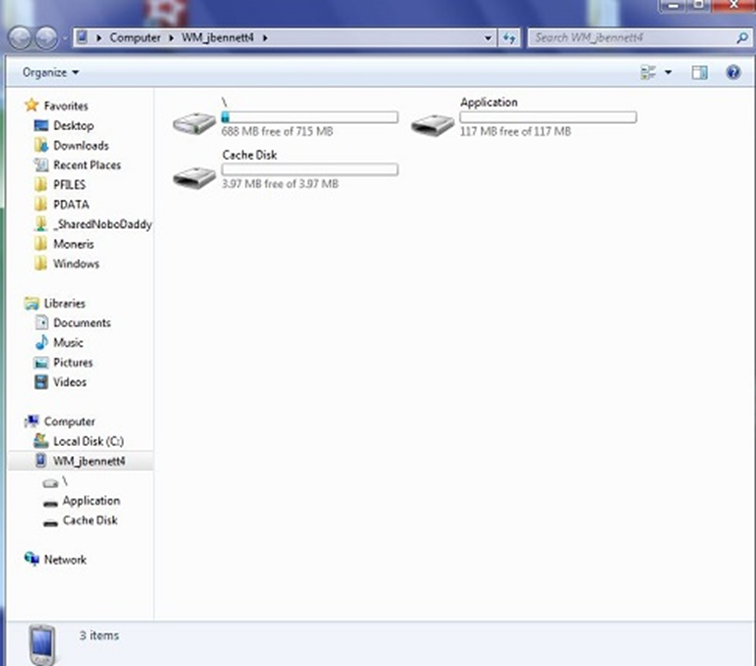
1. With the unit connected to the PC via Windows Mobile Device Center, choose Connect without setting up your device. Click Browse the contents of your device from the File Management section of the interface and you are brought to a Windows Explorer screen.
2. The following files need to be copied into a Scanman folder that you create on the mobile unit in Program Files/: atl90.dll, badlive.wav, badoff.wav, goodlive.wav, goodoff.wav, launch.bmp, launch.exe, launch.nam, mail.wav, MFC90U.DLL, msvcr90.dll, rfread.wav and ScanMan.exe.
Note: If using RFID functionality rename ScanManrf.exe to ScanMan.exe and copy in that renamed version, not the default ScanMan.exe.
3. To create a shortcut for scanman.exe to put in the \Windows\Start Menu\Programs folder to have Scanman appear in the Start menu follow the following steps.
a. In File Explorer on the mobile unit go to \Program Files\Scanman.
b. Select Scanman.exe using the selection keys on the unit, up, down, left, right, etc. (the .exe file extension does not display on the mobile unit, but scanman.exe can be recognized by the red star icon at the left of the file).
c. Use the Menu button at the lower right of the screen and go to edit and choose copy.
d. Navigate to \Windows\Start Menu\Programs and from the Menu button go to edit and choose Paste Shortcut. The shortcut can be renamed to, “Scanman” if desired.
Note: If you want to use the scanner just for ScanMan module and have it start up by itself all the time, you can put the shortcut in Windows/Startup instead of Windows/Start Menu.