Connecting to ActiveSync and Windows Mobile Device Center
If you are using a serial connection, it is necessary to change the communications method on the mobile computer for the method of connection. If you are using a USB connection, the USB protocol negotiates the appropriate parameters automatically. Following are the methods used for the various units supported. The steps were developed using ActiveSync, but the steps on Windows Mobile Device Center are very similar.
Note: In these steps you are simply configuring the unit to connect to the PC. You aren’t using the cradle yet to sync the scanner with the PC.
To configure the MC9090-G (Windows Mobile 5.0) and MC9190 (Windows Mobile 6.5):
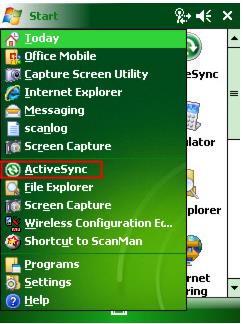
1. On the handheld unit, tap Start at the top of the screen and tap ActiveSync.
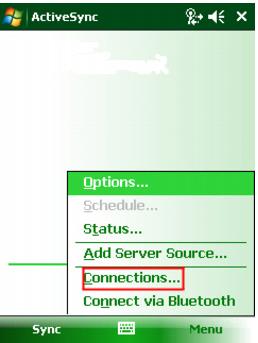
2. Tap Menu at the bottom right of the screen and tap Connections.
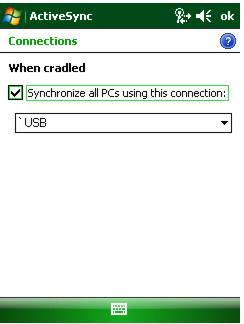
3. Verify that Synchronize all PCs using this connection: is checked and that ‘USB is selected from the dropdown box.
4. Tap ok on the upper right corner to exit the Connections dialog.
5. Tap ok in the upper right corner to exit ActiveSync.