Wireless network
The following are the methods used for the various units supported to connect to a wireless network. The steps were developed using ActiveSync, but the steps on Windows Mobile Device Center are very similar.
Note: Siriusware Inc. recommends assigning static IP addresses for each handheld unit.
To configure the MC9090-G (Windows Mobile 5.0) and MC9190 (Windows Mobile 6.5):
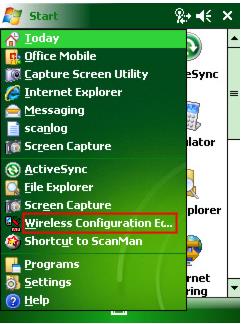
1. On the handheld unit, tap Start at the top left of the screen and tap Wireless Configuration Editor.
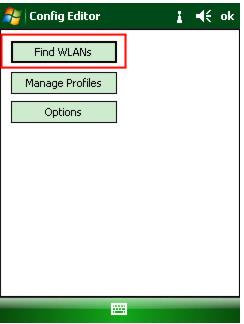
2. From the Config Editor dialog, click Find WLANs.
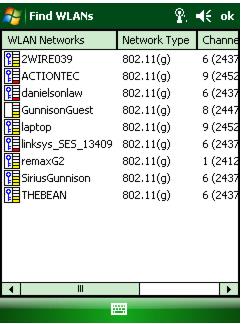
3. The device searches for existing WLANs and populates the list. If you have configured your access point correctly, it appears in this list.
Note: From the Start > Settings > Connections tab menu, you can use the Wi-Fi and Wireless Manager programs to get specific information about how the device is responding to your wireless network. If your device is not discovering your wireless network, you are able to find out what the problem is via these programs.
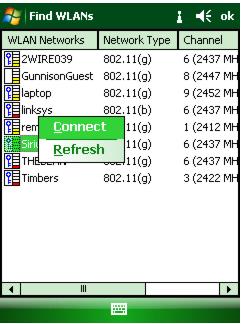
4. Double tap on your access point and the CONNECT/REFRESH popup menu appears.
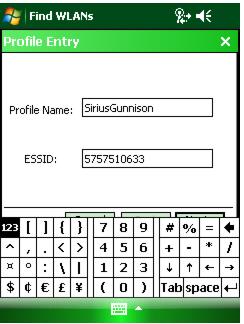
5. Tap on CONNECT and enter your Profile Name: and the ESSID: that corresponds to your access point.
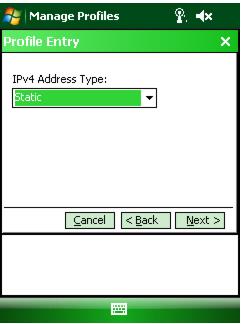
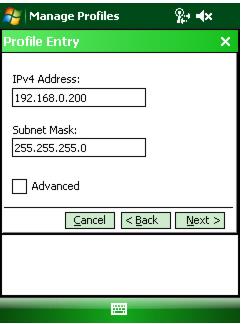
6. Tap Next > and continue entering the information that corresponds to your access point, including the static IP address of handheld device.
7. Save your profile.
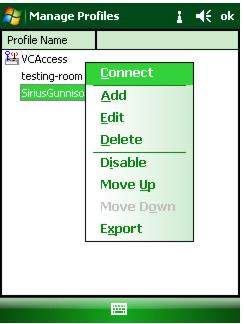
8. Double-tap on your profile and click Connect to connect to your access point.