MC9090 and MC5590
To copy files to the PPT2846, PPT8846, MC9060-G, MC9090-G and MC5590:
1. With the unit connected to the PC via ActiveSync, from the ActiveSync window, click the Explore button. This brings up the “drive” on the mobile computer. If you are using Windows Mobile Device Center, you click Browse the contents of your device from the File Management section of the interface.
2. The following files need to be copied into the Application folder (PPT2846, PPT8846, MC9060-G) or Program Files/ScanMan (MC9090-G and MC5590) folder on the mobile computers (you need to create the ScanMan folder yourself): goodoff.wav, goodlive.wav, badlive.wav, badoff.wav, mail.wav, scanman.exe.
3. Create a shortcut to the scanman.exe file by right-clicking the icon and choosing Create Shortcut.
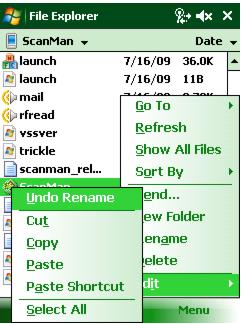
Note: Under ActiveSync, you have to have the scanner in the cradle when you create the shortcut and you have to be connected to ActiveSync or it won’t work. Windows Mobile Device Center doesn’t provide a Create Shortcut option, so you have to create a shortcut on the scanner by navigating to the ScanMan application and clicking to get a Menu. Then you copy, and then when you go to paste in the new location there is an option to Paste Shortcut. To get this menu in the new location just press and hold the pointer.
4. Rename the shortcut to ScanMan.
5. Cut the shortcut by right-clicking it and choosing Cut.
6. Navigate to the Windows/Start Menu folder.
Note: If you want to use the scanner just for ScanMan module and it starts up by itself all the time, you can put the shortcut in Windows/Startup instead of Windows/Start Menu.
7. Paste the shortcut to this location.
8. All programs here can be removed. However, it is recommended to leave the folders named Programs and Settings in place.