Implementation
AXOEM High Speed Channel version 2.3 is a SOAP interface where the Axess gate controller is the hardware and
Siriusware.Axess.GateController application controls the data for entry validation. You can see a sample of this interface running if you open a browser and navigate to
http://89.26.127.61:16302/axis_000/services/AXOEM_HS?wsdl. This is the web service description language (WSDL) for the sample service that Axess hosts. When the gate is set up properly, it accesses Siriusware’s
AxessGate.svc hosted in a local IIS server.
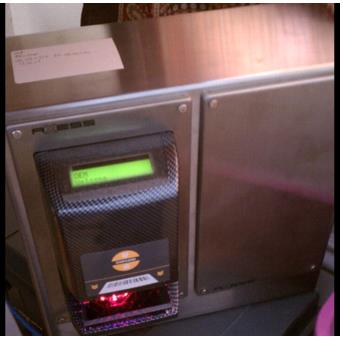
The Axess controller hardware runs on a piece of gate hardware and looks something like this:
The Axess gate hardware comes shipped with a static IP address. You must first change the IP address of the gate to match the client’s network.
Changing the IP address
1. Find the IP address of the gate. Cycle the power and watch the display during startup and the address is shown (i.e., 192.168.100.100).
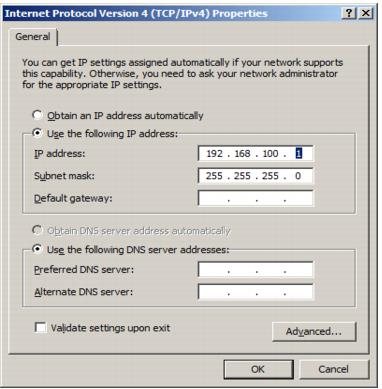
2. To change the IP address on the gate, you need a device on the same subnet as the gate. Perhaps the simplest way to do this is to change the IP address of a laptop, and then connect it to the gate with a network cable. Your laptop’s IP address can be set by going to the Network Adapter settings for IP v4:
3. After setting the laptop’s IP address and connecting the network cable, you are able to open a Browser (Internet Explorer is fine) and enter the gate’s IP address (i.e., 192.168.100.100). You need to log-in if everything is working at this point (Username = admin, Password = AXCustomer, mind the capitalization). If you can’t connect, you need to troubleshoot. (Try pinging 192.168.100.100, etc.)
4. Using the gate’s web interface, you assign a new static IP address (you need to check for an address that won’t get clobbered by DHCP on the network). This is set under Admin > Configuration > Network. Also, the new IP address needs to be accessible from the ww.dll computer. For example, if your network is on 192.168.1.xxx, then you must set the turnstile to 192.168.1.xxx where xxx represents the new IP you are assigning.
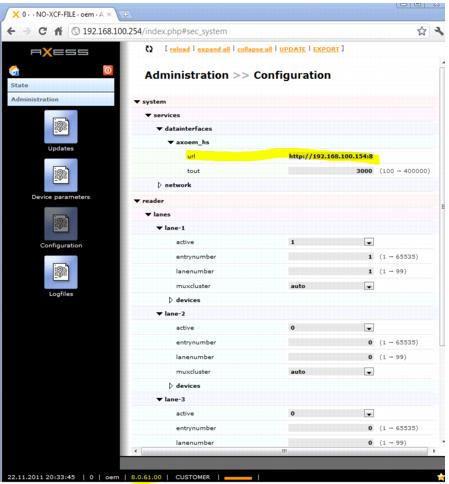
5. Under the Services > Datainterfaces > axcoem_hs tab, change the URL to the address where the Gate Access service lives.
In this case, it runs off the screen, but the full text is, “http://192.168.100.154:80/AXSite/AGService.svc”. Also, the version of the reader controller (noted at the bottom of the screen capture) is 8.0.61.00. Older software versions won’t allow this setting to “take”. The way to test if this is working is to set the URL, press the UPDATE button at the top, and then reload. Make sure it’s still what you set originally. Then, power the controller off, and then on again. At this point, go back and recheck the setting. Then, you can go to Logfiles and open the topmost logfile (quelt1.log). It has a line in it like this and indicates the actual URL being used to find the service:
22.11.2011 18:47:55.514 5 0 Url of OEM Interface: http://192.168.100.154/AXSite/AGService.svc
The AxessGate service is a c# component which is hosted in IIS and calls ww.dll in order to perform validations. The ww.dll, in turn, calls SalesEZ application. A computer which deals with reader requests need to be set up with a web site that hosts AxessGate. Ww.dll must be installed and registered on the computer. Also, Pool Service and Salesez.dll is installed and registered on the computer.