RELOAD ticket items encoded on reloadable media
Creating Siriusware Access Records
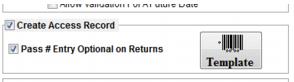
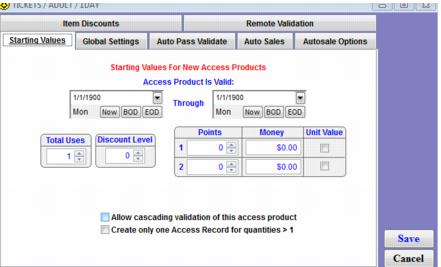
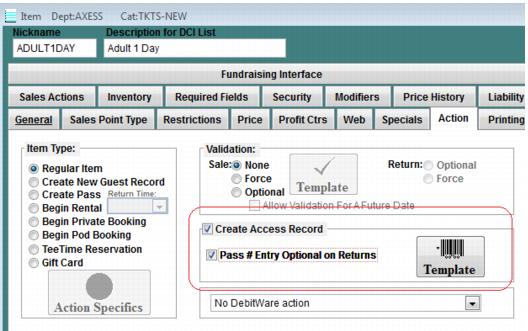
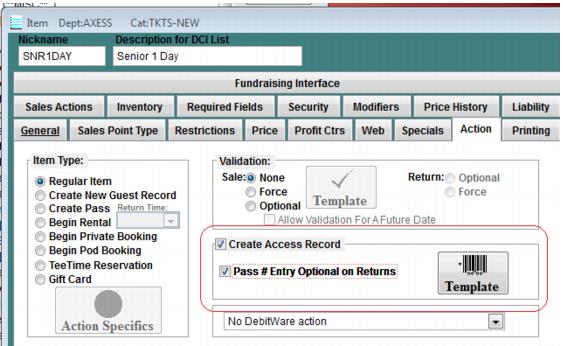
For items that reload existing ticket media, the item must be configured to Create Access Record. Although validation is controlled by the Axess Gates and not the configurations within the Siriusware Access Template, it is still necessary to configure the template with the typical settings, such as Total Number of Uses, for consistency when researching access records in Siriusware vs. WTP/RF Serial Numbers in Axess and for exchanges.
Axess printing of RELOAD ticket items/media
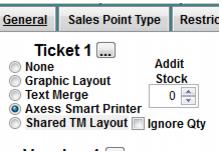
In order to send instructions to the Axess Smart printer for printing and encoding you must configure a Text layout for the item under the Axess Smart Printer option:
One very important element is configuring the layout to prompt for hand-feeding of the customer’s existing ticket or pass (previously encoded media) through the printer instead of the printer pulling a new card from the hopper. Please refer to the Axess Smart Printer layouts section of this document for more details on configuring layouts.
E-Commerce considerations
All E-Commerce transactions that include a WTP number in the Sales string is automatically finalized in Sales Host utility in order to send an update to the SOAP EDE as soon as the sale is processed.
• During the purchase of a reload item in E-Commerce module, the visitor/guest is forced to enter a valid WTP number. Based on the WTP number entered, a list of eligible reload items are presented.
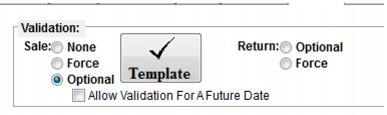
• In order to generate the list of eligible reload items, all reload items need to have Optional Validation selected. The optional validation in this scenario uses the Item/Pass Relationship tab to link the reload item currently being edited to all original media producing items that it is allowed to load.
• This type of configuration can be used, for example, to limit the purchase of CHILD RELOAD items to only those visitors/guests who originally purchased a CHILD media producing item (to prevent the situation of a customer purchasing an ADULT item originally, but then always reloading the ADULT media with items priced at a CHILD rate).
• To configure this link within the Reload item, select Optional Validation and click on the Template button.
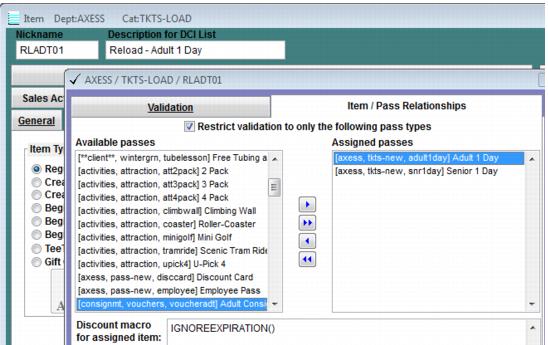
• It is not necessary to enter anything on the Validation tab. Instead, go to the Item/Pass Relationships tab and move all original media producing items that can be loaded with this reload item to the Assigned Passes dialog. If the original media producing item can be expired at the time of the reload, enter IGNOREEXPIRATION() in the Discount macro box.
Example:
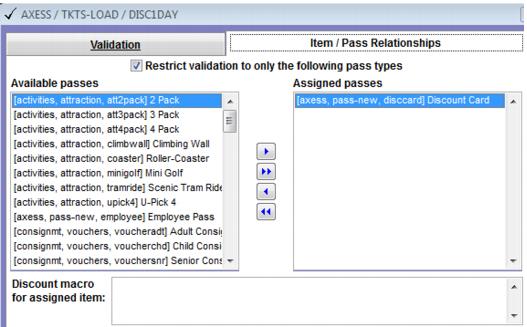
A Discount Card allows 50% discount lift ticket reloads during the season. In this scenario, if the original Discount Card has expired, the reload is not allowed, so the IGNOREEXPIRATION() macro is NOT used.
Example:
A business has decided to limit reloads based on a value equal to or greater than the original media producing purchase. For instance, a SENIOR 1 DAY ticket can be loaded with SENIOR RELOAD or ADULT RELOAD items; but an ADULT 1 DAY ticket can only be loaded with ADULT RELOAD items. In this scenario, the original SENIOR 1 DAY or ADULT 1 DAY ticket has most likely expired, but the reload is still allowed. So, the IGNOREEXPIRATION() macro is used for all reload options:
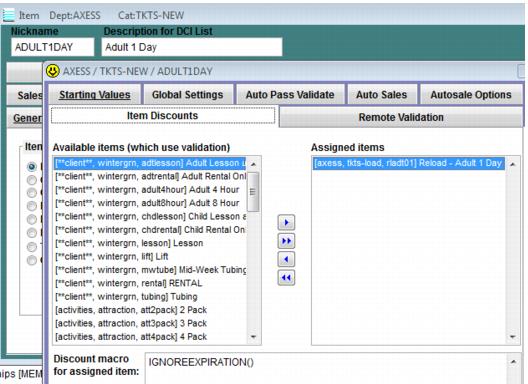
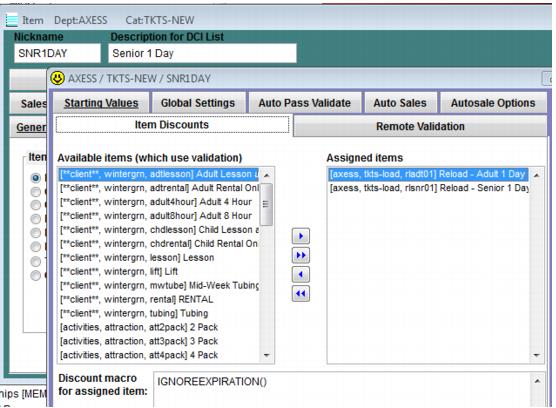
This linking of reload items and original media producing items is also possible within the Pass Action Specifics or the Access Record Template of the original media producing item. When approaching the linking from within the Pass Action Specifics or Access Template, the Item Discounts tab is used to associate all RELOAD items that can load the pass or access item currently being edited. The INGOREEXPIRATION() macro is entered for all reload DCIs if the pass or access item currently being edited does NOT have to be valid in order to be loaded.
Using the Adult 1 Day ticket and Senior 1 Day example from above:
The effect is the same whether the link is created within the reload item’s Validation template or the original media producing item’s Pass Action Specifics or Access Template.