Pass items printed/encoded on reloadable media
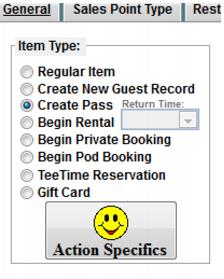
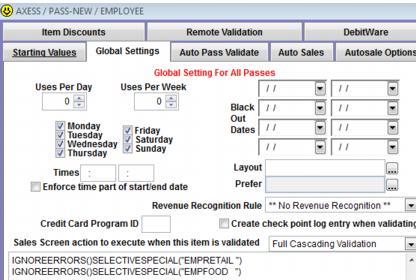
For items that generate NEW pass media (new RF cards need to be printed/encoded) the item must be configured to Create Pass. The configurations within the Action Specifics are still important for Siriusware In-House Cards module and salespoint validation features i.e., the %E discount function. Although validation is controlled by the Axess Gates and not the configurations within the Pass Action Specifics, it is still necessary to configure the typical settings, such as Total Number of Uses, for consistency when researching guest pass records in Siriusware vs. WTP/RF Serial Numbers in Axess and for exchanges.
A Graphic Pass layout is created, and then selected within the Action Specifics > Global Settings tab in order to print the typical information on the pass (guest name, item description, guest photo, etc.) if using a graphic card printer along with the Axess Smart Printer.
Axess printing of NEW Pass media:
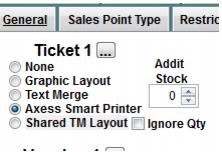
In order to send instructions to the Axess Smart printer for encoding you must configure a Text layout for the item under the Axess Smart Printer option:
Note: Please refer to the Axess Smart Printer Layouts section of this document for more details on configuring layouts.
Printing options
(Exclusively using the Axess Smart Printer vs. using a Graphic Card Printer along with the Axess Smart Printer)
Passes can be printed and encoded exclusively through the Axess Smart Printer in Sales. It is also possible to use BatchPrint utility to bulk encode the cards when exclusively using an Axess Smart Printer for all printing/encoding. Keep in mind that the printed visual elements are limited when using the Axess Smart Printer. For instance, no colors or logos can be printed and the guest photo is very small and black/white with very little resolution.
Note: Because the photo from the guest record is displayed to the lift operator during the gate read and the card is almost never presented to a lift operator, the need for a quality photo on the actual media is greatly reduced. Additionally, Sales can be configured to prompt the operator with the guest name and photo when a card is presented for salespoint validation programs.
It is also possible to use a graphic card printer to add the visual elements to the pass, and then send the card through the Axess Smart Printer for encoding (and to print the WTP number.) When using this two-step printing process, the card first goes through the normal graphic printing via a Magicard, Fargo, etc. Then, the Siriusware system prompts the operator to feed the card through the Axess Smart Printer for encoding. This same two-step process happens when printing a pass upon finalization of a sale or by doing a Guest Lookup > Pass Inquiry. BatchPrint utility can also be used to bulk print the graphic elements of the passes, and then the cards can be encoded one-by-one using Ticket Inquiry or Guest Lookup > Pass Inquiry in Sales.
Important!: The PVC Pass Cards (four-color graphic cards) provided by Axess can only be encoded through the Axess Smart Printers. It is NOT POSSIBLE to do any sort of printing through the Axess Smart Printers on a PVC card. In order to print the WTP number on the card through the Axess Smart Printer, the pass cards MUST be ordered with one thermal (non-PVC) side with empty space on the thermal side for the WTP number.
Note: It is no longer necessary to order cards with a magswipe for encoding through a graphic card printer. The RF chip in the Axess media includes a Siriusware segment that can be encoded with the same type of data that used to be encoded in magswipes. In order to use this Siriusware segment for salespoint validation programs, the appropriate card media and desktop readers must be ordered from Axess.