Installation
Important: Microsoft .NET Framework 4.5, IIS7 or greater and ASP.NET must be installed in order to utilize Accounting Export functionality. In addition, Siriusware ww.dll and Siriusware Export Service must also be installed. Installation instructions for ww.dll can be found in the E-Commerce Installation Guide.
To install Export Service application:
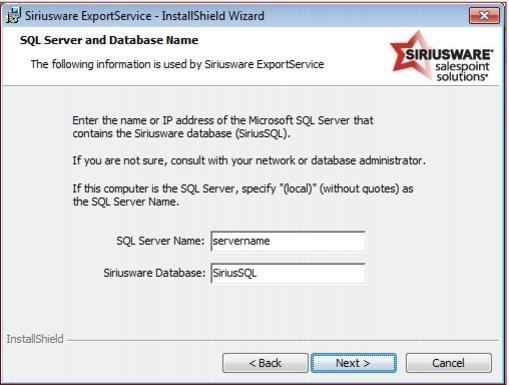
1. Run the Install_Siriuware_ExportService_xxxx.msi file.
2. Enter the name of the SQL Server and the name of the Siriusware database.
3. After Export Service application is installed run the Update Export Service shortcut installed on the desktop.
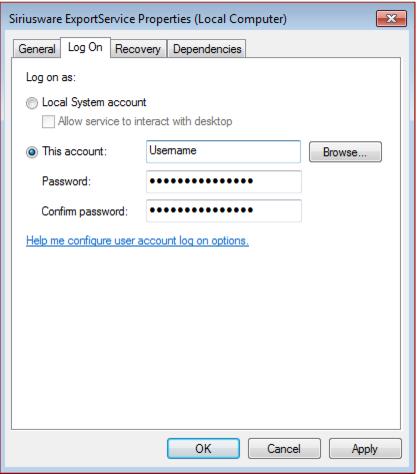
4. Open the Services Management Console by navigating to Control Panel > Administrative Tools > Services. Locate the Siriusware ExportService, double click, and then click on the Log On tab. Click the This Account radio button and enter a user account and password for the service to.
Important: This user account must have permission to Write to the folder where Export Service writes files.
5. Start the Export Service’s Service Monitor and start the service.
To install Accounting Export module:
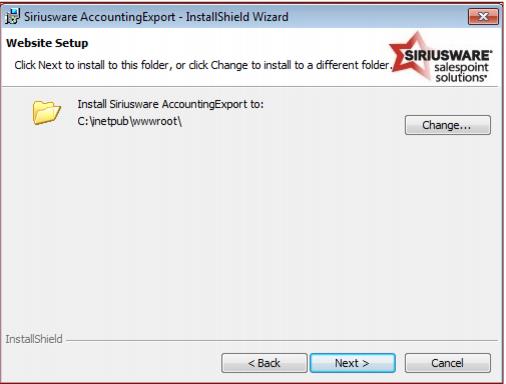
1. Run the Install_Siriusware_Accounting_Export_xxxx.msi file.
2. Select the directory where the virtual directory is created.
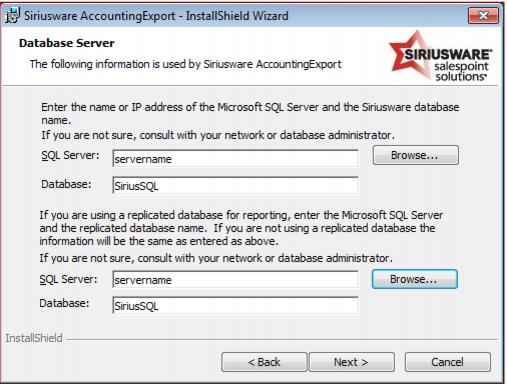
3. Enter the names of the production and reporting SQL Servers and Siriusware databases. If you are not using a replicated database for reporting the server and database names are the same.
4. After the installation is complete run the Update Accounting Export shortcut installed on the desktop.
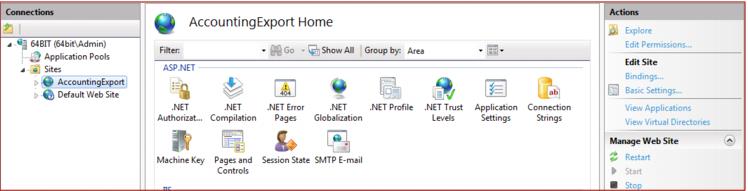
5. Accounting Export module requires SSL encryption and this must be configured manually in IIS after the installation is complete. The installer creates a new web site for Accounting Export module. If port 443 (the default for SSL) is already bound to the Default web site in IIS you need to use a different port. To create a port binding for Accounting Export module open IIS Manager and click on the AccountingExport web site.
6. Then, click on Bindings.
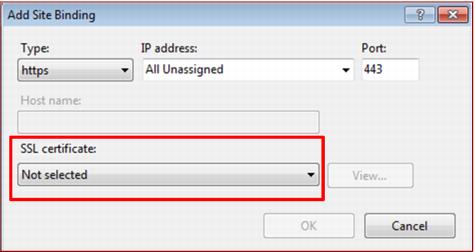
7. Click Add in the Site Bindings dialog and select https from the Type dropdown list. Select an IP address if necessary and enter a Port number that is not already in use on the web server.
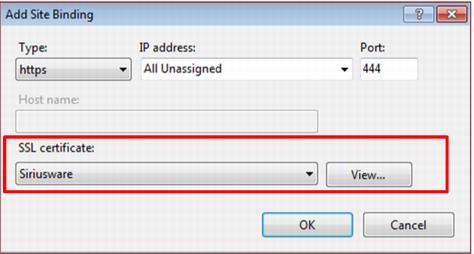
8. Select an SSL certificate installed on the server, click OK and click Close on the Site Bindings dialog.
Note: A Siriusware staff member may need to run the Create_SiriusReportAppRole_SiriusSQL.sql script on the SQL server.