Configuring the salespoint credit card settings
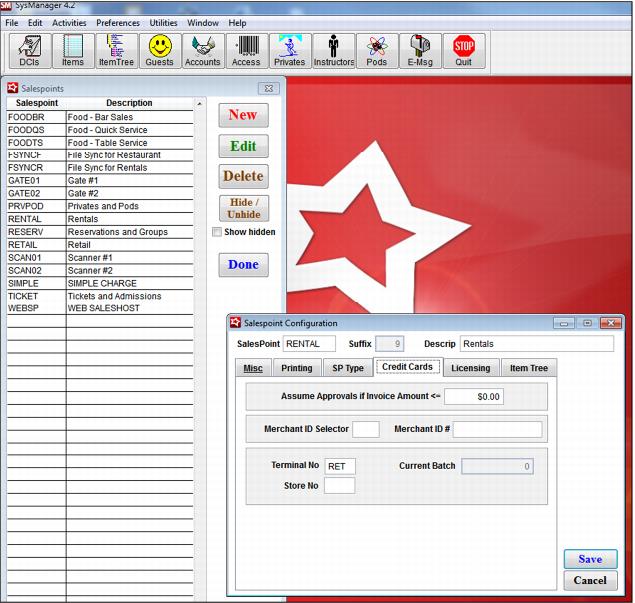
You set the terminal ID for ProtoBase in either SysManager or Sales. In SysManager, go to Activities > System Lists > Salespoints and edit each salespoint. From the Salespoint Configuration dialog, click the Credit Cards tab.
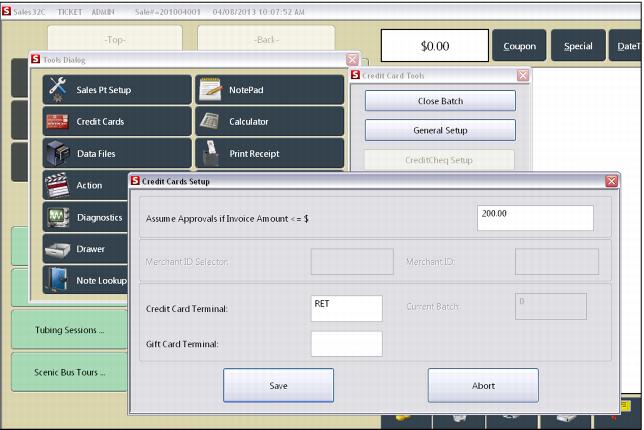
In Sales, go to Tools > Credit Cards > General Setup. The Credit Cards Setup dialog is displayed.
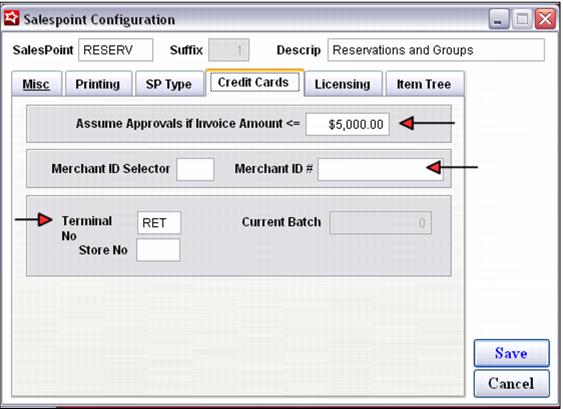
Enter the appropriate code (typically three or four characters) in the Credit Card Terminal field (in SysManager, this field is called Terminal No). The value in Credit Card Terminal cannot be more than four characters and must be alphanumeric. Be sure to also enter the appropriate Merchant ID # for each salespoint (this sole purpose for this field is to print the Merchant ID # number on a Credit Card Receipt layout with that field specified). The client “makes up” the Credit Card Terminal code, which can be any combination of three or four alphanumeric characters. The Credit Card Terminal (i.e., RET for Retail) is set up at the time of installation. The terminal is tied to an industry for the salespoint – Retail (usually RET), restaurant/bar/tipping (usually REST) and card not present (usually MOTO).
Set an “assumed approval” amount for each salespoint. If ProtoBase is offline for some reason, this is the amount that the system assumes is approved. See
ProtoBase offline transactions for a complete description of how Salesware handles transactions when ProtoBase goes offline and how Salesware recovers after ProtoBase comes back online.
If a card is being charged for an amount that is over the “assumed approval” amount and ProtoBase is offline, the operator is prompted to call to get a voice authorization. Once the operator receives the voice authorization, she needs to type it into the prompt in Sales that is waiting for the voice authorization entry.
When setting this limit keep in mind the amount you are willing to lose if a card that was assumed to be good was declined once it was forwarded for a real authorization. Also, please ensure that your operators have access to the phone numbers and information they need for voice authorizations.