Setup
1. Review and modify the Authorization Terminal with the ECR number that’s unique to a pinpad
2. Review the IP Address to point to the TenderRetail processing server.
3. Review Merchant ID for the client that is being installed.
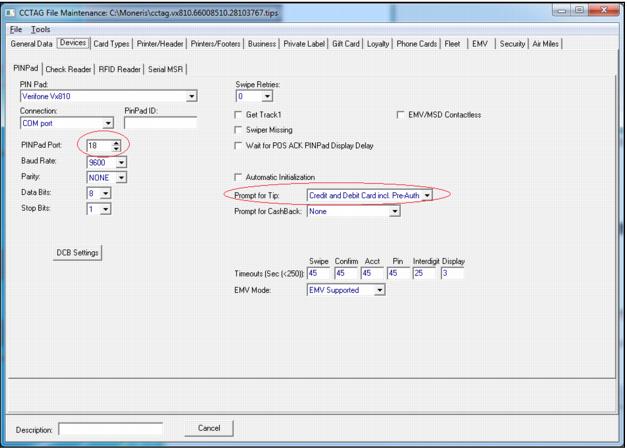
4. Go to the Devices tab
5. Modify PINPad Port number to match port number that was noted as outlined in the installation steps above.
6. Set up tips if required. (None for no tips, Credit and Debit Card inc. Pre-Auth if tips prompting is required.)
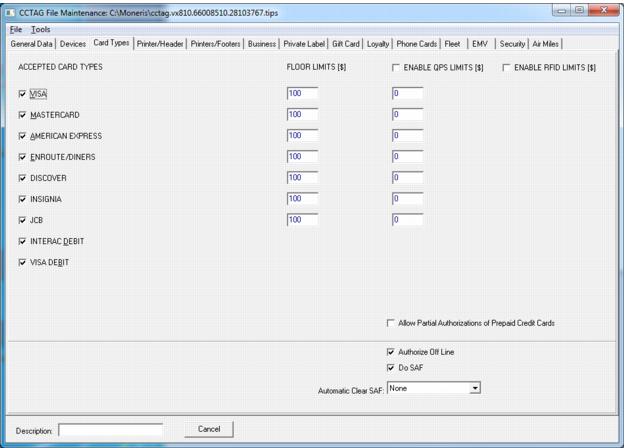
7. Select Card Types and Floor Limits for each card on the Card Types tab.
8. Check the Authorize Off Line and Do SAF check boxes if offline processing is required.
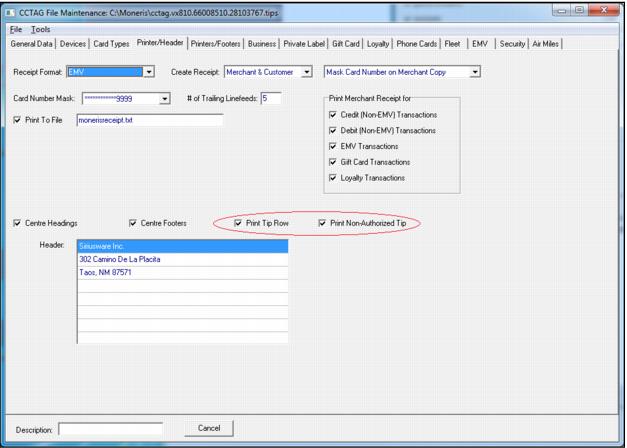
9. Select Printer/Header tab and set up Credit Card Receipt Header. The for tips check the Print Tip Row and Print Non-Authorized Tip check boxes.
10. Save the file under a different name via Menu (File > Save As). Usually saved in c:\paymentech\cctag.config
11. Go into Menu (Tools > Create EMV Files) This takes about thirty seconds for a slow computer. If you receive an error, you are not running cctagp1.exe as administrator.
12. Exit software.
13. Create System Environment Variable for appropriate pinpad. To set up environment variables go to > System > Environment Variables.
Example:
Vx810
• PaymenTech_home=C:\paymentech
• PaymenTech_LOGDIR=C:\paymentech\Logs
iPP320
• PaymenTech_home=C:\paymentech_iPP320
• PaymenTech_LOGDIR=C:\paymentech_iPP320\Logs
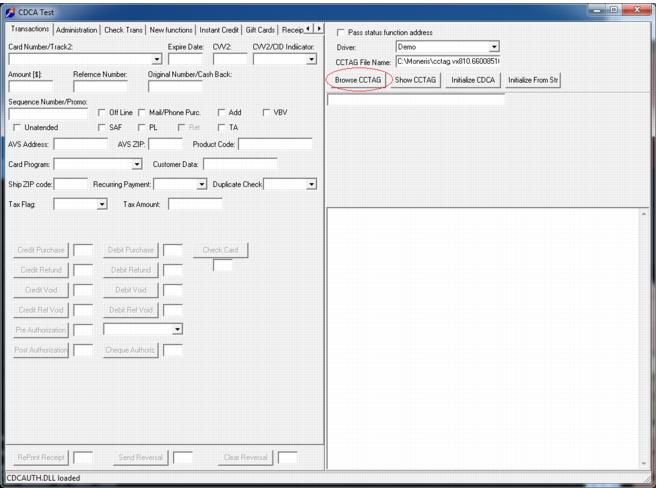
14. Run c:\paymentech\testcdca.exe.
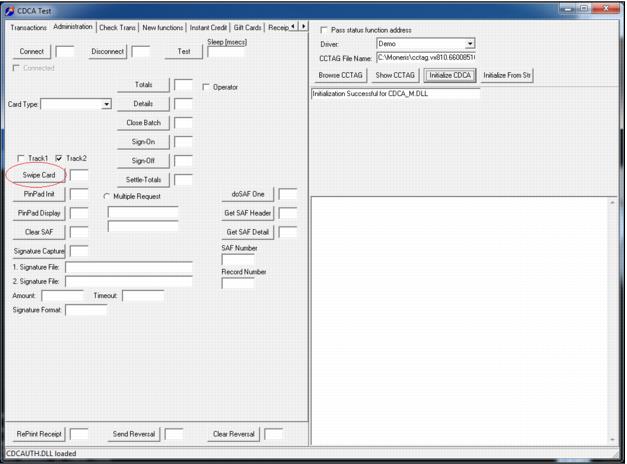
15. Click Browse CCTAG button.
16. Select the cctag.config file.
17. Click the Initialize CDCA button. This takes a few seconds.
18. Test the PC-Pinpad connection by pressing the Swipe Card Button in the Administration pinpad.
19. After pressing the button, the pinpad asks the user to swipe the card. If it doesn’t, that means that the PC > Pinpad link is bad. Verify pinpad is set up as USB. Verify driver installed. Verify COM port number is correct.
20. Cancel out of the Swipe Card.
21. Click the Pinpad Init button, below the Swipe Card button.
22. The pinpad now displays the message, “Downloading”. This process takes a minute or so. If this doesn’t work, check the ECR number, IP Address and Merchant ID.
23. Set up Sales .INI files
24. Under the Sales32c_system.INI, [Server] section add:
TenderRetailLib=paymentech
CCTagFile=c:\paymentech\cctag.config
Under the Sales32c.INI, [Preferences] section, set:
CreditCheq=TRUE
25. Set up credit cards CreditCheq to process credit cards in SysManager. (Activities > Financial List > Payment Types).
26. Once you have finished installing the pinpad, remove the testcdca.exe program after using it to set up the pinpad.