Pinpad testing
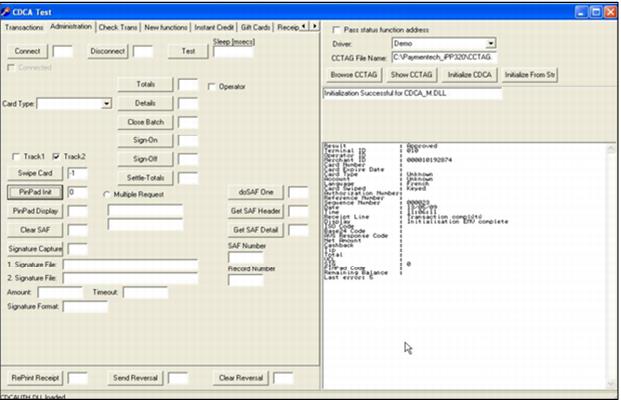
1. Run C:\Paymentech_iPP320\Testcdca.
2. Click Browse CCTAG button.
3. Select the cctag.config.
4. Click Initialize CDCA button. Look for success message in field below. The message should say, “Initialization Successful for CDCA_M.DLL”.
5. Pinpad screen should also change to Welcome/Bonjour.
6. Click on the Administration tab.
7. Click Swipe Card button. Pinpad screen should ask for a card swipe. If not, check pinpad connections to computer.
8. Hit the red Cancel button on the pinpad.
9. Click PinPad Init button. The pinpad will show downloading and initializing, then return to the Welcome/Bonjour display. If this fails, please see Troubleshooting section below.
10. If the pinpad successfully downloads the initialization files, click on the Show CCTAG button.
11. In the Diagnostic dropdown select None.
12. Select Tools > Create EMV files.
13. Select File > Save.
14. The CCTAG file is now ready to be used in other salespoints.
Tip: Place in shared Siriusware folder for easy access on other salespoints.