Installing ww.dll
The
ww.dll is installed as a web garden − i.e., it is pooled using an application pool in IIS.. When installed on Windows Server 2008, IIS version 7 is used. If this already installed as a COM+ object, switching to use as a web garden under IIS is straight-forward. See
http://portal.siriusware.com/docs/kb-pdf/Installation_and_updates/e-commerce_2010_mar_8.pdf.
Note: Siriusware Inc. strongly recommends that your web server not be a member of a Windows domain. Being a domain member is a potential security risk and changes the way authentication is handled. This change in authentication could make Salesware web pages not function correctly without additional configuration. However, the installation of ww.dll and wwService presented in this document support using the server computer as a domain member if so desired.
Important: The ww.dll and Web SalesHost (WSH) are no longer allowed to share the same salespoint ID due to complications with Max4Sale and Points4Sale limits and Real Time Inventory Tracking. ww.dll now adds the salespoint ID that it is configured to use (from the ww_system.ini file, DefaultInfo=<operator>WEBOP</operator><salespoint>WWSP</salespoint> setting) to the sale string that is passed in for processing by WSH unless the pages have already added a salespoint ID to the sale string via the salespoint key. The salespoint ID will appear in the sale string like this.
Example:
<salespoint>WWSP</salespoint>
If the salespoint ID in the sale string is the same as the salespoint ID configured for WSH, an error will occur when WSH tries to process the sale indicating that there is a conflict, and WSH will shut down. Either the salespoint ID in the sale string will need to be changed, or the salespoint ID of WSH will need to be changed and the sale resubmitted. For all future sales the salespoint IDs of ww.dll and WSH need to be unique.
To install ww.dll:
1. Run the Install_Siriusware_ww_xxxx.exe file.
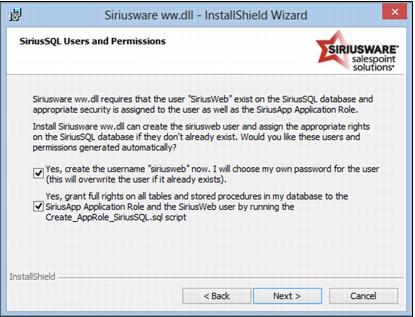
2. Create siriusweb user for SQL Server 2008 or SQL Server 2012. (This step applies to SQL Server 2008 and 2012). Before ww.dll can communicate with the SiriusSQL database, a new database log-in, siriusweb, must be created and a script granting the new user the appropriate rights to the database must be run. This is done by checking the following two boxes during the install:
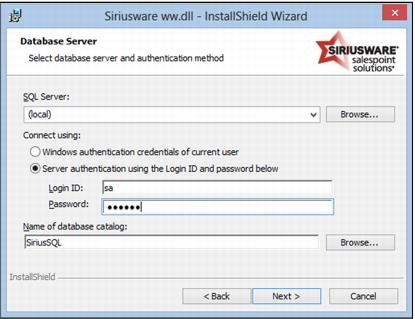
3. Select the Database Server, the SA credentials and select the database
4. Enter and confirm a password for this user
5. Enter your ProtoBase/OCV information for credit card processing
6. Run the Update ww.dll shortcut installed on the desktop