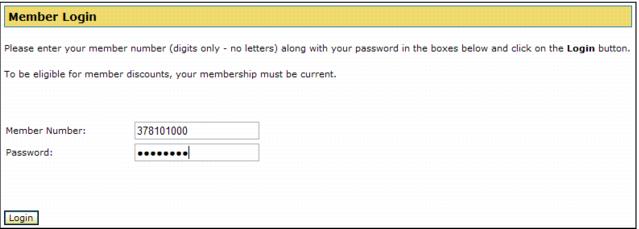
Setting the member log-in and verification fields for the member log-in process
The following site config file settings need to be configured for the member log-in process:
• Site Admin Panel > Membership Settings > MemberNoField value = pass_no-P - this can be set to "pass_no-P", "addit_no-P" or "pass_no-p,addit_no-P" where “P” is the prefix associated with the gst_pass.pass_no field in Access Control preferences. If you have something other than P in that field, adjust this setting to match what you use. For a blank prefix, use only the field name. If both pass_no and addit_no are specified in this setting, the first is tried and if that lookup fails, then the second is tried.
• Site Admin Panel > Membership Settings > MemberVerifyField value = g.passwords - the database field from the guests or address table which the guest must enter as verification of their identity – if left blank no verification is required and the remaining MemberVerify fields below are ignored.
• Site Admin Panel > Membership Settings > MemberVerifyAll value = 1 - set to 1 to enable full guest verification during a member log-in through the MemberLogin.aspx page, meaning that this is the equivalent of a regular verified guest log-in.
• Site Admin Panel > Membership Settings > MemberVerifyPrompt value = Password: - the text that the guest is prompted with for verification.
• Site Admin Panel > Membership Settings > MemberVerifyRegEx value = ^.{6,12}$ - a regular expression used to validate what the guest enters for verification.
• Site Admin Panel > Membership Settings > MemberVerifyRegExMessage value = Password invalid, please re-enter. - message to display if what the guest enters for verification does not validate according to the RegEx.
• Site Admin Panel > Membership Settings > MemberFilterDCIs value = MEMBERSHIPMUSEUM LEVEL1 ,MEMBERSHIPMUSEUMLEVEL2 ,PASSES ADULT UNLIMITED ,PASSES ADULT LIMITED - set this to pass/membership DCIs (padded to thirty characters) that are allowed for member log-ins (pass/membership used to log-in must still be valid, i.e., not expired or voided). Separate multiple DCIs with a comma. If you set value = "", then, all valid memberships/passes is allowed for member log-ins.
• Site Admin Panel > Membership Settings > GuestLoginAsMember value = 1 - set this to 1 to allow a guest log-in to also work as a member log-in. This also requires Site Admin Panel > Guest Related Settings > AllowMultiLogin value = 1 to be set. This only works if the guest who is logging in has a valid pass/membership as set in “MemberFilterDCIs” key. If you set value = “” for the MemberFilterDCIs key, than any guest with a valid pass/membership who does a guest log-in is also logged in as a member. Set the value for “GuestLoginAsMember” key to “0” to disable this functionality.
Once the visitor/guest has logged in via the member log-in process, their member number displays in the header as shown below.