Configuration for member discounts
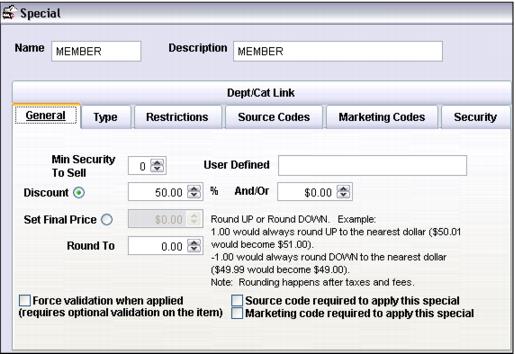
Create and configure a special that you use to provide member discounts. In the example below I’m configuring a special called Member to give a 50% discount.
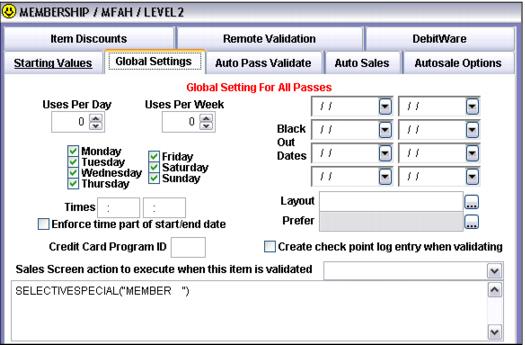
Configure the pass template for the passes for which you want the special to work:
In the item edit form go to the Action tab > Action Specifics > Global Settings tab.
Enter one of the following macros into the Sales Screen action to execute when this item is validated field along with the special name: SELECTIVESPECIAL(), GLOBALSPECIAL(), ITEMSPECIAL(), or SPECIAL(). In this example I’m using SELECTIVESPECIAL() along with my newly created Member special.
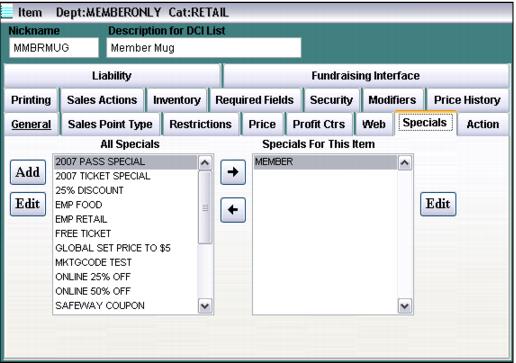
Configure the items that you want discounted member pricing for via the Member special by linking the special to those items as shown in the screen capture below.
After the visitor/guest logs in through the member log-in process and selects one of the items configured as shown above, the Member special is automatically applied to the price.