Configuration for free item modifiers for members
A members/pass holder can be given access to free item modifiers based on the number of points 1/points 2 and/or money 1/money 2 she has associated with her membership/pass. This section details the configuration required to get this to work.
a. Required site config file setup:
• Site Admin Panel > Membership Settings > PointsModDCIs value = EXHIBITS MET_MODS MEMBERFREE − The items that you want to designate as free modifier items. Enter the DCIs into the value for this key, padded to ten characters each, thirty characters total – multiple DCI entries must be separated with only a comma.
• Site Admin Panel > Email Settings > EXHIBITS MET_MODS MEMBERFREEPtsSel value = Select points1 as uses from gst_pass where pass_no = {{pass_no}} and voided_by='' and voided_for='' and start_date<=GETDATE() and expires>=GETDATE() - This setting requires editing both the key and value portions. The key portion of this setting contains the padded DCI of the free modifier item followed directly by PtsSel. The value portion of this setting contains the select statement which determines whether to deduct points from the points1 or points2 field of the pass that is used, based on the number of free modifiers purchased. Only edit the part that says Select points1 if necessary - set it to Select points2 if you want to use points2 instead of points1 or you can also use money1 or money2 as well. If you enter multiple DCIs into the PointsModDCIs key above, you need to create one of these settings per DCI.
• Site Admin Panel > Membership Settings > Allow0Total value = 1 − If a sale total might be $0 under this scheme (e.g., if a guest only “purchases” free tickets), you have to set Allow0Total to 1 to allow this.
• Site Admin Panel > Membership Settings > 0PmtTxt value = Your membership − If you allow $0 sales, you also add some text to this key to override the default text regarding payment type in email confirmations for $0 sales
• Site Admin Panel > Membership Settings > MembersOnlyDCIs value = MEMBERONLYRETAIL MMBRMUG ,MEMBERONLYRETAIL MMBRPOSTER,EXHIBITS MET_MODS MEMBERFREE,EXHIBITS MET_MODS MEMBER - Add the free modifier DCI along with member discounted DCI to the MembersOnlyDCIs key to ensure that only members can purchase this.
Note: A member discounted DCI (EXHIBITS MET_MODS MEMBER ) was added.
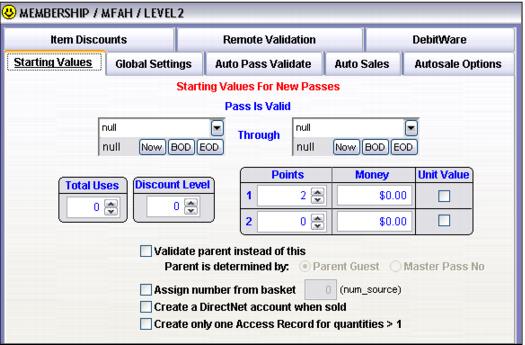
b. Configure the pass template for the passes for which you want free modifiers to work – in the item edit form go to the Action tab > Action Specifics > Starting Values tab and set either Points1 or Points2 to the number of free modifiers that you want the member to be allowed to purchase.
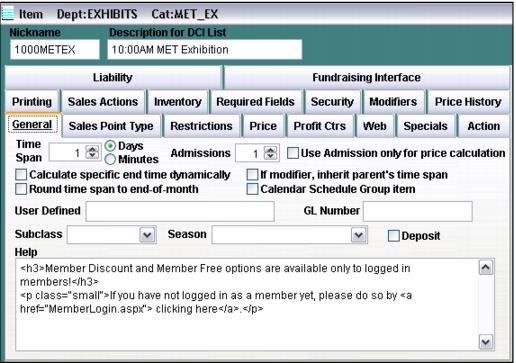
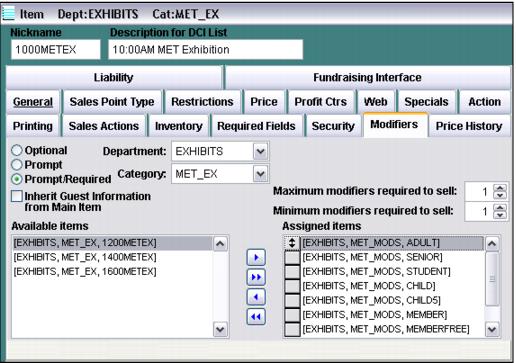
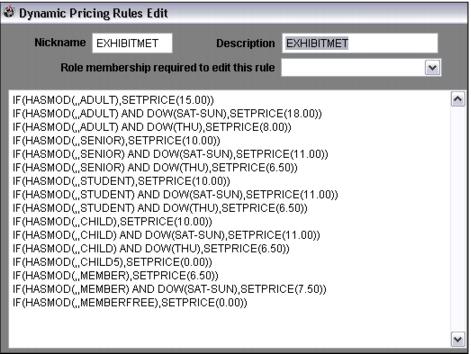
c. Configure the main ticket item with the free modifiers – enter text in the Help section to tell members to log-in – configure and assign modifiers, and then configure a Dynamic Pricing Rule to price the ticket according to the modifier selected.
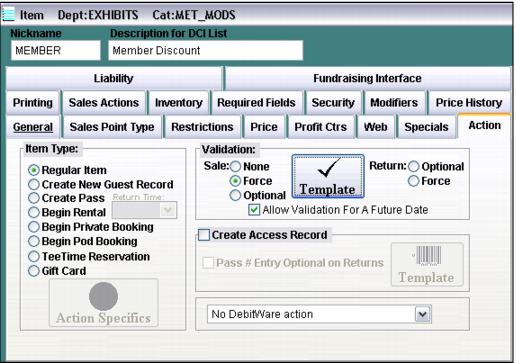
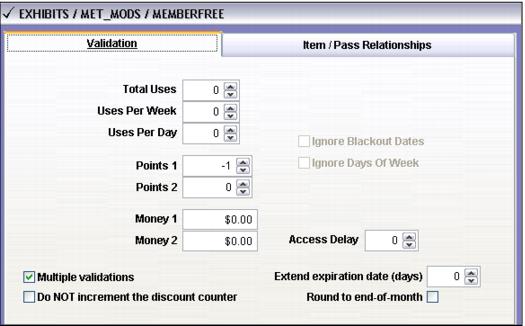
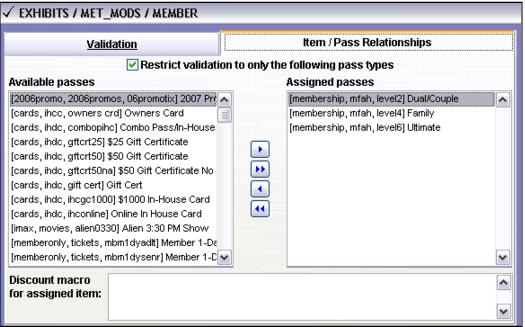
d. Configure the modifiers – member discount and member free modifiers require validation and the member free modifier is set to deduct Points 1 (-1) when it is validated. Also, in the example screen captures below I’ve restricted the validation to only certain passes.
Note: Money 1 and Money 2 can also be used for setting validation of passes
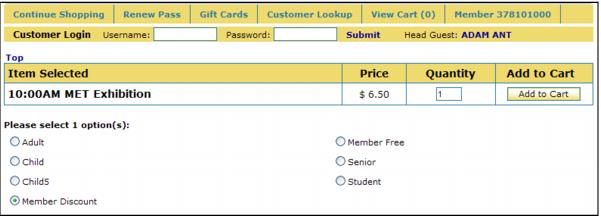
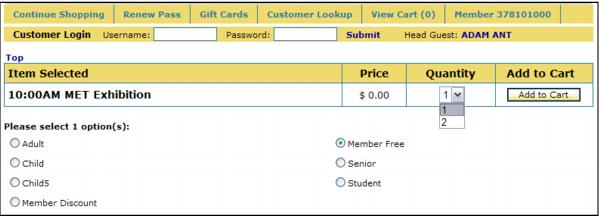
The member logs in and selects the main ticket item – the Add to Cart button is enabled for both member discount and member free items (because the member is already logged in) and the Member Free item quantity dropdown gets automatically set to the number of Points1 remaining for the membership used for log-in.
Points1 get deducted from the pass upon completion of the sale according to the number of Member Free modifiers selected.