Sales and fulfillment of In-House Cards
Described below are three different methods for sales and fulfillment of In-House Cards items. Because In-House Cards products are linked to guest records, you review the following site config file settings:
Site Admin Panel > Guest Related Settings > GuestDispRows value = guest_no, first_name, last_name, address, city, state, zipcode, country, phone, email, username, password
Site Admin Panel > Guest Related Settings > GuestEditRows value = first_name, last_name, address, city, state, zipcode, country, phone, email, cardonfile, username, password
Site Admin Panel > Guest Related Settings > ForceEditFields value = first_name, last_name, address, city, state, zip, area_code, phone, email
1. Option #1 – Assign an In-House Cards number at time of purchase and print through BatchManager
a. In-House Cards products are configured for this option as follows:
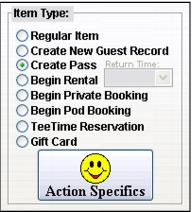
• Set to Create Pass on the Action tab
• Set to DebitWare activation on the Action tab
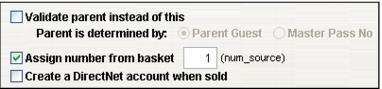
• Set to Assign number from basket on the Starting Values tab and enter the correct number
• Configure a pre-load amount for the card by setting an amount in the Amount automatically put on to the DebitWare Invoice field on the DebitWare tab
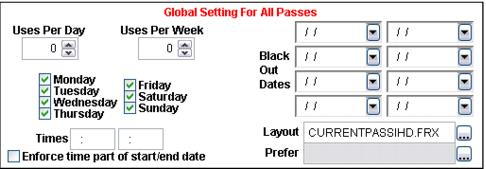
• Assign a layout to the item via the Layout field on the Global Settings tab
• Add item to the item tree used for E-Commerce module
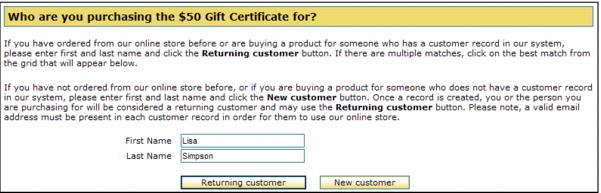
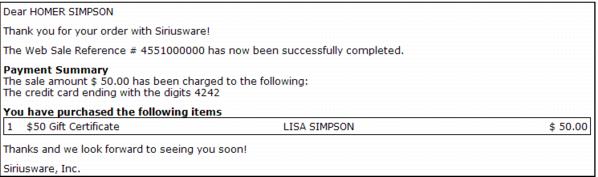
Customer selects the card he wants online and is prompted to attach a guest to the card during the Add to Cart process.
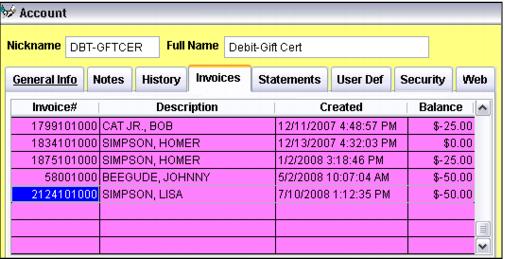
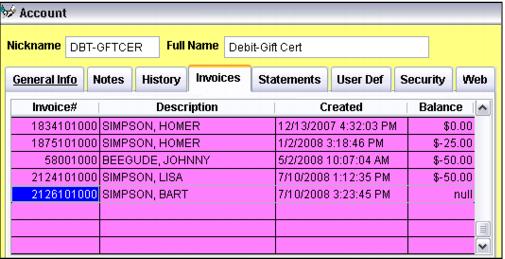
The customer checks out and pays and when Sales Host processes the sale successfully, the sale is finalized and an In-House Cards invoice with the pre-load amount is created in the account configured for the item.
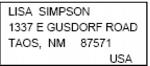
b. To fulfill the order, BatchPrint utility can be used to print the In-House Cards item as well as a mailing label. A few notes on BatchPrint utility:
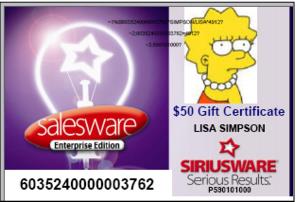
• The name and address of the guest attached to the card is printed on both the card and address label, not the purchaser’s name and address. In other words, if Homer Simpson purchased a gift card for Lisa Simpson, it is Lisa’s name and address that prints in BatchPrint utility.
• It is a good idea to include the guest name on the In-House Cards layout – otherwise it can be difficult to figure out which card goes with which mailing label.
• For information about configuring and using BatchPrint utility, see the Salesware Memberships and Passes document.
1. Option #2 – Use pre-printed, pre-encoded cards
a. In-House Cards products are configured for this option as follows
• Set to Create Pass on the Action tab
• Set to DebitWare activation on the Action tab
• Do not set to Assign number from basket on the Starting Values tab
• Configure a pre-load amount for the card by setting an amount in the Amount automatically put on to the DebitWare Invoice field on the DebitWare tab
• Do not assign a layout to the item
• Add item to the item tree used for E-Commerce module
The customer selects the card he wants online and is prompted to attach a guest to the card during the Add to Cart process.
The customer checks-out and pays and when Sales Host processes the sale successfully, the sale is saved and an In-House Cards invoice without the pre-load amount is created in the account configured for the item
To fulfill the order do the following:
1. Recall the sale
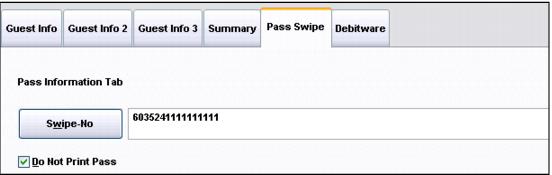
2. Swipe the pre-encoded card into the Pass Swipe tab – this links the pre-encoded card number to the pass record
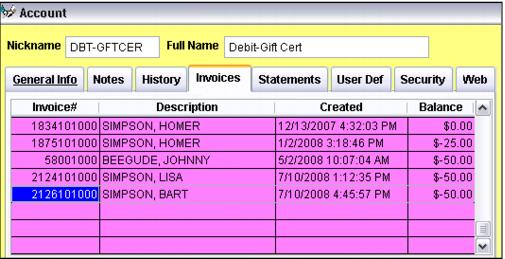
3. Finalize the sale –the pre-load amount is now present on the invoice
Optional − An Address Label layout could be attached to the In-House Cards item that would automatically print when the sale of the In-House Card item is finalized.
2. Option #3 – Sell a combined pass/In-House Cards product with Debitware activation occurring after the sale and print through BatchManager
a. Pass/In-House Cards products are configured for this option as follows
• Set to Create Pass on the Action tab
• Set to No DebitWare action on the Action tab
• Set to Assign number from basket on the Starting Values tab
• Do not configure a pre-load amount for the card on the DebitWare tab
• Assign a layout to the item
• Add item to the item tree used for E-Commerce module
The customer selects the pass/card he wants online and is prompted to attach a guest to the item during the Add to Cart process.
The customer checks out and pays and when Sales Host processes the sale successfully, the sale is finalized – no In-House Cards invoice is created.
To fulfill the order, the pass/card could be printed through BatchPrint utility as described above, but in order to activate the In-House Cards part of the product, the visitor/guest has to have it activated (and loaded) at a salespoint – when this occurs an In-House Cards invoice is created.