View In-House Cards information online
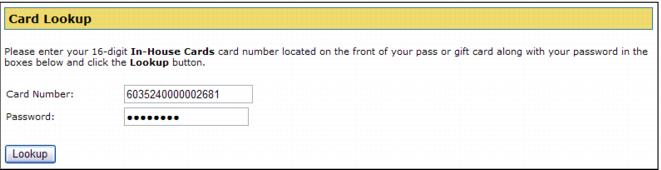
In-House Cards lookups are done from the DWLookup.aspx page that is accessed via a link (in the default pages this is the link in the Page Header and footer called Gift Cards). For a visitor/guest to see information about his In-House Cards card, he needs to enter either the pass number or the swipe number of the card. You determine which to use via the site config setting DWLookupField (can be swipe_no or pass_no). You can require password verification when doing the In-House Cards lookup by setting the value for the site config key DWSecureLookup to 1. Setting this to 0 requires that the guest enter only his pass number or swipe number to view In-House Cards information for his card.
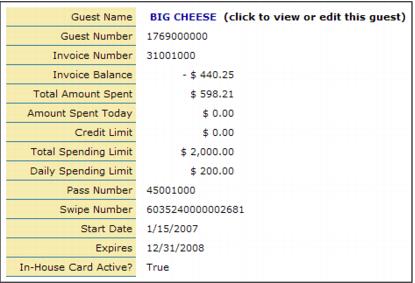
The information displayed on the DWLookup.aspx page is controlled by the site config setting DWDispRows.
Example:
Site Admin Panel > Debitware Settings > DWDispRows value = invoice_no, inv_bal, sp_bal, sp_bal_dy, crlimit, splimit, splimit_dy, pass_no, swipe_no, start_date, expires, dw_active, guest_no, guest_name
The choices of what to display include guest_name (Guest Name), guest_no (Guest Number), invoice_no (Invoice Number), inv_bal (Invoice Balance – see note below), sp_bal (Total Amount Spent – the total amount he’s spent over the lifetime of the card), sp_bal_dy (Amount Spent Today – the total he’s spent for that day), crlimit (Credit Limit), splimit (Total Spending Limit – the total amount he is allowed to spend with the card over the lifetime of the card), splimit_dy (Daily Spending Limit – the amount he can spend in any one day with the card), pass_no (Pass Number), swipe_no (Swipe Number), start_date (Start Date – the first day that the card can be used), expires (Expires – the date that the card expires), dw_active (In-House Card Active? – whether or not the In-House Cards item is currently active).
Note: Set ShowDWBalAsNeg to 1 to display Invoice Balance as a negative number if the guest has money available for spending and as a positive number if the guest owes money on the card – set to 0 to display the opposite.
From the DWLookup.aspx page, a guest can click on his name in the Guest Name field to either link directly to his guest record (if he already entered his password when he looked up his In-House Cards item) or be taken to the GuestSelected.aspx page to complete his log-in and gain access to his guest record provided that the DWNameLink key is set to 1. If this setting is set to 0, the Guest Name is not a link on the page.