Web Rules configuration and online results
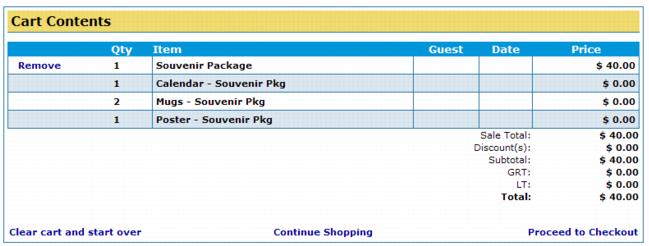
In the example below Web Rules are nested to create a multi-item retail package (the package consists of one calendar, two mugs and one poster), and because no guests are being attached to the items we do not enforce age restrictions. For a description of how to configure Web Rules to sell pass packages with guests attached to the items and with age restrictions, see
E-Commerce pass package functionality.
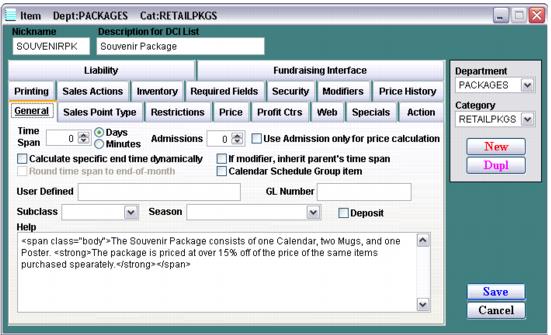
1. Create a new item configured as Regular Item item type.
a. Set the Min Qty and Max Qty on the Restrictions tab to 1 so that guests can only buy one of these packages at a time and insert informative text into the Help section on the General tab to be displayed on the ItemShow.aspx page.
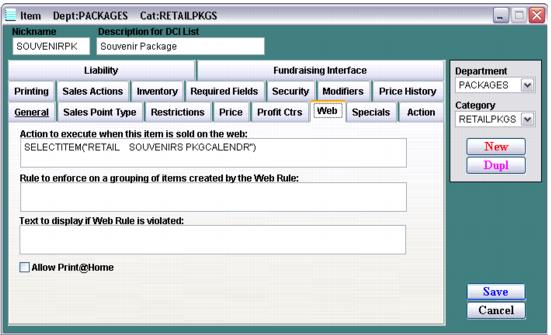
2. Configure the Web tab.
a. Place a macro in the Action to execute when item is sold on the web field that auto-sells the next item in the package. The macro must be formatted as follows: SELECTITEM("DCI") The DCI must be padded with spaces to equal ten characters each if necessary (thirty characters total). In the example below we want to auto-sell the PKGCALENDR item, so the macro is as follows: SELECTITEM("RETAIL SOUVENIRS PKGCALENDR")
b. The remaining two fields are left blank because we are not enforcing age restrictions for any added guests.
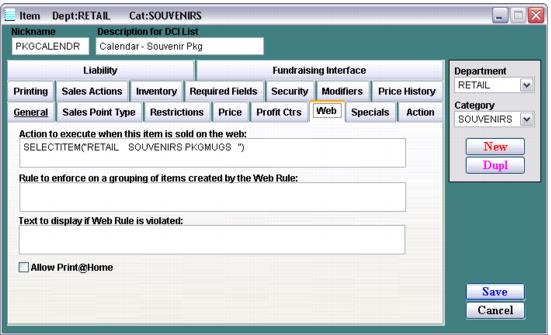
3. Create the PKGCALENDR item as a Regular Item item type, set the Min Qty and Max Qty on the Restrictions tab to 1 and add the following macro to the Action to execute when this item is sold on the web field: SELECTITEM("RETAIL SOUVENIRS PKGMUGS ")
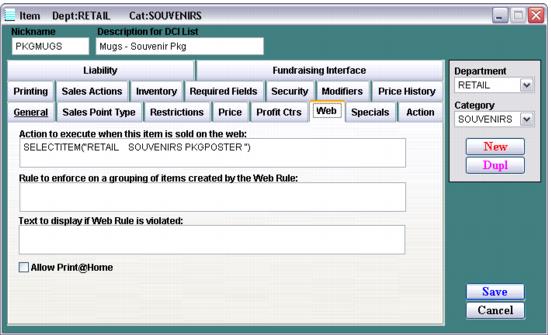
4. Create the PKGMUGS item as a Regular Item item type, set the Min Qty and Max Qty on the Restrictions tab to 2 and add the following macro to the Action to execute when this item is sold on the web field: SELECTITEM("RETAIL SOUVENIRS PKGPOSTER ")
3. Create the PKGPOSTER item as a Regular Item item type and set the Min Qty and Max Qty on the Restrictions tab to 1. Because this is the final item in the package no further configuration is necessary.
4. Add the Souvenir Package item to the main E-Commerce item tree and add the Calendar – Souvenir Pkg, Mugs – Souvenir Pkg and Poster – Souvenir Pkg items to an inactive part of the E-Commerce item tree so that these items are not available individually to guests.
5. The online results
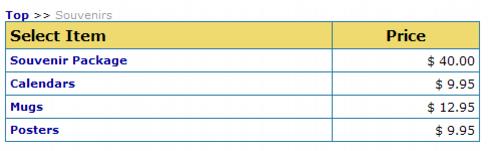
a. User selects the Souvenir Package.
b. User cannot adjust the quantity because we modified the Min/Max Qty. The informative Help text is displayed.
c. User then clicks the Add to Cart button and is returned to the ItemShow.aspx page to add the Calendar item to the Cart.
d. User again clicks the Add to Cart button and is returned to the ItemShow.aspx page to add the Mugs item to the Cart.
e. User again clicks the Add to Cart button and is returned to the ItemShow.aspx page to add the Poster item to the Cart.
f. User again clicks the Add to Cart button and is taken to the CartShow.aspx page where the entire Souvenir Package is now in the Cart.
Notice in the above example that the Souvenir Package is priced with the total price built into the main item. You could just as easily price the package by assigning individual prices to each of the individual items in the package.