Cart Rules configuration, process, and results
In the examples below we create Cart Rules to add a shipping fee to a sale, to apply a discount to a sale and to require that two or more of a certain item be in the sale.
Example 1:
Add a shipping fee when there are three or more “MUGS” items from the RETAIL department, SOUVENIRS category in the cart
1. Set department field to RETAIL, category field to SOUVENIRS and item field to MUGS
2. Set the cartrule field to tally() >= 3
3. Leave message field blank
4. Set the cartaction field to CARTADD(<department>MISC</department><category>SHIPPING</category><item>SHIP5</item><options><price>5.0</price></options>)
5. Set required field to 0 or False because the DCI RETAIL > SOUVENIRS > MUGS is not required to be in the shopping cart in order to complete the sale
6. Set notes field to Adds a $5.00 shipping charge to all sales of three or more MUGS items from RETAIL SOUVENIRS
7. Results:
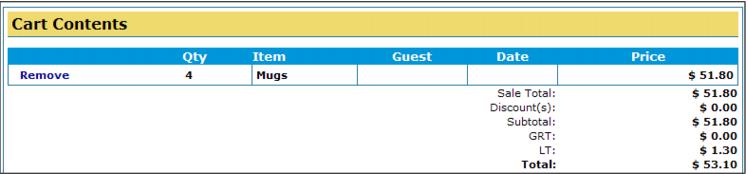
a. User adds quantity 4 of the RETAIL > SOUVENIRS > MUGS item to the cart – the cartshow.aspx page:
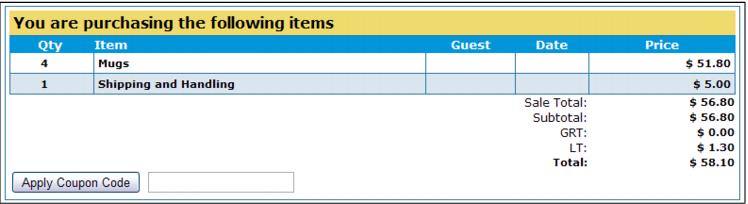
b. When user gets to the Checkout.aspx page the cart contents now display the Shipping and Handling item as part of the sale because “greater than or equal to 3” RETAIL > SOUVENIRS > MUGS items are in the cart
Example 2:
Add a $10.00 discount to the cart whenever there are five or more items in the cart from the RETAIL department, SOUVENIRS category
• Set department field to RETAIL, category field to SOUVENIRS and leave item field blank
• Set the cartrule field to tally() >= 5
• Leave message field blank
• Set the cartaction field to CARTADD(<department>MISC</department><category>DISCOUNTS</category><item>DISCOUNT01</item><options><price>10.00</price><qty>-1</qty></options>)
• Set required field to 0 or False because items from RETAIL department SOUVENIRS category are not required to be in the shopping cart in order to complete the sale
• Set notes field to Adds a $10.00 discount ($10.00 * -1) to all sales of 5 or more items from department RETAIL and category SOUVENIRS
• Add the DISCOUNT01 item an inactive part of your E-Commerce item tree
• Results:
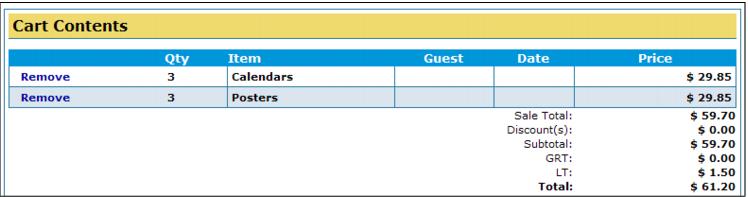
a. User adds 3 Calendars and 3 Poster items which are in the RETAIL department, SOUVENIR category to the cart - the CartShow.aspx page:
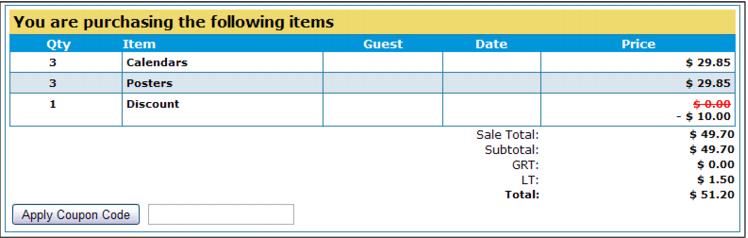
b. When user gets to the Checkout.aspx page the cart contents now display the Discount item as part of the sale because “greater than or equal to 5” RETAIL > SOUVENIRS items are in the cart
Note: the item price is set to $10.00 <price>10.00</price> but the quantity is set to -1 <qty>-1</qty> in order to arrive at the net overall price of -$10.00 for the item.
Example 3:
Require that one or more of a product is present in the cart before allowing checkout.
1. Set department field to MISC, category field to SHIPPING and item field to SHIPHANDFE
2. Set the cartrule to tally() >= 1
3. Set message field to You must purchase 1 Shipping & Handling item before you can complete your sale. <ahref="http://localhost/ecommerce35/itemShow.aspx?Dep=iJ9WbUrrNfVV%2bzmPXs52XQ%3d%3d&Cat=1DUf0%2fma%2fqsU%2b%2bSBpp0vKA%3d%3d&It=nhAMvbq3ZJJZ1wgns5kmhw%3d%3d">Buy now.</a>
4. Leave cartaction field blank
5. Set required field to 1 or True because the MISC > SHIPPING > SHIPHANDFE item is required to be in the shopping cart in order to complete the sale
6. Set notes field to This ensures that guests must purchase one of the Shipping & Handling Fee item per online sale
7. Add the SHIPHANDFE item to your E-Commerce item tree
8. Results:
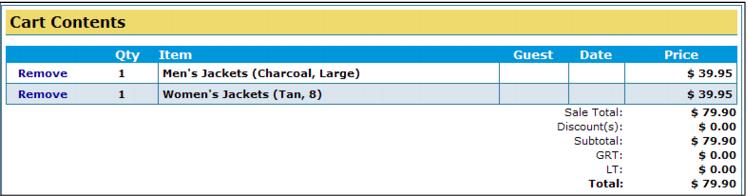
a. The user adds some items to the shopping cart but has not yet added the Shipping & Handling item
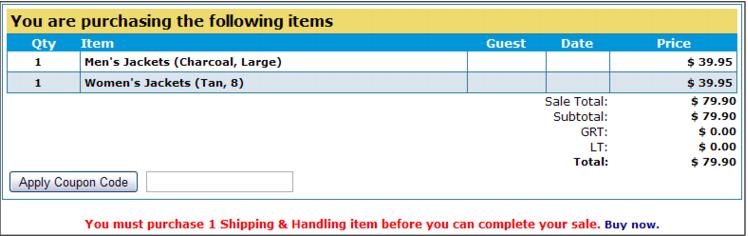
b. Upon reaching the checkout.aspx page, the contents of the message field appear informing the user that they must purchase a Shipping & Handling item
Note: that a link is placed in the message (Buy now.) which when clicked takes the user to the ItemShow.aspx page for the Shipping & Handling item
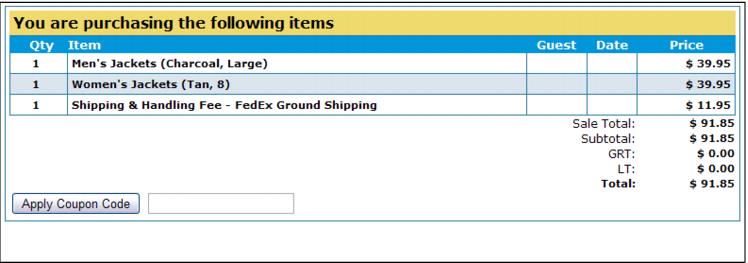
c. Once the Shipping & Handling item is in the shopping cart the message no longer appears and the sale can be processed