Prerequisites:
• The ww.dll must be installed
Note: Please refer to Siriusware Inc. documentation (E-Commerce Installation Guide and Salesware Reporting) for instructions on installing ww.dll, E-Commerce pages and Reporting Services.
• Microsoft .Net 4.5 (come pre-installed on Windows 8)
• Siriusware Common Files application
• An operating System of Windows 7 or Windows SQL Server 2008 R2 or newer is required
The Export Service installer creates the ExportService directory structure with the following folders and subfolders:
• C:\ProgramFiles\Siriusware\ExportService
• C:\ProgramData\Siriusware\ExportService
The service installs the following files:
• SiriuswareExportService.exe
• SiriuwareLibrary.dll
• Siriusware.Library.Classes.dll
• ExportService.INI
• ExportService_System.INI
To install Export Service application:
1. Run the Install_Siriuware_ExportService_xxxx.msi file.
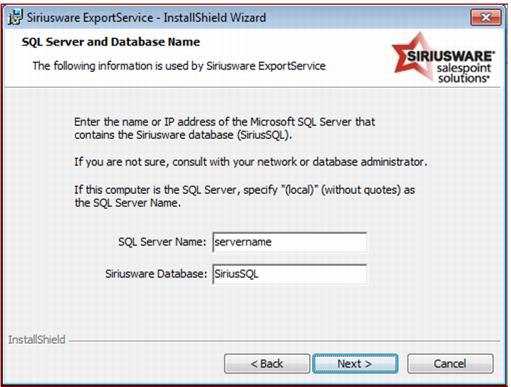
2. Enter the name of the SQL Server and the name of the Siriusware Database.
3. After Export Service application is installed run the Update Export Service shortcut installed on the desktop.
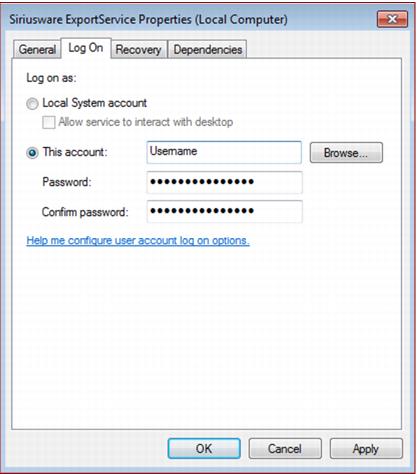
4. Open the Services Management Console by navigating to Control Panel > Administrative Tools > Services. Locate the Siriusware ExportService, double click, and then click on the Log On tab. Click the This Account radio button and enter a user account and password for the service.
Important: This user account must have permission to Write to the folder where Export Service writes files.
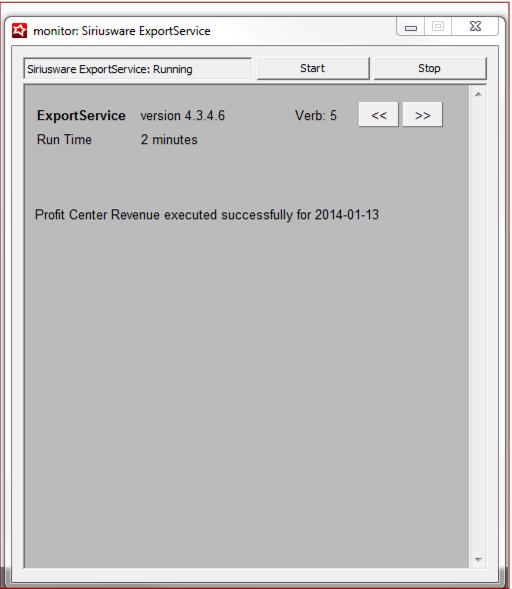
5. Start the Export Service’s Service Monitor and start the service.