How to configure modifier appearance in the interface
Modifiers appear as buttons on a dialog on the Sales screen when you select an item that has associated modifiers, or click on the Modify button for a line item (depending on how modifier options are configured). The appearance of modifiers in the interface is accomplished via a combination of .INI settings and item configuration as described below.
To configure modifier appearance in the interface:
1. Go to SysManager > Preferences > Miscellaneous > Global Salespoint .INI.
2. Find the section designating the Table Service Food and Beverage salespoint group (ex: <FineDining>)
3. Go to the [Interface] section.
4. Add lines in the Interface section to specify the number of modifier columns and rows you wish to appear on the Modifier dialog.
• ModButtonCols=4 (specifies four columns of modifiers)
• ModButtonRows=5 (specifies five rows of modifiers)
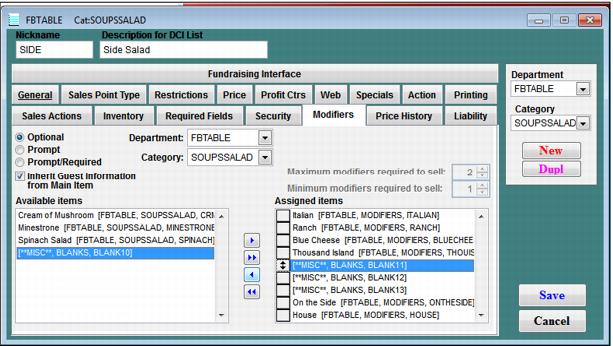
5. To create spaces on the Modifier dialog (new rows), it is necessary to drag one or more blank items as placeholders into the assigned items list for a given item.
• Create one or more DCIs with no description:
• Department=BLANK, Category=BLANK
• Item=BLANK, BLANK1, BLANK2, etc.
• Description for DCI is left empty
• In item configuration, on the Modifier tab for an item, select the Blank item from the available list (you may need toggle to the Blank Department and Category to make it available).
• Drag the Blank item to the assigned item list and insert it as required to create a placeholder (or new row) at the salespoint.
• If more than one placeholder is needed to adjust the modifier button configuration, continue inserting Blank1, Blank2, Blank3, etc. to the assigned list in the item.
Exercise:
1. Create some BLANK items in your DCI list if none currently exist.
2. Select an item from your DCI which has modifiers associated with it and insert one or more BLANK items between the modifiers to create spaces on the Modifier dialog at the salespoint.