How to include/inactivate modifiers via the item tree
Because modifiers are really simply regular DCIs, to use them at the point-of-sale, they must be included in the local data for the salespoint to access them. This can be accomplished in two ways as described below:
To include/inactivate modifiers via the item tree:
1. First, determine whether you wish to limit the items available in the local database at your Table Service Food and Beverage or Quick Service Food and Beverage salespoints. This is important to ascertain in situations where you may have a large number of total items resort-wide, of which the Food Service items are only a subset, and you wish to save time when building or updating items at your salespoints. For example, if your resort uses the Salesware Retail module in addition to Food Service, you may not wish to have the thousands of retail items updating to your local database for the Table Service Food and Beverage and Quick Service Food and Beverage salespoints, where they are never sold.
2. To control whether or not your salespoint has all items or limited items held locally, use the following setting in the .INI file, [Preferences] section: LimitLocalItems=(choices are TRUE or FALSE).
3. If you choose not to limit the items in your local database, by setting LimitLocalItems=FALSE, modifiers for Food Service module need not be manually added to the item tree in SysManager. They are included in the local data set by default and therefore are available with the items to which they are assigned.
4. If you choose to limit the items in your local database, however, by setting LimitLocalItems=TRUE, you need to add the modifiers to your item tree and make them inactive.
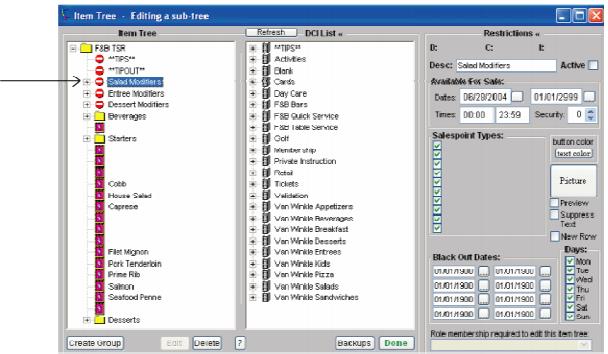
5. To do so, go to SysManager and click on Item Tree. Select the item tree you wish to configure, and click Edit.
6. Drag all modifiers you have created into the item tree at the left from the DCI on the right.
7. However, because you typically do not want the modifiers to all appear as separate items available to your operators for sale, you want to mark the modifiers as “inactive” in the item tree.
8. To mark items in the item tree as inactive, select the item or group in the item tree at the far left, and uncheck the Active check box under Restrictions at the far right. This places the item(s) into the local data without making them appear on the screen as separate selections available for sale.
Exercise:
• Place your Sauce modifiers into the item tree. Make them inactive.