How to configure service charge gratuity items
You may want to configure items that apply an automatic gratuity percentage when added by an operator to a sale. This process is described below:
To configure service charge gratuity items:
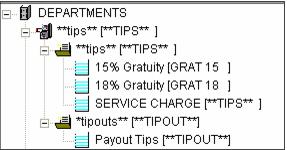
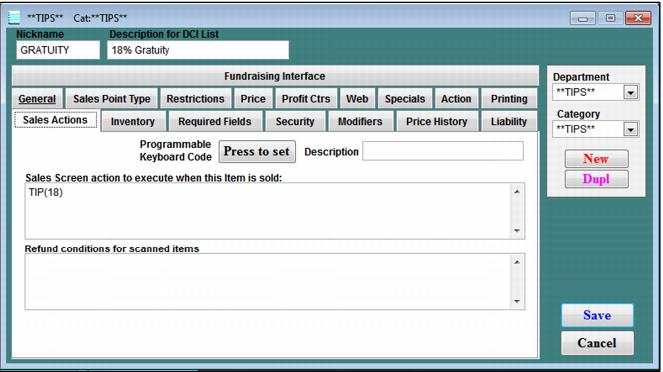
1. Start by creating a new item in the **TIPS** category.
2. Name the item appropriately.
Note: The name of the **TIPS** item prints on the guest check, not the name of the gratuity item.
3. Go to the Sales Actions tab and enter TIP(XX) where XX is the percentage of the gratuity that is charged.
4. This gratuity item really serves as a shortcut to the **TIPS** item and calculates the price of the **TIPS** item based on the subtotal of the sale (before any taxes) and the percentage entered in the Sales screen action macro; thus the reason the **TIPS** item name prints on the guest check instead of the gratuity item’s name.
5. Make sure the **TIPS** department and all its categories and items have been added to the item tree appropriately and that the gratuity items are active and selectable by servers.
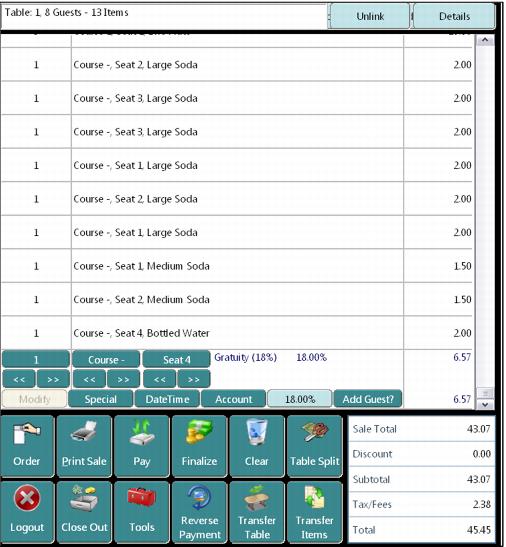
6. To add one of the pre-configured gratuity items to a check, the server selects the item and add it to the sale just prior to delivering the bill to the guest.
7. The gratuity is calculated based on the subtotal of the sale at the time it is added to the sale, so if any additional items are added to the sale after the gratuity item was added it does not re-calculate. In this situation, the server voids the gratuity item and add it again after additional items have been added to the sale.
8. There is no need to enter any additional tips at Finalize as the gratuity item has already applied the appropriate tip amount.
9. If a guest tips on top of the gratuity, then additional tips may be entered on the Finalize dialog.