Food Service : How to perform table splits in Table Service Food and Beverage module How to perform table splits in Table Service Food and Beverage module
If a table splits the check, you can recall the table to assign splits.
1. On the Table Prompt dialog, select the appropriate table to recall the existing order.
2. Click the Table Split button (located at the bottom of the Sales screen, provided you’ve assigned it as a main button).
3. When prompted, enter the total number of splits (or checks) you are requesting.
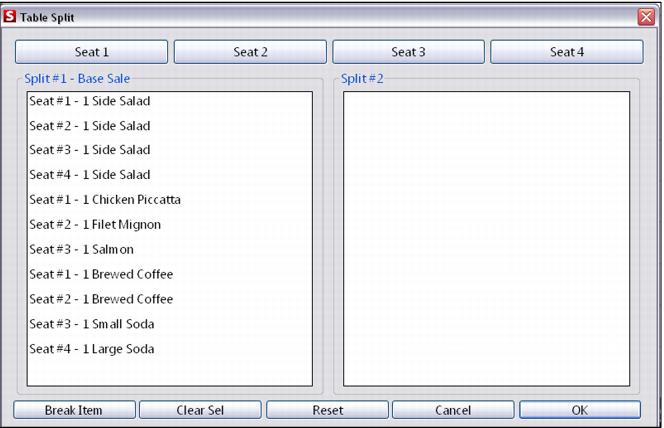
4. You are presented with a dialog showing all the items on one check, along with empty split windows in accordance with the total number of splits you’ve requested.
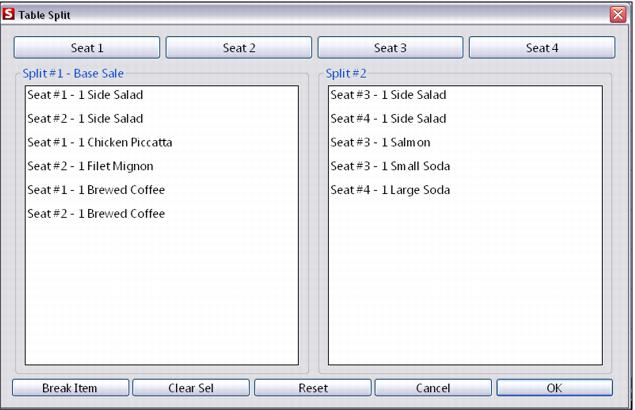
5. Click on the item to select it, and then click on the new split for which you’d like to place the item to add it to the appropriate check. Continue until all checks are split as desired.
6. Separate checks print for each split for delivery to the table and when the order is recalled to the screen for payment, the table splits are evident on the Recall Table dialog.
BEFORE:
AFTER: