How to use the Break Item button in Table Service Food and Beverage module
The break item functionality on the Table Split dialog allows the server to take an item with quantity greater than one and separate it into individual items for check splitting. You cannot currently use the break item functionality on a line item with a quantity of one.
1. On the Table Prompt dialog, select the appropriate table to recall the existing order.
2. When prompted, enter the total number of splits (or checks) you are requesting.
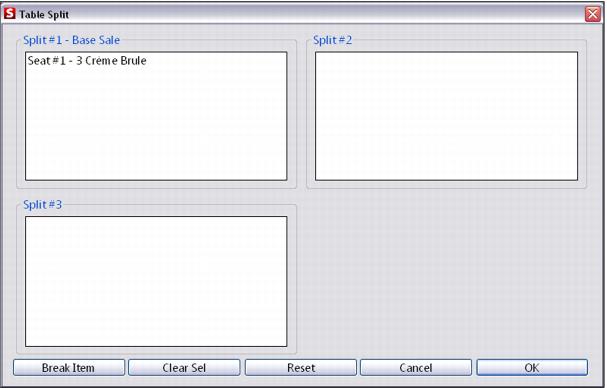
3. You are presented with a dialog showing all the items on one check, along with empty split windows in accordance with the total number of splits you’ve requested.
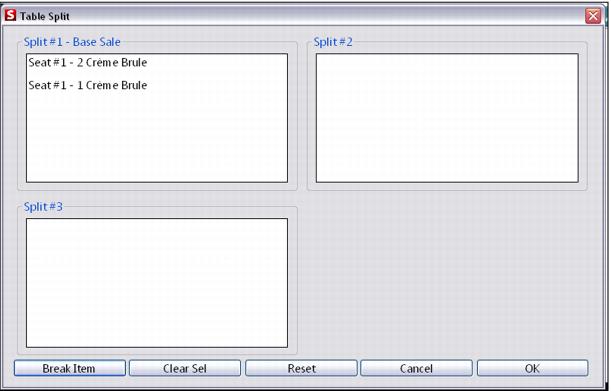
4. Click on the item you would like to split, and then click the Break Item button on the bottom of the Table Split dialog.
5. One of the items is then separated from the others of that type. Continue to use the Break Item functionality to separate the items into the appropriate number of individual splits.
6. As the items are split, new print sale receipts print for each split.
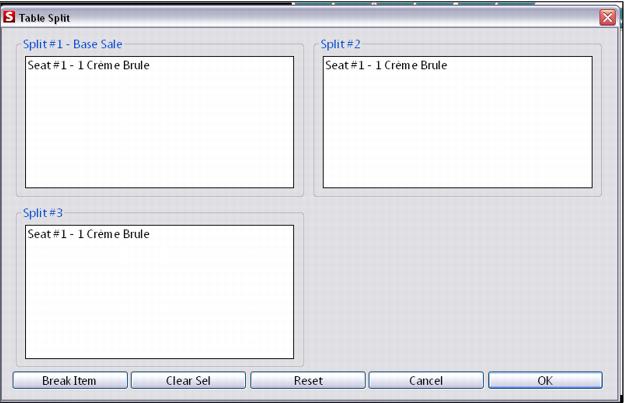
7. Place the remaining split items onto split checks as appropriate.
BEFORE:
ITEM SPLIT IN PROGRESS:
AFTER: