SRM setup
Create printer
1. Create a new printer on the PC (Control Panel > Add a Printer).
2. Add a local Printer
3. FILE: Print to File
4. Generic ( Generic/Text Only )
5. Name the printer (This example uses “SRM Test printing”)
Sales Setting
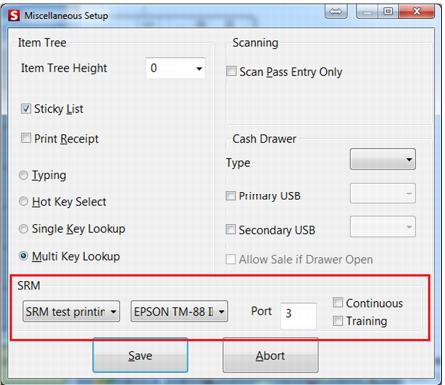
1. Go to Tools > Sales Pt. Setup > Miscellaneous Setup > SRM Group Box setting
• First combo box is the name of the printer (created in initial setup)
• The second combo box is the type of printer that’s being printed to.
• The port number is the port that the SRM is connected to. If left empty or is at 0, the SRM is disabled.
2. Make sure the printing setup for Receipts and Saved Sales is set up to the same printer (created in initial setup).
3. You can print other documents on the printer connected to the SRM by pointing to the “SRM test printing” (e.g., cc receipt).
SRM .INI settings (Sales32c.INI)
1. If salespoint is an Quick Service Station ( this is not required for Restaurant mode )
[SRM]
OverTheCounter=TRUE
Note: No setting is required for Table Service Station
2. To set up the receipt to cut automatically after receipt printing setup. This prints six empty lines before issuing the cut code to the printer.
[SRM]
PostPendStr=0A0D0A0D0A0D0A0D0A0D0A0D
3. Remove cut codes from the Receipts and Saved Sale layouts.
4. Change sub total value in Receipt layouts from Utility > sale_sub to Utility > sale_ssub. This is the subtotal not including tips. This is a SRM requirement.
5. Set:
[Preferences]
CalcTaxOnSaleTotal=TRUE.
• Sales usually calculate taxes per item. And rounds based on item. This causes higher rounding of errors as we have more and more items in one sale.
• This caused an issue during certification, so we have to modify Sales to use the sale total to calculate taxes instead of per item.
• This has a restriction. All items in the sale must have the same tax value.
Note: Total and separate tax fees are now calculated in siriussp_GetCloseoutAmts.
Debug options
1. If Verbosity >=3 a sent.txt file is created in the ProgramData directory to log everything that is sent to the SRM computer via the serial port.
2. [SRM]
NoCommForDebug
If TRUE, don’t do any serial port communication to SRM. Just go through the motions, but don’t output anything.
Note: Issues identified with certification of the Sales recording module have been fixed. SRM certification has been completed.