Sales 32c.INI | Module | .INI Setting | Valid values | Default | Description | See also |
[Preferences] | Validation | AccessPrefix | A - Z | A | Used to override the default access prefix configured in SysManager > Preferences > Access Control. By default the access prefix is set up as A in SysManager. | |
[Preferences] | Address2Label | Any text string | “” (empty string) | Used to redefine the Address2 field on the Account, Invoice and Guest Lookup dialogs in Sales. Primarily used to support international addresses and phone numbers. | AreaCodeCharacters PhoneMask | |
[Preferences] | Charge Cards | AllowCCCloseBatch | TRUE/ FALSE, YES/NO, ON/OFF, 1/0 | TRUE | Used to disable the Close Batch button on the Close Batch dialog (for DirectNet). | AllowCCClosePrint AllowCCPrintExit |
[Preferences] | Charge Cards | AllowCCClosePrint | TRUE/ FALSE, YES/NO, ON/OFF, 1/0 | TRUE | Used to disable the Close/Print button on the Close Batch dialog (for DirectNet). | AllowCCCloseBatch AllowCCPrintExit |
[Preferences] | Charge Cards | AllowCCPrintExit | TRUE/ FALSE, YES/NO, ON/OFF, 1/0 | TRUE | Used to disable the Print/Exit button on the Close Batch dialog (for DirectNet). | AllowCCCloseBatch AllowCCClosePrint |
[Preferences] | Reservations, Rentals | AllowCombineWithReservation | TRUE/ FALSE, YES/NO, ON/OFF, 1/0 | TRUE | If FALSE, prevents sales that have Reservation Headers from being involved in rental sale combinations. If an attempt is made to combine a reservation with the current sale, Sales returns the message, “This salespoint is designated (by .INI setting) to not allow combinations with Reservations Headers.” | |
[Preferences] | AllowDuplicateModifiers | TRUE/ FALSE, YES/NO, ON/OFF, 1/0 | TRUE | Add this setting to prevent operators from selecting the same modifier DCI multiple times for the same main item. TRUE means that operators can select the same DCI from the modifier dialog multiple times. | ||
[Preferences] | Charge Cards | AllowEmptyRefundApproval | TRUE/FALSE | TRUE | The AllowEmptyRefundApproval=TRUE setting replaces an empty approval code on refunds with "CREDIT". | |
[Preferences] | ProtoBase (External gift cards) | AllowGiftCardCashOut | TRUE/ FALSE, YES/NO, ON/OFF, 1/0 | FALSE | If TRUE, swiping an external (ValueLink) gift card into an empty sale displays a dialog giving the operator the options to check the card balance, cash out the card, or cancel. If FALSE, swiping a gift card in an empty sale automatically retrieves the card balance. | |
[Preferences] | AllowItemDrag | TRUE/ FALSE, YES/NO, ON/OFF, 1/0 | TRUE | Allows for dragging and dropping of items in the Sales interface. Requires the security setting Sales – Allow swapping of items. When Points4Sale items are swapped by dragging and dropping, the points remaining get updated immediately after the swap occurs. Each item swap is limited to items of the same item_type and items with the same modifier requirements. If an operator tries to swap items with different item_types, Sales does not allow it and displays a message that the item_types don't match. If an operator tries to swap items with differing modifier requirements, Sales either notifies the operator that it is not allowed (in the case where the existing item has modifiers and the operator is trying to replace it with an item that does not require modifiers), or the swap occurs, but the sale cannot be finalized due to missing modifier(s). Note: The item swapping functionality was added to Sales to allow the easy swapping of Points4Sale items where it is not obvious from the Sales screen how many points are consumed until the item is added to the sale. It is advisable that item swapping not be used in place of removing an existing item from the Sales invoice and adding the desired item unless you have thoroughly tested this and know that there are not any undesirable side effects. Item swapping was not designed to work with the Begin Private Booking or Begin Pod Booking item types. To perform an item swap, press and hold the left mouse button on an item in the item tree list that you want to replace an existing item with, drag the mouse over the item in the sale that you want to replace, release the mouse button, and if the item is compatible, you are given a confirmation message before the swap is performed. | ||
[Preferences] | AllowLineItemMoving | TRUE / FALSE | FALSE | Line Item order can now be manipulated by means of an .INI setting in the sales32c.INI. Up and down arrows will be displayed on the current, selected line item which can then be moved in the line item order. This order is maintained through saving and recalling the sale. This will cause the line items to have ticket printing operations performed in the displayed order. This will not affect Receipts, Confirmation Letters or any other printing. 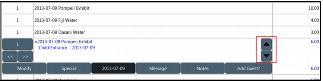 | ||
[Preferences] | Validation | AllowOfflineWanValidation | TRUE/ FALSE, YES/NO, ON/OFF, 1/0 | TRUE | Specifies whether or not WAN validation is used. If TRUE and the WAN are down, passes that need validation over the WAN are allowed, and then trickled when WAN service is restored. Passes that are allowed through this setting cannot be validated and are marked in the pass list table with a status of 7. At Middleware connect, the system attempts to forward these passes. If set to FALSE and the WAN is down, all passes are invalid until the connection is restored. | |
[Preferences] | Membership/Passes | AllowScannerValidationIfSalespointValidatedThisShift | YES / NO | NO | SalesEZ application can now support validating at the salespoint, through a DCI, and validating through ScanMan or GateKeeper, self-validating modules, when the validation template is set to Shift = 1 Day in the AutoSale Options tab of the validation template. This is accomplished by using the .INI setting in the SalesEZ.INI of AllowScannerValidationIfSalespointValidatedThisShift=YES in the [Preferences] section of the .INI. With this setting, SalesEZ application treats both validations, the first, at the salespoint and the second validation, through ScanMan or GateKeeper modules, as the first of the day. This allows for the two validations to be treated as the first validations of the day and increments both of the respective validation values. The default setting is NO, and if the .INI setting is absent or set to NO, the expected behavior is observed. | |
[Preferences] | AllowSplitSave | TRUE FALSE, YES/NO, ON/OFF, 1/0 | TRUE | If FALSE, the Split dialog no longer contains the Save button. It displays only the Finalize button and only allows sales to be finalized off of the original sale. | ||
[Preferences] | Food Service | AllowTipOnSave | TRUE/ FALSE, YES/NO, ON/OFF, 1/0 | FALSE | Used to enable/disable tipping while saving. To enable tipping on saving (not recommended), set to TRUE. | |
[Preferences] | AllowZipCancelAllowZipCancel | TRUE/ FALSE, YES/NO, ON/OFF, 1/0 | FALSE | If TRUE, the zip code collection dialog appears with a CANCEL button and can also be canceled with ESC. If it is canceled, the word CANCEL appears in the sales_hdr.zip field for the transaction. If validation (validatezip=true) is turned on, the value is not validated against the zip code table. | validatezip | |
[Preferences] | Cash Management | AllowZeroBagNo | 1 / 0 | 1 (FALSE) | This allows the bag number to be set to 0 for a pull. | |
[Preferences] | AlwaysSure | TRUE/ FALSE, YES/NO, ON/OFF, 1/0 | FALSE | Specifies whether to disable the, Are You Sure? dialog that displays before finalizing a sale. If FALSE, the box displays. | QuickTips | |
[Preferences] | GateKeeper | AdmitNextSound | TRUE/ FALSE | TRUE | A setting was added for multiple admissions (AdmitGoodFor=TRUE) to disable the playing of sounds after each entry. The text in GateKeeper module was adjusted so that uses remaining don't move when a new scan comes in. | |
[Preferences] | Dynamic Pricing | ApplyAccountRulesOnRecall | TRUE/ FALSE, YES/NO, ON/OFF, 1/0 | TRUE | By default, if an account is added to a recalled sale, and that account is configured to apply a Dynamic Pricing Rule, the items in the saved sale have their prices recalculated based on the Dynamic Pricing Rule attached to the account. Because this is not how the recalculation of the saved item prices has behaved in the past, this .INI setting was created to make Sales behave “the old way” and not recalculate the item prices based on the presence of the new account. If TRUE, prices are recalculated when an account is added to a recalled sale. Set to FALSE in order to prevent the recalculation of the item prices based on adding an account to a recalled sale. | |
[Preferences] | AreaCodeCharacters | Any positive integer, representing number of characters | 4 | Used to support international addresses and phone numbers. Specifies how many characters out of the PhoneMask .INI setting mask represent the area code. Masks are flexible and are not limited to the following. Examples: [Preferences] PhoneMask=(##) #### #### AreaCodeCharacters=4 [Preferences] PhoneMask=##-### #### AreaCodeCharacters=3 Affects the Account, Invoice and Guest Lookup dialogs in Sales. In order for this .INI setting to work, the Use “Non-USA” format check box must be checked in SysManager > Preferences > Company Information. | Address2Label PhoneMask | |
[Preferences] | In-House Cards, Memberships/Passes | AssignNoQty=(num_source1,num_source1 quantity;…; num_sourceN,num_sourceN quantity) Note: If only one source is used (i.e., source0), this setting can be set to a single value (e.g., AssignNoQty=10). Only when multiple sources are used is the specified format required. | Any pair of integers; if only one source, can be set to a single value. | “” (empty string) | Used to allow multiple BIN ranges from the AssignNo table. To specify the quantity of each BIN range to keep locally at the salespoint, use this setting. Example: To obtain ten numbers from BIN range 1, twenty-five numbers from BIN range 2, and fifteen numbers from BIN range 3, the setting would be: AssignNoQty=(1,10;2,25;3,15). | |
[Preferences] | AutoChange | TRUE/ FALSE, YES/NO, ON/OFF, 1/0 | TRUE | If TRUE, specifies whether or not the OK button on the Finalize dialog completes the sale using cash (i.e., the operator puts the rest of the required payment in cash when the OK button is hit). Note: When using Pay Upon Finalize for an account AutoChange=FALSE is necessary to prevent an operator from finalizing to CASH without knowing it. | ||
[Preferences] | Charge Cards | AutoCloseCreditCardEntry | TRUE/ FALSE, YES/NO, ON/OFF, 1/0 | FALSE | If TRUE, auto-closes the CC-Swipe dialog in a guest lookup in Sales after a credit card is swiped. Note: Enabling this setting does not prompt the operator to enter the credit card zip code, which in turn causes a downgrade of the interchange rate. This setting is generally not recommended because using the credit card service could cost more if the interchange rate is downgraded. | |
[Preferences] | Sales Host | AutoCloseOutTime | Time in 24 Hour clock Time or twelve hour time with AM or PM | Functionality has been added to Sales Host utility that allows a closeout to be automatically submitted at a specified time of day. The time can be entered into this setting either using 24-hour clock time, e.g., 14:45, or by using twelve hour times with AM or PM, e.g., 2:45 PM. If Sales Host utility is busy processing one or more sales when it is time to submit the closeout, it waits until it has completed processing of the current sale, submit the closeout, and then resume processing sales. | ||
[Preferences] | Reservations | AutoCloseGuestRes | TRUE/ FALSE, YES/NO, ON/OFF, 1/0 | FALSE | If TRUE, changes the Guest Res button functionality so that it creates a reservation with the guest without bringing up the Reservation Header dialog. | |
[Preferences] | Validation | AutoCommandPrefix | A – Z | E | Specifies whether or not to override the default auto-command prefix of %E. This prefix alerts the program to execute any Sales screen actions from the SysManager > DCIs > Item Edit > Action > Create Pass > Action Specifics > Global Settings tab in the pass template when this pass is validated. | |
[Preferences] | AutoDatePop | TRUE/ FALSE, YES/NO, ON/OFF, 1/0 | FALSE | If TRUE, this setting pops the Date dialog with every product sold. | ||
[Preferences] | AutoDatePopTime=HH:MM-HH:MM,# | Any HH:MM times specified using the 24-hour clock, followed by an integer | None – A value must be set in order to use this functionality. | Provides functionality at a salespoint to set the start date forward on products at a salespoint once a certain time of the day is reached. The HH:MM times are in 24-hour time and the # is the number of days in advance you want to set the line item to (defaults to 1 if not specified). Example: AutoDatePopTime=12:30-23:59,1 pops the set the date one day in advance and pops the date/time only between 12:30 PM and midnight. Note: This is only enabled if AutoDatePop=FALSE and there isn’t a DATETIME() command associated with the item actions. | AutoDatePop | |
[Preferences] | In-House Cards | AutoDebitwareInvoiceLookup | TRUE/ FALSE, YES/NO, ON/OFF, 1/0 | FALSE | If TRUE, adds the ability to automatically recall the list of existing In-House Cards invoices for a guest when selling the guest a new In-House Card item. | |
[Preferences] | Charge Cards | AutoFillCloseOut | TRUE/ FALSE, YES/NO, ON/OFF, 1/0 | FALSE | If TRUE, populates the credit cards totals on the Closeout dialog so that the operator does not need to enter totals. | |
[Preferences] | AutoLogout | Any positive integer, representing minutes, or 0 (disabled) | 0 (disabled) | Used to configure Sales to automatically log off after a configurable amount of time of inactivity. Activity is defined as mouse clicks (screen touches) and keystrokes. When auto-log out occurs, a Login dialog appears with the username of the last logged-in user entered and deactivated. The dialog prompts the user to enter his password or click Cancel to log-out. If the last logged in user enters his password and clicks OK, he is returned to the main Sales screen. If the user clicks Cancel, he is taken to the Sales Login dialog where he can enter his username and password to log into Sales. Auto log out only occurs when the operator is at the main Sales screen and has not performed an activity from that screen. So if an operator, for example, is editing a guest or is in the Tools menu, the auto-log out does not occur after the specified time in the .INI setting. If there is any other dialog or window open within Sales besides the main Sales screen, auto-log out does not occur. Auto-log out occurs even if there is an open sale on the screen (and no other Sales dialogs are open). When the auto-log out occurs with an open sale on the screen, if the last logged in user enters his password and clicks OK, the contents of the sale are preserved. If, however, the operator clicks Cancel, the contents of the sale are cleared and the operator is taken to the Sales Login dialog. | ||
[Preferences] | Validation | AutoPassPrefix | A - Z | A | Specifies the prefix that identifies an item as an auto-sale – prefix to identify a pass to be validated and an item to be added to the sale, and possibly a special and account to be associated with the line item. | AutoPassPrefix2 |
[Preferences] | Validation | AutoPassPrefix2 | A – Z | T | Same as AutoPassPrefix except the account and/or special is applied as a global special. | AutoPassPrefix |
[Preferences] | Charge Cards | AutoPopulateAVS | TRUE/ FALSE, YES/NO, ON/OFF, 1/0 | FALSE | If TRUE, adds the ability to auto-populate the AVS information on the manual credit card entry dialog . This is populated first by the guest information associated with a guest credit card selected from the Select Payment Type dialog, and then from the Reservation Header guest, and then from the first guest in the sale. The billing address and zip code are populated by the guest’s billing address and zip code, if present, otherwise it is populated with the guest’s mailing address and zip code. The shipping zip code is populated by the guest’s shipping zip code, if present; otherwise it is populated with the guests billing or mailing zip code. | |
[Preferences] | Sales Host | AutoPrune | TRUE/ FALSE | TRUE | New functionality has been added to Sales Host utility wherein the user can specify that local data tables ("printing" and "ww_tix") and the Sales32c_log.txt file be pruned automatically, even while Sales is running. Previously local data tables and log files were only pruned upon startup of the Sales Host utility. | AutoPruneTime PreuneDaysPrinting PruneDaysTickets LogFileDays |
[Preferences] | Sales Host | AutoPruneTime | Hours (0-23): Minutes (0-59) | 02:00 | New functionality has been added to Sales Host utility wherein the user can specify that local data tables ("printing" and "ww_tix") and the Sales32c_log.txt file be pruned automatically, even while Sales is running. Previously local data tables and log files were only pruned upon startup of the Sales Host utility. | AutoPrune PreuneDaysPrinting PruneDaysTickets LogFileDays |
[Preferences] | AutoRecall | SELECT statement | “” (empty string) | Used to recall saved sales. Linked to one of the Sales action buttons (MainButton) via a Sales32c.INI setting and displayed in either a button grid or a list format. The main action button .INI setting needed for this feature is: [Interface] MainButtonX=ARC The setting is a SQL query that uses a SELECT statement performed on the sh_save table; any of the fields from that table can be used in the SELECT statement. The contents of the specified fields are either displayed on the buttons in the button grid or as columns in the list format. Example: To automatically generate a list of all open non-reservation sales for a given operator, salespoint, group and subgroup within the last 24-hours, specify the following: Note: SQL statements must be all on one line or the AutoRecall fails. [Preferences] AutoRecall="SELECT first_name, orig_dt FROM sh_save WHERE date_time > CURRENT_TIMESTAMP - 1 AND recall1 LIKE '<group>%' AND recall2 LIKE '<subgroup>%' AND operator = '<operator>' AND finalized = 0 AND reserv_no = 0 ORDER BY first_name where <group> and <subgroup> are converted into the specified group and subgroup settings for that salespoint, <operator> is converted into the operator that is currently logged in, and <salespoint> is converted into the salespoint name. Another example: The following shows an SQL query that lists all of the non-finalized reservations that are arriving tomorrow: [Preferences] AutoRecall="SELECT reserv_no, user_resno, first_name, last_name, start_date FROM resrvatn WHERE start_date BETWEEN DATEADD(DAY, DATEDIFF(DAY, 0, CURRENT_TIMESTAMP + 1), 0) AND DATEADD(ms, -3, DATEADD(DAY, DATEDIFF (DAY, 0, CURRENT_TIMESTAMP + 1) + 1, 0)) AND finalized = 0 ORDER BY user_resno" By default, the selected fields from the query display in button format. This is similar to the display of recalled sales at a salespoint that uses Dining Headers. In order to display the results in a list format, add the AutoRecallButtons setting: [Preferences] AutoRecallButtons=FALSE Each field from the SELECT query displays on its own line when using the button format. Therefore, determine the readability of the number of fields you choose to display at the various salespoints where you use these settings. You can assign different SQL queries to different salespoints, depending on the information you need to see at each one. | AutoRecallButtons MainButtonX=ARC | |
[Preferences] | AutoRecallButtons | TRUE/ FALSE, YES/NO, ON/OFF, 1/0 | TRUE | Used in conjunction with the AutoRecall setting. By default, the selected fields from the query display in button format. This is similar to the display of recalled sales at a salespoint that uses Dining Headers. In order to display the results in a list format, set to FALSE. | AutoRecall | |
[Preferences] | AutoRenew | TRUE/ FALSE, YES/NO, ON/OFF, 1/0 | TRUE | Specifies whether or not to enable the automatic renewal of guests when you tab off the last name of the guest. If TRUE, automatic renewal occurs. | ||
[Preferences] | AutoScript | Text string (quotes optional) | “” (empty string) | Used for load testing Sales. Example: Upon starting Sales, starts the timer, adds 99 line items of LOADTEST1, and finalizes the sale with CASH, takes a sleep time of one second, makes another sale of 99 LOADTEST2 items finalized with CASH then returns a message with load test time in seconds (including the one second sleep). AutoScript=STARTTIMER()REPEAT(99,SELECTITEM ("**MISC** LOADTEST LOADTEST1 "))FINALIZE ("CASH")SLEEP(1000)REPEAT (99,SELECTITEM("**MISC** LOADTEST LOADTEST2 "))FINALIZE("CASH")STOPTIMER(LoadTest Time) Note: In order for this test to run automatically, SalesSummary needs to be set to FALSE (i.e., SalesSummary=FALSE). Also note that if the repeating times is set to -999, the test runs forever and the only way to see data changes for the test is to run the trace (by SQL Profiler). The only way to stop this test is to “kill” Sales32c.exe from Task Manager. | ||
[Preferences] | Reservations | AutoShowNotes | TRUE/ FALSE, YES/NO, ON/OFF, 1/0 | FALSE | If TRUE, immediately brings up the Notes dialog when a reservation is recalled. | |
[Preferences] | Food Service | AutoTips=percent1,percent2,…,percentn | Positive integers separate by commas | “” (empty string) | Modifies the Tip label on the Finalize dialog. Becomes a button that toggles through the specified values and automatically calculates the tip for the operator based on the percentage specified. Example: AutoTips=15,18 | |
[Preferences] | Access Control | Axess64BitWTP | TRUE/ FALSE | TRUE | The WTP number is 64-bit by default, but can be downgraded to a 32-bit number. | |
[Preferences] | Access Control | AxessAutoReinitialize | TRUE /FALSE | Setting to check the printer state and automatically shut down and reinitialize the printer if it is not in a ready state. | ||
[Preferences] | Access Control | AxessInquiry | TRUE / FALSE | FALSE | The Ticket/Pass Lookup dialog now allows operators to look up tickets and passes with WTP numbers or RF SERIAL numbers for Axess gates. When AxessInquiry=TRUE in the Sales32c.INI two additional buttons appear on the dialog, WTP and RF Serial. In addition, the Additional# button now allows for lookups by addit #, addit #2, addit #3, additchar #1 and additchar #2 fields of the ticket or pass item. The following changes were made to SiriusSQL application to support this functionality: • Wtp_no, rfserial, additchar1, additchar2, all varchar(25) addit_no2 and addit_no3 both numeric(17,0) fields added to the access table. • Wtp_no, rfserial, additchar1, additchar2, all varchar(25) addit_no2 and addit_no3 both numeric(17,0) fields added to the gst_pass table. Additionally, the record can be looked up by WTP number or RF Serial number even without an Axess printer connected | |
[Preferences] | Access Control | AxessLogging | TRUE/FALSE | FALSE | The availability of a segment with a type 3 product encoded on it is based off of the start date (set upon first scan) plus the duration. Also, the ability to globally enable Axess logging has been added. The WTP number is now forced to be upper case. | |
[Preferences] | BasicCloseOut | TRUE/ FALSE, YES/NO, ON/OFF, 1/0 | FALSE | If TRUE, adds the ability to perform a basic close out without ticket or server functionality. If FALSE, removes the server info or ticket stock info. | ||
[Preferences] | Rentals | BasicRentalInventory | RI | RI | The setting allows the operator to type the inventory number without the RI. RI is the default setting. | |
[Preferences] | Reservations | BatchTicketLayout=<?Style=1?>! 0 102 1050 <!first_name><cr>JUSTIFY CENTER<cr>U B25X40 (4,5,0) 500 10 <!last_name><cr>F 259 5 483 48<cr>F 259 50 480 120<cr>F 262 53 480 120<cr><cr>END | Recap language | “” (empty string) | When batch ticket printing (by recalling sales using the Review Reservations button), this setting may be used to specify a layout for a Ticket Header. The parameters for this setting are processed like the recap language before being printed, so any commands that are valid there may be used in this layout (amid the ticket language). These fields can only be used for direct replacements (if and for conditions are not supported at this time). Also, this functionality is enabled for regular Ticket Layouts as long as the line <?Style=1?> precedes the layout. | |
[Preferences] | Ticketing | BeginBlackoutPruneLogs | 0 (12 midnight) to 23 (11 PM) | 7 and 17 respectively (7 AM through 5:59 PM) | In order to prevent pruning of the SalesEZ_log.txt and SalesEZ_LongCallsAndErrors_log.txt files during busy times of the day, two new settings have been added to the [Preferences] section of the SalesEZ.INI. These two settings prevent the Standard log and LongCallsAndErrors log files from being truncated if they exceed the MaxLogFileSize .INI setting if the time of day is between these hours inclusively. Acceptable values range from 0 (12 midnight) to 23 (11 PM) and default to 7 and 17 respectively (7 AM through 5:59 PM) if these settings do not exist. These settings are useful to prevent the log files from potentially getting pruned, which may be a lengthy process, during your busy hours so as not to affect response times at the salespoints. If you set the values to 0 and 23 respectively, the log files never get pruned. Then, however, it is up to you to periodically delete them so they do not get too large (log files are automatically recreated if they are deleted). | |
[Preferences] | Private Instruction | BookEndPref | Integer or a time in AM/PM format | +120 | Used to perform schedule searches for empty time slots for the time span of the lesson being scheduled. To activate, Preferred must be selected in the Schedule Filter tab. Can take either an integer or a time. Example: • BookStartPref=-45 defaults the preferred start time to forty-five minutes before the booking time. • BookStartPref=8:00 AM defaults the preferred start time to 8:00 AM. • BookStartPref= uses the default of -30 minutes. • BookEndPref=120 defaults the preferred end time to two hours after the booking time • BookEndPref=3:00 PM defaults the preferred end time to 3:00 PM. • BookEndPref= uses the default time of +120 minutes You can also make these settings 0 or make the BookStartPref positive (or the BookEndPref negative). | BookStartPref |
[Preferences] | Private Instruction, Activity/Facility Scheduling | BookEZReconnectInterval | 0 or positive integer | 0 | The default value disables BookEZ autoreconnect. This setting causes BookEZ application to automatically reconnect every N finalizations. Example: BookEZReconnectInterval=10 causes a reconnect to be attempted every ten finalizations. | BookEZReconnectThreshold |
[Preferences] | Private Instruction, Activity/Facility Scheduling | BookEZReconnectThreshold | Positive decimal number representing seconds | 1.5 | This is used in conjunction with the BookEZReconnectInterval setting. If the attempt to reconnect BookEZ application exceeds the threshold, reconnection is no longer attempted. Example: BookEZReconnectThreshold=1.8 | BookEZReconnectInterval |
[Preferences] | Private Instruction | BookingSeriesNotRequests | TRUE/ FALSE, YES/NO, ON/OFF, 1/0 | FALSE | Specifies whether or not all bookings in a series are non-requests. Usually if a lesson is booked with someone and you book the second day with them, the second booking is labeled as a request. If TRUE, all bookings in a series are non-requests. The ability to turn this off is needed if the ski area doesn’t want to pay these as requests. | DefaultNonRequest |
[Preferences] | Private Instruction | BookStartPref | Integer or a time in AM/PM format | -30 | Used to perform schedule searches for empty time slots for the time span of the lesson being scheduled. To activate, Preferred must be selected in the Schedule Filter tab. Can take either an integer or a time. Example: • BookStartPref=-45 defaults the preferred start time to forty-five minutes before the booking time • BookStartPref=8:00 AM defaults the preferred start time to 8:00 AM • BookStartPref= uses the default of -30 minutes • BookEndPref=120 defaults the preferred end time to two hours after the booking time • BookEndPref=3:00 PM defaults the preferred end time to 3:00 PM. • BookEndPref= uses the default time of +120 minutes You can also make these settings 0 or make the BookStartPref positive (or the BookEndPref negative). | BookEndPref |
[Preferences] | SRM | CalcTaxOnSaleTotal | TRUE / FALSE | FALSE | Sales usually calculate taxes per item. And rounds based on item. This causes higher rounding of errors as we have more and more items in one sale. This caused an issue during certification, so we have to modify Sales to use the sale total to calculate taxes instead of per item. This has a restriction. All items in the sale must have the same tax value. | |
[Preferences] | In-House Cards, Validation | CardActionDigits | Positive integer | 9 | The number of digits in the prefix for card numbers that are validated (swiped, scanned, or hand-entered) at a salespoint. The prefix number is the number of characters within the prefix for all cards. Example: CardActionDigits=9 In this example (the default), all card prefixes consist of a total of nine digits. It there are multiple prefixes, list the lowest number of characters for this setting. | |
[Preferences] | CardLookupDefault | 0, 1, 2 | 0 | Setting that allows users to select which type of search is performed by default (which button is depressed by default) in the card/pass search option in Guest Lookup. 0 = Pass, 1 = Pass Swipe, and 2 = Card Number | ||
[Preferences] | Charge Cards | CardOnFile | TRUE/ FALSE, YES/NO, ON/OFF, 1/0 | FALSE | If TRUE, enables the Card on File capability. When a sale is saved, credit card information may be saved with the sale without charging the credit card. When a saved sale is recalled, the associated credit card, which is called the Card on File, is available on the payment type list. | |
[Preferences] | CardPrefixes | Text string (quotes optional) | “” (empty string) | The prefixes in the list are used to identify passes to be validated using the card functionality checkcard (when the card numbers are fifteen or more digits). Example: CardPrefixes=LCD Sales determines whether to call the SalesEZ checkpass or checkcard function when performing a validation based on the prefix used. If the pass prefix is configured to use gst_pass.swipe_no, Sales calls the checkcard function. If the prefix is configured to use gst_pass.pass_no, gst_pass.addit_no, access.pass_no, or access.addit_no, Sales calls the checkpass function. This doesn’t affect In-House Cards module. | ||
[Preferences] | Charge Cards | CashBackText | Text string (quotes optional) | Cash Back? | Used to specify the text that displays on the Cash Back dialog. The Cash Back dialog is used only with Payment Express. The Cash Back dialog becomes available when a payment type is created in SysManager using the Prompt for Cash Back check box. | |
[Preferences] | CashCount | TRUE/ FALSE, YES/NO, ON/OFF, 1/0 | TRUE | Closing out with CASH includes Cash Count by default. This functionality allows the operator to enter the cash amount for each denomination. Amounts entered for each denomination are saved when closeout is saved. The cash total is automatically added to the main closeout grid when the operator hits OK on the Cash Count dialog. The closeout receipt prints the breakdown of the cash total by denomination. To disable CashCount, set this setting to FALSE. Note: CashCount=TRUE won’t work unless CloseoutPmtBtn=TRUE. | CloseoutPmtBtn | |
[Preferences] | CashCountBill | Text strings separated by commas (quotes optional) | 1,5,10,20,50,100 | Used to configure the Cash Count dialog in the Sales > Tools > Actions > Close Out dialog to agree with non-US currency denominations. The default settings are USD settings. Denotes the paper note values of the currency. | CashCountCoin, CashCountCoinDen, CashCountBillDen | |
[Preferences] | CashCountBillDen | Text string (quotes optional) | $_ | Used to configure the Cash Count dialog in the Sales > Tools > Actions > Close Out dialog to agree with non-US currency denominations. The default settings are USD settings. Determines the symbol before or after the paper currency value. If the _ (underbar) is before the symbol, the symbol appears at the end of the paper currency value; if after the value, the symbol comes before the value (e.g., $_ would result in $1.00 on the dialog). | CashCountCoin, CashCountCoinDen, CashCountBill | |
[Preferences] | CashCountCoin | Text strings separated by commas (quotes optional) | .01,.05,.10,.25, .50,1.00 | Used to configure the Cash Count dialog in the Sales > Tools > Actions > Close Out dialog to agree with non-US currency denominations. The default settings are USD settings. Used for establishing the list of coins on the dialog. | CashCountCoinDen, CashCountBill, CashCountBillDen | |
[Preferences] | CashCountCoinDen | Text string (quotes optional) | _¢ | Used to configure the Cash Count dialog on the Sales > Tools > Actions > Close Out dialog to agree with non-US currency denominations. The default settings are USD settings. Determines the symbol before or after the coin currency value. If the _ (underbar) is before the symbol, the symbol appears at the end of the coin value; if after the value, the symbol comes before the value (e.g., "_¢" would result in 10¢ on the dialog). | CashCountCoin, CashCountBill, CashCountBillDen | |
[Preferences] | Kiosk | CashlessBaseDCI | Valid character DCI | The DCI for Debitware items that can be used at the kiosk. Use a comma to separate multiple DCI’s. When not present all cards can be used. As of version 4.2, the setting no longer has to be exactly thirty characters with no spaces in order to be recognized as valid Debitware cards for cashless kiosk | ||
[Preferences] | Kiosk | CashlessExchangeDCI | Valid thirty character DCI | The DCI for the item to be used for exchanges at the kiosk. | ||
[Preferences] | Kiosk | CashlessNewDCI | Valid thirty character DCI | DEPARTMENTCATEGORYITEM | A new Debitware card can now be purchased/ issued in Cashless Kiosk mode. In which DEPARTMENTCATEGORYITEM is a valid thirty character DCI of a pass with Debitware Activation designated on the Action tab, and the preload amount on this DCI must be 0. | |
[Preferences] | Kiosk | CashlessReloadDCI | INHOUSECRDACTANDLOADRELOAD | A salespoint must be enabled to perform Cashouts by inserting the following Sales32c.INI [Preferences] settings: DisableCashout=FALSE CashlessReloadDCI=INHOUSECRDACTANDLOADRELOAD Note: All DCI’s must be padded out to thirty characters. | DisableCashout | |
[Preferences] | Charge Cards | CCReceiptPause | TRUE/ FALSE, YES/NO, ON/OFF, 1/0 | FALSE | If TRUE, pops a message box after printing the top half of the credit card receipt and waits for the operator to hit Enter or click OK prior to printing the bottom half of the credit card receipt. The default setting is FALSE because most credit card receipt printers can take a cut code. This setting was created for those printers that do not have a cut code. | |
[Preferences] | Reservations | ChangeLogForAll | TRUE/ FALSE, YES/NO, ON/OFF, 1/0 | FALSE | If TRUE, a reservation log entry is written for every modification to the sale, even if the modification was done at a salespoint that does not have Reservation Headers enabled. | ReservationHeaders |
[Preferences] | Charge Cards, Folio Charge | ChargeDrawerPop | TRUE/ FALSE, YES/NO, ON/OFF, 1/0 | TRUE | If FALSE, the cash drawer does not pop when only credit cards or Folio Charge charges are used to pay. Note: Credit card charges include ProtoBase or pin pad processing. The cash drawer pops only if a non-charge form of payment is used. If TRUE, the cash drawer pops after each sale where any form of payment was used. Note: The setting name is not CreditCardDrawerPop anymore. | |
[Preferences] | CharTrans | TRUE/ FALSE, YES/NO, ON/OFF, 1/0 | FALSE | When converting a CString to a COleVariant, character 128 is converted to character 8364, character 142 is converted to character 381, and character 158 is converted to character 382. | ||
[Preferences] | Charge Cards, DirectNet | CheckAvailableFunds | TRUE/ FALSE, YES/NO, ON/OFF, 1/0 | FALSE | If TRUE, enable balance inquiry for DirectNet private label cards to ensure sufficient funds prior to finalizing the sale. | |
[Preference] | GateKeeper | CheckExp | TRUE/ FALSE | TRUE | The value of this setting determines whether scans are to be validated with encrypted expiration date. FALSE disables validation by expiration date | |
[Preferences] | Memberships/Passes, In-House Cards | CheckPassSwipe | TRUE/ FALSE, YES/NO, ON/OFF, 1/0 | FALSE | Specifies whether or not to disable the credit card checking code for the Pass Swipe tab. If FALSE, users can type whatever they want into this field. If TRUE, the manual input must go through a credit card collection dialog which performs a Luhn and expiration date check. Swiped entry remains the same, however. | |
[Preferences] | Reservations, General | ClearAtFinalize | TRUE/ FALSE, YES/NO, ON/OFF, 1/0 | TRUE | If FALSE, a sale is not cleared after saving/finalizing. If using QuickTips = TRUE and ClearAtFinalize=FALSE in Sales, ClearAtFinalize is re-set to TRUE. A warning message is displayed indicating this setting should be changed to TRUE in the Sales32c.INI. | QuickTips |
[Preferences] | CloseoutPmtBtn | TRUE/ FALSE, YES/NO, ON/OFF, 1/0 | FALSE | If TRUE, you have the option to use the Payment Type dialog instead of the combo box for selecting payment types on the Closeout dialog. If set to FALSE, the Closeout dialog uses the combo box for selecting payment types. You choose between having the list of payment types available or not. | CashCount | |
[Preferences] | Charge Cards | CollectCCV2 | TRUE/ FALSE, YES/NO, ON/OFF, 1/0 | FALSE | Used to force entry of a credit card’s CVV2 value when it is manually entered. When TRUE, if the operator has not entered the CVV2 value for the card, the message, “CVV2 is required for Mail Order/Telephone Order” results. | CollectCCZipcode |
[Preferences] | Charge Cards | CollectCCZipcode | TRUE/ FALSE, YES/NO, ON/OFF, 1/0 | FALSE | Used to force entry of a credit card’s billing zip code when a credit card is manually entered. When TRUE, if the operator has not entered a billing zip code the message, “Billing zip code is required for manual credit card transactions and Mail Order/Telephone Order” is given. | CollectCCV2 |
[Preferences] | CollectZipAtStart | TRUE/ FALSE, YES/NO, ON/OFF, 1/0 | FALSE | Used to collect zip codes at the start instead of at the end of a sale. If TRUE, then zip codes are collected the first time an item button is pressed (or an item is selected from a list) during a sale. To use this feature, zip code collection must be enabled. | ZipCodeCollect | |
[Preferences] | Gate Keeper | ConfigCode | REF/ SETCONREF/ SETCON | “”(empty string) | It is possible to use a configuration code to enable or disable normal configuration commands, SETLOC, SETDATE and EXEC commands. In this example REF is the configuration code. Scanning SETCONREF enables normal, configuration, commands and SETCON with no argument disables them. If disabled, SETDATE etc., does not function when scanned. | |
[Preferences] | CountryCode | Text string (quotes optional) | “” (empty string) | Creates the ability to automatically populate the country for an address. Example: CountryCode=U.S.A. populates the country field with U.S.A. in the guest information by default. | ||
[Preferences] | CrashLogSize | Any integer | 1000 | Sales keeps recent verbosity 6 logging in memory regardless of the current verbosity level. If Sales shuts down unexpectedly, it writes this logging into the log file. By default, Sales keeps the last 1000 lines of verbosity 6 logging in memory. | ||
[Preferences] | Food Service | CreateGrpTrans | TRUE/FALSE | TRUE | It is now possible to send a remote layout to a kitchen printer that categorizes items, in the order, by Course Number. All items assigned to Course 1 are grouped together first, Course 2 items after, Course 3 next and so on. This creates a GrpTrans table necessary for grouping by course number. | |
[Preferences] | Charge Cards | CreditCardPrintThreshold | Any currency amount | 0.00 | Used to set a threshold for automatic credit card receipt printing. Example: CreditCardPrintThreshold=25.00 automatically prints a credit card receipt any time the amount charged to a card is $25 or more, but does not automatically print a credit card receipt for amounts that are $24.99 or less. Credit card receipts for any amount (above or below the threshold) can be printed by using the Print CC Receipt button. Note: Any negative credit card charge amounts always automatically generate a credit card receipt regardless of the threshold. | |
[Preferences] | Charge Cards | CreditCheq | TRUE/ FALSE, YES/NO, ON/OFF, 1/0 | FALSE | If TRUE, an attempt is made to load the CreditCheq DLLs upon startup of Sales. This is required for clients using the Tender Retail CreditCheq integration for processing credit cards (i.e., Canadian clients using Moneris). | |
[Preferences] | Charge Cards | CreditCheqLineFeeds | [Preferences] | 4 | Number of line feeds to add to Moneris receipts between the customer and merchant receipts and after the second receipt. | |
[Preferences] | DateCheck | 0 or positive integer | 0 | Specifies the number of days the sale date may be changed by before a warning is displayed. 0 disables the feature. | ||
[Preferences] | Acess Control | DateFormat | MM/DD/YYYY | MM/DD/YYYY | Allows pass expiration date to display in GateKeeper and ScanMan applications | |
[Preferences] | In-House Cards | DebitwareAdjustMessage | TRUE/ FALSE, YES/NO, ON/OFF, 1/0 | FALSE | If TRUE, adds a message that informs the operator if an In-House Cards amount has been adjusted due to available funds or limits being less than the attempted authorization amount. | |
[Preferences] | In-House Cards | DebitwareIgnoreLuhn | TRUE/ FALSE, YES/NO, ON/OFF, 1/0 | FALSE | If TRUE, the Luhn check for In-House Cards is ignored. Note: This is only be used if the creation of card numbers improperly ignored the checksum digit algorithm. | |
[Preferences] | Charge Cards | DeclineOnCvv2Mismatch | TRUE/ FALSE | FALSE | This setting enables ww.dll and Sales to check AVS and CVV information associated with the credit card used in a Sale or an E-Commerce transaction. If a match does not occur, the transaction does not process. The message, “Sorry. An error has occurred!” CCV Check, in the case of a failed CVV2 match or AVS Check, in the case of a failed AVS match (Zip code or street address). In E-Commerce, this results in the error.aspx page when the check fails. In order for the checks to occur in Sales, the operator must enter the CVV2 and/or AVS information. If the information is not entered, the credit card transaction is always approved. A $0.00 transaction is written to ProtoBase when an AVS or CCV check fails. These checks only occur against VISA or MASTERCARD transactions. The setting Moto=TRUE must be present for the checks to occur. Set to FALSE to disable checking CVV2. | DeclineOnBillingZipMismatch DeclineOnAddressMismatch Moto |
[Preferences] | Charge Cards | DeclineOnBillingZipMismatch | TRUE/ FALSE | FALSE | This setting enables ww.dll and Sales to check AVS and CVV information associated with the credit card used in a Sale or an E-Commerce transaction. If a match does not occur, the transaction does not process. The message, “Sorry. An error has occurred!” CCV Check, in the case of a failed CVV2 match or AVS Check, in the case of a failed AVS match (Zip code or street address). In E-Commerce, this results in the error.aspx page when the check fails. In order for the checks to occur in Sales, the operator must enter the CVV2 and/or AVS information. If the information is not entered, the credit card transaction is always approved. A $0.00 transaction is written to ProtoBase when an AVS or CCV check fails. These checks only occur against VISA or MASTERCARD transactions The setting Moto=TRUE must be present for the checks to occur.. Set to FALSE to disable checking Zip code. | DeclineOnCvv2Mismatch DeclineOnAddressMismatch Moto |
[Preferences] | Charge Cards | DeclineOnAddressMismatch | TRUE/ FALSE | FALSE | This setting enables ww.dll and Sales to check AVS and CVV information associated with the credit card used in a Sale or an E-Commerce transaction. If a match does not occur, the transaction does not process. The message, “Sorry. An error has occurred!” CCV Check, in the case of a failed CVV2 match or AVS Check, in the case of a failed AVS match (Zip code or street address). In E-Commerce, this results in the error.aspx page when the check fails. In order for the checks to occur in Sales, the operator must enter the CVV2 and/or AVS information. If the information is not entered, the credit card transaction is always approved. A $0.00 transaction is written to ProtoBase when an AVS or CCV check fails. These checks only occur against VISA or MASTERCARD transactions. The setting Moto=TRUE must be present for the checks to occur. Set to FALSE to disable address checking. | DeclineOnBillingZipMismatch DeclineOnCvv2Mismatch Moto |
[Preferences] | Charge Cards | DecodeValueLinkSwipe | TRUE/ FALSE, YES/NO, ON/OFF, 1/0 | FALSE | If TRUE, allows Sales to decode and store embossed card numbers (using a magnetic swipe) on ValueLink gift cards in the cc_trans table as the card number (encrypted) and card ID. | |
[Preferences] | DefaultAddressType | Mailing Billing Shipping Local | Mailing | Use this setting to specify a default address type (mailing, billing, shipping, or local). Default address types are passed to PrintEZ application for all graphical printing. Example: If DefaultAddressType=Billing, the address type is defaulted to billing in the guest tile and the requirement is enforced that addresses of that type are filled in if marked Required. | ||
[Preferences] | Private Instruction | DefaultNonRequest | TRUE/ FALSE, YES/NO, ON/OFF, 1/0 | FALSE | Used to specify that the default for private bookings is that instructor is non-requested. Set to TRUE to enable. | BookingSeriesNotRequests |
[Preferences] | Validation | DefaultSwipePrefix | A - Z | “” (empty string) | Specifies a character (or characters) that is automatically prepended to strings swiped in the Pass Validate tab that do not contain a prefix. Example: %555 would become %A555 if DefaultSwipePrefix=A. | |
[Preferences] | Rentals | DeferRentals | TRUE/ FALSE, YES/NO, ON/OFF, 1/0 | FALSE | If TRUE, this setting causes rental information to not be required and disallows the starting of rental contracts. Guest information and rental information may be entered, but isn't required. | |
[Preferences] | DeferSalesDataUpdates | TRUE/ FALSE, YES/NO, ON/OFF, 1/0 | FALSE | If TRUE, you gain the ability to defer updates of the sales data group by forcing an update the first time a salespoint is started during a day. If the salespoint has already been started, the operator is given the option of not performing the update. | ||
[Preferences] | Food Service | DiningHeaders | TRUE/ FALSE, YES/NO, ON/OFF, 1/0 | FALSE | If TRUE, enables Dining Headers. If ReservationHeaders and DiningHeaders are both set to TRUE, the salespoint uses Reservation Headers. | ReservationHeaders TableReset |
[Preferences] | Charge Cards, DirectNet | DirectNetGiftCardtotals | TRUE/ FALSE, YES/NO, ON/OFF, 1/0 | FALSE | Used to include the DirectNet gift card amounts in the “other” category for batch settlement. Note: A DirectNet gift card is specified by selecting PRIV as the card type. | |
[Preferences] | Charge Cards, DirectNet | DirectNetValidate | TRUE/ FALSE, YES/NO, ON/OFF, 1/0 | FALSE | Specifies whether or not to use DirectNet to validate passes (if the pass number qualifies as a DirectNet number). If TRUE, DirectNet is used to validate passes. | RangeX |
[Preferences] | Kiosk | DisableCashout | TRUE/FALSE | FALSE | Disable the Cash Out button. With current functionality ‘Cash out’ is always disabled. DisableCashout=TRUE CashlessReloadDCI=INHOUSECRDACTANDLOAD DisableCashout=FALSE is the default value, so there is no need to add the setting unless you need to set it to TRUE. Note: this must be set to TRUE at the Debitware Kiosk as those computers cannot dispense cash and is not used to cashout cards. | CashlessReloadDCI |
[Preferences] | DisplayDateFormat | TRUE/ FALSE, YES/NO, ON/OFF, 1/0 | FALSE | Displays the date format in use next to approximately twenty fields in the Sales User Interface (UI) so that the operator knows the format. | ||
[Preferences] | Retail | DisplayMatrixItems | TRUE/ FALSE, YES/NO, ON/OFF, 1/0 | FALSE | Specifies whether or not matrix items are shown in the item tree. If TRUE, matrix items are shown. | |
[Preferences] | In-House Cards | DWActivateCond=DCI(DDD,CCC,III) | DCI(DDD,CCC,III) or DCI(,CCC,III) or DCI (,,III) along with NOT DCI conditions | “” (empty string) | Specifies a DCI condition that when TRUE, displays the DWActivatePrompt message. For example, DWActivateCond=DCI(PASSES,CHARGECRD,EMPLOYEE). | DWActivatePrompt |
[Preferences] | In-House Cards | DWActivatePrompt | Text string (quotes optional) | “” (empty string) | Message that displays when the DWActivateCond setting is TRUE. Example: DWActivatePrompt=Don't forget to transfer existing balances for the guest! | DWActivateCond |
[Preferences] | In-House Cards | DWLineItemLink | TRUE/ FALSE, YES/NO, ON/OFF, 1/0 | TRUE | If TRUE, when activating In-House Cards items on the same line item (qty >1 of the activation item), all In-House Cards passes activated on that line item are linked to the same invoice. If FALSE, a unique invoice per In-House Cards activation/pass is created regardless of whether or not the activations are sold on the same line item or on different line items. Passes can always be manually linked to the same invoice at activation−this setting simply determines the default behavior. | |
[Preferences] | Food Service | EligibleServerByGroup | TRUE/ FALSE, YES/NO, ON/OFF, 1/0 | FALSE | When TRUE, if one uses transfer table functionality, the eligible servers to whom transferring a table is possible is based only on the Group= value and not the SubGroup= setting. This allows transferring tables between venues (have different subgroup= settings). | Group SubGroup TrackSaleOwner EligibleServerTime |
[Preferences] | Food Service | EligibleServerTime | Integer representing hours | 8 | Specifies the number of hours to use to determine servers on the eligible server list. The eligible server list includes all servers who have logged into a salespoint at the current venue in the last X hours (the “venue” being defined with the [Preferences] Group= and SubGroup= settings). | Group SubGroup TrackSaleOwner EligibleServerByGroup |
[Preferences] | Validation | EncryptedAutoCommand | TRUE/ FALSE, YES/NO, ON/OFF, 1/0 | FALSE | If TRUE, adds the ability to process auto-command scans with encrypted pass numbers. Example: A salespoint scanner is configured with a %E prefix in order to trigger automated discount functionality when a pass is scanned. The barcodes on the passes to be scanned are encrypted and include a prefix (PXX<encrypted pass number>). Using the default setting of FALSE, the scan of this type of barcode (%EPXX<encrypted pass number>) would result in a, “No pass matching....” error message because Sales would not decrypt the pass number before performing a search. But, setting EncryptAutoCommand to TRUE would result in a successful pass search because the number scanned would be decrypted before the search was performed. This setting also still supports the scanning/swiping of un-encrypted pass numbers that do not use a prefix (no PXX or P and instead just %E<un-encrypted pass number>). Note: If already using the %E functionality with an encoded magswipe that includes a prefix (P) but no encryption (the typical implementation that uses a mag-swipe encoded with %EP<un-encrypted pass number>), this setting is absent or set to FALSE. Setting this to TRUE is necessary only when scanning an encrypted barcode that also includes a prefix. The TRUE setting supports the following: • Scanned barcode: %EPXX<encrypted pass number> • Scanned barcode or encoded mag-swipe: %E<unencrypted pass number> | EncryptedAutoCommandXXOnly |
[Preferences] | Validation | EncryptedAutoCommandXXOnly | TRUE/ FALSE, YES/NO, ON/OFF, 1/0 | FALSE | Set this to TRUE in order to accommodate situations where both encrypted and non-encrypted pass numbers with prefixes need to be scanned to trigger auto-commands such as the %E discounting functionality. When TRUE, pass numbers are only decrypted when XX follows the prefix (PXX). Otherwise, the number following the prefix is not decrypted. This setting is only used in rare situations to accommodate issues with inconsistent pass barcodes or mag-swipe encoding. (Some PXX<encrypted pass number> and some P<unencrypted pass number>) TRUE supports the following: • Scanned Barcode: %EPXX<encrypted pass number> • Scanned Barcode or encoded mag-swipe: %EP<unencrypted pass number> | EncryptedAutoCommand |
[Preferences] | Ticketing | EncryptedManualEntry | TRUE / FALSE | The default for EncryptedManualEntry setting is the setting that EncryptedPassNumbers has at the salespoint. | When manually entering numbers for auto-sale (%A) or auto-command (%E) on the Swipe-Injection dialog, the dialog can now be set separate from the EncryptedPassNumbers setting to use encrypted or unencrypted numbers. | EncryptedPassNumbers |
[Preferences] | Validation | EncryptedPassNumbers | TRUE/ FALSE, YES/NO, ON/OFF, 1/0 | FALSE | Specifies whether or not pass numbers scanned or swiped onto the Pass Validation dialog are decrypted if they begin with a P. If TRUE, numbers are decrypted if they begin with a P. | |
[Preferences] | Ticketing | EndBlackoutPruneLogs | 0 (12 midnight) to 23 (11pm) | 7 and 17 respectively (7 AM through 5:59 PM) | In order to prevent pruning of the SalesEZ_log.txt and SalesEZ_LongCallsAndErrors_log.txt files during busy times of the day, two new settings have been added to the [Preferences] section of the SalesEZ.INI. These two settings prevent the Standard log and LongCallsAndErrors log files from being truncated if they exceed the MaxLogFileSize .INI setting if the time of day is between these hours inclusively. Acceptable values range from 0 (12 midnight) to 23 (11PM) and default to 7 and 17 respectively (7 AM through 5:59 PM) if these settings do not exist. These settings are useful to prevent the log files from potentially getting pruned, which may be a lengthy process, during your busy hours so as not to affect response times at the salespoints. If you set the values to 0 and 23 respectively, the log files never get pruned. Then, however, it is up to you to periodically delete them so they do not get too large (log files are automatically recreated if they are deleted). | |
[Preferences] | ww.dll | EventLogVerbosity | 0 to 5 | 2 | Sets event log verbosity. Can be 0, 1, 2, 3, 4, or 5. With this set to 1, only errors are logged. With this set to 2, warnings are also added into the log. At 3, every call is logged. With this set between 3 and 5, additional logging of ww.dll startups and stops, calls made to ww.dll, and OCV and socket opening/closing information is logged. Note: Setting this to 4 or 5 is used only for troubleshooting purposes. A large event log is created and there is the possibility of performance degradation. | |
[Preferences] | Cashless Kiosk | ExchangeBaseDCI | Comma delimited or semicolon delimited list of DCI’s | The products that can be exchanged as a comma delimited or semicolon delimited list of DCI’s (padded out to ten characters for each DCI nickname) If this setting is not used all products can be exchanged. | ExchangeText | |
[Preferencees] | Cashless Kiosk | ExchangeText | Text String | “”(empty String) | Cashless Kiosk mode allows for automatic exchange of wrist bands for another IHC card. If desired, the user is prompted with a message contained in the setting with a yes or no choice to continue the exchange. If the above setting is not present the wrist band is automatically exchanged without a prompt. After the exchange has taken place a message, “Your wrist band is no longer valid, please take your card from below.” confirms that the exchange has taken place. The exchange confirmation message stays up for ten seconds. | ExchangeBaseDCI |
[Preferences} | Ticketing | F10 Append F11 Append F12 Append | Text String | “”(empty string) | An .INI setting was added to append text to a function key macro. [Preferences] F12Text="%SSELECTIVESPECIAL("" F12Append="")" F12Prompt="Scan Coupon " Note: The first two lines of the setting, F12Text and F12Append, must be in the form pictured above. Without the F12Prompt line the operator does not receive the opportunity to scan the barcode to append to the macro as Sales immediately timeouts. When using the Append functionality, the operator chooses the F12 button (F10 and F11 also possible), he is prompted to scan the coupon barcode (a special nickname). Scanning the coupon appends the scan value to the macro and in this case applies a selective special to the item(s). SPECIAL, ITEMSPECIAL, GLOBALSPECIAL, SELECTIVESPECIAL, or CUSTOMSPECIAL macros can be accommodated in this fashion. Additionally, if less than ten characters are entered in the SPECIAL, ITEMSPECIAL, GLOBALSPECIAL, SELECTIVESPECIAL, or CUSTOMSPECIAL macro parameters, the special is automatically padded with spaces to ten characters. | |
[Preferences] | Validation, General | F10Prompt F11Prompt F12Prompt | Text string (quotes optional) | “”(empty string) | Specifies the prompt to display when function key is hit. Example: F10Prompt=Please Scan a Debitware Card | F10Text F11Text F12Text F10Strip F11Strip F12Strip |
[Preferences] | Validation, General | F10Strip F11Strip F12Strip | Integer | 0 | Allows a number of characters to be eliminated when scanned in after using a function key. Example: F10Text=%B60352400 If, %R123 was scanned after hitting F10, %B60352400%R123 would be received. If , F10Strip=2 were set, %B60352400123 would be received. | F10Text F11Text F12Text F10Prompt F11Prompt F12Prompt |
[Preferences] | Validation, General | F10Text F11Text F12Text | Text string (quotes optional) | “” (empty string) | Specifies text to be inserted when the function key is hit. For use with hot key select and swipe functionality. Example: Specifies to insert text %E, append data from Track 2 of mag stripe at a particular prompt: F10Text=%E F10Track=2 F10Prompt=Please Swipe Card | F10Prompt F11Prompt F12Prompt F10Strip F11Strip F12Strip |
[Preferences] | Validation, General | F10Track F11Track F12Track | 1, 2, or 3 (These are the only tracks encoded in a mag stripe) | 0 - If a 1, 2, or 3 is not specified, this functionality does not work | Specifies the track of a mag swipe to read when this function key is hit. Example: F10Track=2. | |
[Preferences] | Folio Charge | FakeModeFailPct | Any positive integer, or 0 | 0 | In PMS Server FakeMode, when GetConf is set to TRUE, a <conf> of "CONFIRM#" is passed back to Sales (and written into the ref_no field in cc_trans). This .INI setting is used to indicate how often the PMS server is unable to obtain an approval. | GetConf |
[Preferences] | FileRefreshSize | Positive Integer | 10 | Specifies the number of records to retrieve per call to SalesEZ application when updating the Dp_rules, operator, r_rules, and guests tables. | ||
[Preferences] | Food Service | FinalizeAtCloseout | TRUE / FALSE, 1/0 | FALSE | When Faux Finalize is enabled, and a sale is Finalized the sh_save.finalized field remains 0, FALSE, and the sh_save.final_pending field is marked with 1, TRUE. When those two conditions are present the sale does not appear on the Select Table Number/Recall Table dialogs just as a finalized sale would not when Faux Finalize is not enabled. However, with Finalized Pending enabled, the finalized sale can be recalled by using the Recall button from one of the twelve main sales buttons if present or from Tools > Actions if the Recall button is not present in the main buttons. | |
[Preferences] | Private Instruction | FinalizeLockedBookings | TRUE/ FALSE, YES/NO, ON/OFF, 1/0 | TRUE | If FALSE, prevents sales from being finalized if they contain a booking that is locked (i.e., in an approved or locked state) by payroll. | |
[Preferences] | Point & Pay | FingerprintFARNlevel | Integer value between 0 and 32000 | 210 | For fingerprint recognition, the FARN level is the “strictness” the recognition algorithm uses to find a guest match for a fingerprint. The higher the number, the stricter the pattern match to identify a guest. When Siriusware.fingerprint.dll connects the following appears in the SalesEZ log: • Fingerprint Initialization successful. • Successfully set fingerprint FARN level to NNN. If the .dll cannot connect, one of the following entries appears in the SalesEZ log: • Unable to call Fingerprint DLL's SetOptions() to set FARN level to NNN. Possibly an older, invalid fingerprint DLL or configuration problem. Pass fingerprint recognition will not be available. • Unable to set fingerprint FARN level to NNN. Possible configuration problem. Pass fingerprint recognition will not be available. | |
[Preferences] | Charge Cards | ForceCCOfflineOnTimeout | TRUE/ FALSE, YES/NO, ON/OFF, 1/0 | FALSE | Force CC offline if the communication between Sales and the ProtoBase server is broken. The effect is the same as hitting the C “M&M” button except that the operator is not prompted and security to force CC offline is not taken into consideration. | |
[Preferences] | Rentals | ForceRentalCheckIn | TRUE/ FALSE, YES/NO, ON/OFF, 1/0 | FALSE | If TRUE, adds the ability to prevent rental items with equipment that has not been checked in from being finalized. | |
[Preferences] | ForceUSDateTime | TRUE/ FALSE, YES/NO, ON/OFF, 1/0 | FALSE | Used to ensure that U.S. date/time is used correctly in Sales. Any system settings or errors reading the Windows registry are ignored. Also, if there are any errors initializing the date format at startup, the operator is prompted with the option to set this setting to TRUE or to quit Sales. | ||
[Preferences] | Charge Cards, ProtoBase | ForwardAuthOnReconnect | TRUE/ FALSE, YES/NO, ON/OFF, 1/0 | FALSE | If TRUE, adds the ability to forward all off-line ProtoBase credit card transactions when ProtoBase comes back on-line. This prompts the operator when ProtoBase is back on-line, allowing him to select whether or not to forward the off-line transactions at the end of the finalize process. If set to FALSE or not present, the operator is prompted to forward off-line credit card transactions only when logging out of Sales. | |
[Preferences] | ForwardSpLogImmediately | TRUE / FASLE | FALSE | sp_log entries are no longer forwarded instantly by default, but when the next forward/update occurs. This results in a significant speed improvement. The instant forwarding can be re-enabled by the ForwardSpLogImmediately setting | ||
[Preferences] | In-House Cards | FrenchDebitWareReceipt | TRUE/ FALSE, YES/NO, ON/OFF, 1/0 | FALSE | Used to display and print In-House Cards information in French, via Ctrl-D or the Debitware button in Sales > Tools > Actions. | |
[Preferences] | FX[X] | Any valid 3-letter code specifying an action button Or: Text string (quotes optional) | F3=Clear F4=Finalize F5=PopDrawer F6=Quit F8=Tools F9=Coupon For all other keys: “” (empty string) | Can be used to set the F1 through F9 keys to function as action buttons and show their labels on the actions; can also be used to associate a Sales screen action macro with an F key. When used to set the F1 through F9 keys to be used as action buttons and show their labels on the actions, X is the F key, which is associated with any valid three letter code specifying an action button. Example: The setting below sets the F1 key as a Void Sale button: F1=VOI Examples: F3=SCH This setting overrides the default setting where pressing F3 clears the current sale and brings up the Booking Schedule window. F4=SAV This setting does a recall/save instead of the default finalize action. When used to associate a Sales screen action macro with an F key, XX can be any number from 1 – 12. The following are examples of using an F key for Sales screen action macros: F9=SELECTLAST()ACCOUNT() This brings up the account window instead of the default Coupon button action. F10=SELECTLAST()MODIFYITEM("TICKETS ADULT 1DAY ") This adds the specified modifier to a line item on the sale list. F11=SELECTLAST()SPECIAL("BUY1GET1 ") This applies the Buy1Get1 special to a line item on the sale list. The swipe settings can be simplified by using the SWIPE() macro in the .INI settings. Example: Using the new format: FXX=SWIPE(prompt, track, text, strip [optional]), this set of four lines: F10Track=1 F10Strip=2 F10Text=%EP F10Prompt="Please Swipe Employee Card can now be combined into one line: F10=SWIPE(Please Swipe Employee Card,1,%EP,2) | FXXLabel | |
[Preferences] | FXXLabel | Text string (quotes optional) | “” (empty string) | Used to associate a label with an F1 through F9 buttons that was configured to be used as an action button with FXX. XX is the F key. Example: The setting below sets the F1 key as a Void Sale button and provides a label for the button on the Action dialog that reads Void Sale [F1]: F1=VOI F1Label=Void Sale | FX[X] | |
[Preferences] | GetAccountBalance | TRUE/ FALSE, YES/NO, ON/OFF, 1/0 | TRUE | Specifies whether or not accounts get their account balances when loaded. If TRUE, accounts get their account balances. | ||
[Preferences] | Folio Charge | GetConf | TRUE/ FALSE, YES/NO, ON/OFF, 1/0 | FALSE | Supports the V1 system. If TRUE, to looks for the fifteen character confirmation number in the OutletChargeResponse message. The confirmation number is written into the ref_no field of the cc_trans table. | |
[Preferences] | GetInvoiceBalance | TRUE/ FALSE, YES/NO, ON/OFF, 1/0 | TRUE | When looking up an account from either the global or line item Account button, use this setting to inhibit display of the Balance column, increasing the speed with which the account’s invoices display. | ||
[Preferences] | GetMaxKeysOnCrash | TRUE/ FALSE, YES/NO, ON/OFF, 1/0 | TRUE | If FALSE, max key checking is not done after a crash. Although it is good practice to always get max keys, the amount of time required and the server load may make this prohibitive, and the danger of not setting is relatively low. | ||
[Preferences] | Reservations, General | GlobalDateTime | TRUE/ FALSE, YES/NO, ON/OFF, 1/0 | TRUE | If TRUE keeps the current functionality of the global DateTime button. If FALSE, line items added to the sale reflect the sale date/time, but when the sale date/time is changed, the line item date times sticks to the date/time that was set when it was added to the sale. | |
[Preferences] | Food Service, General | Group | Text string (quotes optional) | “” (empty string) | Used with SubGroup. For fine dining. If these are specified, all sales are saved with the criteria and only sales matching these criteria are recalled. To retrieve all sales, clear these fields from the Recall Sale dialog. Because the recall for fine dining recalls all sales for the operator, this limits the sales to only those done with the group and subgroup saved within the saved sale criteria. This helps in scenarios where an operator may work in various departments, so that when he recalls his tables, he doesn’t also get all the other sales he worked on at the call center, for example. | SubGroup |
[Preferences] | Sales | GuestActivityDays | Number of Days | 365 | Guest Activity has a default Date Range filter of the past 365 days. The Refresh button must be pressed to refresh the data after the date range has been modified on the dialog. Also, the data is retrieved from the server only once rather than every time one of the filter buttons has been pressed (i.e., the filtering happens locally). | |
[Preferences] | GuestAnywhere | TRUE/ FALSE, YES/NO, ON/OFF, 1/0 | FALSE | If TRUE, creates the ability to optionally attach a guest to any line item in a sale. | ||
[Preferences] | GuestDefaults | TRUE/ FALSE, YES/NO, ON/OFF, 1/0 | TRUE | Specifies whether or not to check for required guest fields (SysManager settings) at the salespoint. This allows you to disable required guest fields by salespoint. | RequiredGuestFields | |
[Preferences] | GuestRecallFields | Any guest table fields | first_name, last_name, birthdate | Multiple guests on a sale are now able to be chosen via a full-screen view of all of the guests, with button-click functionality to select them. Previously, it was necessary to toggle through them one at a time. Users can choose which guest fields display on the buttons via the GuestRecallFields setting . Fields from the guests table are valid values in this setting, separated by a comma. Age is also a valid field in this setting, even though it is not a field in the guests table. In the absence of a setting for GuestRecallFields, the quick-select buttons display last name, first name and age. | ||
[Preferences] | Reservations, General | GuestRequired | TRUE/ FALSE, YES/NO, ON/OFF, 1/0 | FALSE | Creates the requirement that a guest be attached to every line item in a sale. | |
[Preferences] | GuestUDFLayout | Text string (quotes optional) | “” (empty string) | GuestUDFLayout can be used to display static text and the contents of guest UDFs on the first tab of Guest Info edit dialog in Sales. The information displays in the lower right-hand corner in red. Additionally, for non TRUE/FALSE (Boolean) fields and non-numeric fields, the setting can include <ifpresent> tags in order to suppress the display if the UDF is empty. Example: The following setting will show Text 4 Label: followed by the content of the guests.text_4 field, only if there is something in the text_4 field. Next, it will show Text 5 Label: followed by the contents of the guests.text_5 field, only if there is something in the text_5 field. The rest of the static text and fields included in the setting will always display (if there is nothing in the field, then the value shown will be blank). GuestUDFLayout=<ifpresent(<guests->text_4>)> Text 4 Label: <guests->text_4></ifpresent><ifpresent (<guests->text_5>)> Text 5 Label: <guests->text_5> </ifpresent>Memo 1 Label: <guests- >memo_1> Memo 2 Label: <guests->memo_2> Memo 3 Label: <guests->memo_3> Number 4 Label: <guests->number_4> Note: • Although it is possible to list any field from the guests table in the GuestUDFLayout setting, it really only makes sense to show the UDFs as all the other info is already present or is irrelevant to the operator (e.g., the last_mod field). • Although it is possible to list many fields, to make the text readable for operators, only add as many fields as will fit on a single line (space is very limited on first Guest Info tab, so use it wisely!). • <ifpresent></ifpresent> tags can be used to omit the display of info if the field is empty, but TRUE/FALSE and numeric fields will always display a value because a checkbox that is not checked have a default value of .F., and a numeric field has a default value of 0. And, these default values could actually represent real guest data. For instance, a check box might have an Allergies label. Checked means “yes” and unchecked means “no”, so omitting the un-checked value doesn't always make sense. | ||
[Preferences] | GuestUDFReadOnlyFields | any text or integer representing the available Guest UDF fields | .F., 0 | GuestUDFReadOnlyFields can be used to prevent operators from editing the Guest UDFs appearing on Tab 2 and Tab 3 of the Guest Info edit dialog in Sales. Example: To prevent operators from editing any of the UDFs, the following setting can be used: GuestUDFReadOnlyFields=check_bx1, check_bx2, check_bx3, check_bx4, check_bx5, check_bx6, check_bx7, check_bx8, check_bx9, check_bx10, check_bx11, check_bx12, check_bx13, check_bx14, check_bx15, number_1, number_2, number_3, number_4, number_5, text_1, text_2, text_3, text_4, text_5, text_6, text_7, text_8, ltext_1, ltext_2, ltext_3, ltext_4, ltext_5, memo_1, memo_2, memo_3, date_1, datetime_1 | ||
[Preferences] | Memberships/Passes, General | GuestUpdate | TRUE/ FALSE, YES/NO, ON/OFF, 1/0 | FALSE | Specifies whether or not this salespoint maintains a local copy of the entire guests table. Usually used for off-site pass renewals but can also be used to keep up-to-date guest information in case the salespoint goes into standalone mode. | |
[Preferences] | Reservations | Household | TRUE/ FALSE, YES/NO, ON/OFF, 1/0 | FALSE | If TRUE, activates the ability to define households. The Reservations guest defaults to a head of household. Any guests in the sale that are under the age of 18, have the same last name as the Reservation guest, and are linked to at least one of the Reservation guest’s addresses defaults to a dependent. | |
[Preferences] | Memberships/Passes | IncludeParentPassesInLookup | TRUE/ FALSE | FALSE | The default setting is FALSE. If set to TRUE, the parent passes are always returned when the Lookup Guest button is used on the Pass Validate tab as well as the Pass Discount button. This affects behavior in both situations to limit passes to only those associated directly with the guest. Also, the guest's name is used in place of Guest in the list. | |
[Preferences] | In-House Cards | IhcPrefix | # of character length for barcode, and then the prepend swipe/scan digits (i.e., 10,603524;7,603524999;11,600649) | “” empty string | A semi-colon delimited list in the format “swipe length, prefix”. If a swipe is “swipe length” long, prepend “prefix” to the swipe. Classic Sales can now read scanned or swiped truncated In-House Cards numbers from the Sales Screen, Debitware dialog, Finalize dialog, Manual Entry Credit Card dialog and the Debitware Action Tab dialog. The setting example tells Sales if a bar code is ten characters in length, prepend the digits 603524 to the swipe/scan, if it is seven characters in length, prepend 603524999, etc. | |
[Preferences] | Folio Charge | InquireResponseLength | Any positive integer, representing characters | 16 | Supports the V1 system. Length of replies (in InquireResponse message) is configurable by using this setting to allow longer descriptions when displaying matching accounts in Sales within the PMS Account Lookup list. | |
[Preferences] | Kiosk | IntroTiming | Series of one or more positive integers separated by commas, representing thousandths of a second | 120,120,600,120,120,120,600,120,120,600 | Used to configure opening animation on kiosk. Each entry refers to an image in the Sales home directory in the format introX.bmp. If there are ten entries, the kiosk interface looks for intro1.bmp through intro10.bmp Example: IntroTiming=120,120,600,120,120,000,000,000,000,000). After all bitmaps are displayed, the process repeats. There are Sales32c.INI setting ([Preference] Language) that indicates which language the current salespoint supports. If this is not entered, then no translation is done. [Preferences] Languages=French,English,German StartupLanguage=French IntroTiming=120,120,600,120,120,120,600,120,120,600 Note: Languages can be single or multiple. If not present, the default language English (Language00) is used. If Languages= setting is for multiple languages, StartupLanguage= starts the Kiosk in the listed language. IntroTiming is necessary for proper screen display. | Languages StartupLanguage |
[Preferences] | Retail | InventoryLookupTimeout | 0 or positive integer | 0 | If set to a positive integer, the application pauses after the specified seconds and asks the operator if she wishes to continue with the inventory lookup search. | |
[Preferences] | ItemAvailabilityCols | 7 | Used to configure the number of columns on the Item Availability (IA) dialog, which is used to view the availability of items controlled by Max4Sale or Points4Sale restrictions within a selected item tree or item tree group in Sales. Note: In addition to showing availability, an operator can add an item to the sale or swap an item already in the sale for another item using the IA dialog. | ItemAvailabilityRows | ||
[Preferences] | ItemAvailabilityRows | 10 | Used to configure the number of rows on the Item Availability (IA) dialog, which is used to view the availability of items controlled by Max4Sale or Points4Sale restrictions within a selected item tree or item tree group in Sales. Note: In addition to showing availability, an operator can add an item to the sale or swap an item already in the sale for another item using the IA dialog. | ItemAvailabilityCols | ||
[Preferences] | ItemDesc | Recap language | <items->descrip> | Used to display customized text on the line items in a sale when the item is not expanded (information such as guest name, date, special, account, message). Example: ItemDesc=<items->descrip><ifacct>On Account</ifacct><message><date><time> <guests->first_name> ItemDesc, ItemDescFull, and ItemDescMod options: <ifacct>this is shown if the item is on account</ifacct> <ifmsg> if there is a line item message</ifmsg> <ifspecial> if there is a line item special</ifspecial> <ifdate> if the date is set </ifdate> <ifguest> if there is a guest attached to the sale</ifguest> <forguests> - text inside are expanded for each of the quantities of the line item <ifbook> if there is a booking attached to the sale</ifbook> <forbooks> - text inside is expanded for each of the quantities of the line item <tax> - tax <fee> - fee <qty> - qty of the item <ext> - ext <message> - is replaced with the line item message <date> - is replaced with the start date of the item <time> - is replaced with the start time of the item <end_date> - is replaced with the end date of the item <end_time> - is replaced with the end time of the item <items->field> - is replaced with the indicated field from the items record <accounts->field> - is replaced with the indicated field from the accounts record <invoices->field> - is replaced with the indicated field from the invoices record <specials->field> - is replaced with the indicated field from the specials record <b_sched->field> - is replaced with field from b_sched record. <guests->field> - is replaced with the indicated field from the guests record <ifIHC> (Load Value: $ <TotalLoadValue>)</ifIHC> - total value added to the card <i_items->descrip> - When both are included, size, color etc., display for Retail matrix items | ResDesc ResDescRecap ResDescRecap2 ItemDescFull ItemDescMod ItemDescRecap | |
[Preferences] | ItemDescFull | Recap language | <items->descrip> | Used to display customized text on the line items in a sale when the item is expanded (information such as guest name, date, special, account, message). Example: ItemDescFull=<items->descrip><ifacct><accounts- >acct_name></ifacct><message><date><time> <guests->first_name> ItemDesc, ItemDescFull, and ItemDescMod options: <ifacct>this is shown if the item is on account</ifacct> <ifmsg> if there is a line item message</ifmsg> <ifspecial> if there is a line item special</ifspecial> <ifdate> if the date is set </ifdate> <ifguest> if there is a guest attached to the sale</ifguest> <ifresseating> adds Reserved Seating info only if the item is a Reserved Seating item </ifresseating> <ifrsseries> adds Reserved Seating info only if the item is a series item </ifrsseries> <forrsshows> adds information related to each show in the item bundle or series </forrsshows> The following information can be included inside of the <ifresseating>, <ifrsseries> and <forrsshows> tags: <cr> - used to insert a carriage return/new line <resseating->prods> - production description <resseating->shows> - show description <resseating->series> - description of the series <resseating->performers> - performer <resseating->levels> - level where the seats are located <resseating->sections> - section where the seats are located <resseating->rows> - row where the seats are located <resseating->seatlabels> - description, typically a letter or number, of the seats <resseating->seatnumbers> - internal database number representing the seat label <resseating->numshows> - number of shows included in the item bundle <resseating->numseats> - number of seats included in the item bundle <resseating->numtickets> - number of seats multiplied by the number of shows Example: This ItemDescFull setting results in a display similar to the following for a two Show Series. [Preferences] ItemDescFull=<items->descrip><cr><ifresseating>Tickets: <resseating->numtickets><cr><forrsshows> <resseating->shows> on <resseating->showtimes> Seats: <resseating->rows> <resseating->seatlabels><cr></forrsshows></ifresseating>  <forguests> - text inside is expanded for each of the quantities of the line item <ifbook> if there is a booking attached to the sale</ifbook> <forbooks> - text inside is expanded for each of the quantities of the line item <tax> - tax <fee> - fee <qty> - qty of the item <ext> - ext <message> - is replaced with the line item message <date> - is replaced with the start date of the item <time> - is replaced with the start time of the item <end_date> - is replaced with the end date of the item <end_time> - is replaced with the end time of the item <items->field> - is replaced with the indicated field from the items record <accounts->field> - is replaced with the indicated field from the accounts record <invoices->field> - is replaced with the indicated field from the invoices record <specials->field> - is replaced with the indicated field from the specials record <b_sched->field> - is replaced with field from b_sched record. <guests->field> - is replaced with the indicated field from the guests record <ifIHC> (Load Value: $ <TotalLoadValue>)</ifIHC> - total value added to the card <i_items->descrip> - When both are included, size, color etc., display for Retail matrix items | ResDesc ResDescRecap ResDescRecap2 ItemDesc ItemDescMod ItemDescRecap | |
[Preferences] | ItemDescMod | Recap language | <items->descrip> | This is the same format as ItemDesc and ItemDescFull but used for the modifiers in the sales invoice. ItemDesc, ItemDescFull, and ItemDescMod options: <ifacct>this is shown if the item is on account</ifacct> <ifmsg> if there is a line item message</ifmsg> <ifspecial> if there is a line item special</ifspecial> <ifdate> if the date is set </ifdate> <ifguest> if there is a guest attached to the sale</ifguest> <forguests> text inside is expanded for each of the quantities of the line item <ifbook> if there is a booking attached to the sale</ifbook> <forbooks> - text inside is expanded for each of the quantities of the line item <tax> - tax <fee> - fee <qty> - qty of the item <ext> - ext <message> - is replaced with the line item message <date> - is replaced with the start date of the item <time> - is replaced with the start time of the item <end_date> - is replaced with the end date of the item <end_time> - is replaced with the end time of the item <items->field> - is replaced with the indicated field from the items record <accounts->field> - is replaced with the indicated 'field' from the accounts record <invoices->field> - is replaced with the indicated field from the invoices record <specials->field> - is replaced with the indicated field from the specials record <b_sched->field> - is replaced with field from b_sched record. <guests->field> - is replaced with the indicated field from the guests record | ResDesc ResDescRecap ResDescRecap2 ItemDesc ItemDescFull ItemDescRecap | |
[Preferences] | Reservations | ItemDescRecap | Recap language | <items->descrip> | Used to create line item descriptions within the Reservation Recap. Recap option: <ifacct>this is shown if the item is on account</ifacct> <ifmsg> if there is a line item message</ifmsg> <ifspecial> if there is a line item special</ifspecial> <ifdate> if the date is set </ifdate> <ifguest> if there is a guest attached to the sale</ifguest> <ifmod> if there is a modifier attached to the item in the sale </ifmod> <ifbook> if there is a booking attached to the sale</ifbook> <ifpod> if there is a pod booking attached to the sale </ifpod> <ifprivate> if there is a private booking attached to the sale </ifprivate> <iftee> if there is a tee-time product attached to the sale </iftee> <ifpass> if there is a pass product attached to the sale </ifpass> <iscard> if a credit card was used for payment </iscard> <iffinalized> - to only display text if a line item has been incrementally finalized </iffinalized> <ifconf> - conditionally includes text if the confirmation number is present </ifconf> <ifnconf> - conditionally icludes text if the confirmation number is not present </ifnconf> <forguests> text inside are expanded for each of the quantities of the line item </forguests> <forbooks> text inside are expanded for each of the quantities of the line item </forbooks> <formods> text inside are expanded for each of the quantities of the line item </formods> <fortee><res_schd->res_no></fortee> (all fields in the res_schd are available) <forpass> text inside are expanded for each of the quantities of the line item </forpass> <forpmts> text inside are expanded for each payment applied to the reservation </forpmts> <message> - is replaced with the line item message <date> - is replaced with the start date of the item <time> - is replaced with the start time of the item <end_date> - is replaced with the end date of the item <end_time> - is replaced with the end time of the item <qty> - qty of the item <ext> - ext <tax> - tax <fee> - fee <accommodat> - accommodation from the Reservation Header <base_lodge> - base lodge from the Reservation Header <gst_pass->start_date> - start date of the pass <gst_pass->expires> - expiration date of the pass <disc_amt> - shows current discount amount to two decimal places <cr> - inserts a carriage return <b_sched->instrname> - real instructor name instead of nickname <b_sched->podname> - pod description instead of nickname <meet_loc> - meeting location for the line item <pickup_loc> - pick up location from the Reservation Header <ret_stat> - status of the line item (forfeited or refunded) <res_total> - total extension for the reservation <bal_due> - balance due on the reservation <amt_paid> - amount that has been paid so far <fft_total> - total amount forfeited <ref_total> - total amount refunded. <sale_status> - the text of the sale status on the Reservation Header. <tr_save->field> Example: <tr_save->date_time> gives when the item was finalized/printed <items->field> - is replaced with the indicated field from the items record <accounts->field> - is replaced with the indicated field from the accounts record <specials->field> - is replaced with indicated field from the specials record. <invoices->field> - is replaced with the indicated field from the invoices record <guests->field> - is replaced with the indicated field from the guests record <b_sched->field> - is replaced with field from b_sched record. <res_schd->field> - is replaced with field from res_schd record <pmt->field> (where the field can be <Pmt_type>,<Amount>,<Tip>,<Tip_Pct>,<Total>, <Salespoint><Operator><Sale_No><CCID><Date_Time> <Card_no><Swipe>) | ResDesc ResDescRecap ResDescRecap2 ItemDesc ItemDescFull ItemDescMod |
[Preferences] | ItemTreePromotion | TRUE/ FALSE, YES/NO, ON/OFF, 1/0 | TRUE | Specifies whether or not the item tree promotes levels that have only a single item. If TRUE, levels that have only a single item are promoted. | ||
[Preferences] | ItemTreeRefreshButton | TRUE/ FALSE, YES/NO, ON/OFF, 1/0 | FALSE | If TRUE, a Refresh button appears in the upper left corner of the main Sales screen, which redraws the item tree when pressed. This is to help with issues of the item tree occasionally not displaying. | ||
[Preferences] | Kiosk | Languages | text representing desired language, languages / | English (Language00) | There are new Sales32c.INI setting ([Preference] Language) that indicates which language the current salespoint supports. If this is not entered, then no translation is done. [Preferences] Languages=French,English,German StartupLanguage=French IntroTiming=120,120,600,120,120,120,600,120,120,600 Note: Languages can be single or multiple. If not present, the default language English (Language00) is used. If Languages= setting is for multiple languages, StartupLanguage= starts the Kiosk in the listed language. IntroTiming is necessary for proper screen display. | StartupLanguage IntroTiming |
[Preferences] | Charge Cards | LimitBatchReportByOperator | TRUE/ FALSE, YES/NO, ON/OFF, 1/0 | FALSE | If TRUE, adds the ability to limit the ProtoBase Credit Card Batch Report to those of the currently logged-in operator. | |
[Preferences] | LimitLocalItems | TRUE/ FALSE, YES/NO, ON/OFF, 1/0 | TRUE | Specifies whether or not to maintain the entire items table locally. If TRUE, only those items that need to be present to support the local item tree are maintained. Note that when changing this setting (from either TRUE to FALSE or FALSE to TRUE) a local data refresh is necessary to repopulate the local items table with specified server data (all items when set to FALSE or a subset based on the item tree assigned to the salespoint when set to TRUE). | ||
[Preferences] | LineItemNotesLinkedToGuest | TRUE/ FALSE, YES/NO, ON/OFF, 1/0 | FALSE | Used to automatically associate line item notes with a guest. If set to TRUE, line item notes are associated with a guest (the guest number is written to the gst_jrnl table) if a guest is attached to the line item. Note: This same functionality is implemented when the Special Order check box is checked on the Notes dialog. | ||
[Preferences] | ww.dll | LogDir | current directory, where ww.dll is installed | :\ | Specifies location of the log file ww_log.txt. Example: LogDir=c:\ causes ww.dll to write the log file to the root of the c: drive. | |
[Preferences] | LogFileDays | Positive integer | 5 | Enables appending to the log file instead of truncating when Sales is started. Example: LogFileDays=7 allows for saving historical log files for up to seven days (5 is the default if not specified). AutoPrune & AutoPruneTime can be used in conjunction with the following settings to help control the size of local data files ("printing" and "ww_tix tables") and how many log files are kept for Sales Hosts that remain running for extended periods of time: [Preferences] PruneDaysPrinting=3 PruneDaysTickets=3 LogFileDays=4 | AutoPrune AutoPruneTime | |
[Preferences] | Ticketing | LogInvoke | TRUE/FALSE | TRUE | This setting is enabled in the EZ.INI in the [ [Preferences]. This type of logging was designed to capture both the Current (or last) call and the longest call from a given salespoint. It created a dbf called EZ_Invoke.dbf in the pool folder (So it would be disallowed in a UAC enabled environment). The DBF contains a single row for each connection that has made a call. When a salespoint makes a call, the entire call string is stored in the InvokeStr column, along with the date/time that the call started. The start time is cleared if the invoke call finishes. This is so you can determine if there is a Salespoint “stuck” in a never-ending call. The DBF also has the longest call and the maximum duration (in seconds) stored in the MaxCallStr and MaxInCall columns. This form of logging is now obsolete, and we do not recommend using it. | |
[Preferences] | Food Service | LogOutAfterFinalize | TRUE/ FALSE, YES/NO, ON/OFF, 1/0 | FALSE | Specifies whether or not to perform an automatic log-out after each sale, or, in a fine dining environment, after almost any action that completes any activity on a given sale (such as order, print sale, pay, closeout, etc.). If TRUE, automatic log-out occurs. | |
[Preferences] | Food Service | LongTableDescription | TRUE/ FALSE, YES/NO, ON/OFF, 1/0 | FALSE | When set to TRUE, the number of characters allowed for the table description is increased to twenty-five, and the button for increasing the table number size (i.e., the 100+ button) is disabled. | |
[Preferences] | Food Service | MaintainHoldQtyOnRecall | TRUE / FALSE | FALSE | Items which have a MAX4SALE value and Real Time Inventory tracking enabled, and then are put on Hold and Recalled may cause an error. Adding MaintainHoldQtyOnRecall= TRUE to the [Preferences] section of Sales32c.INI fixes the Max4Sale error, but cause '0' to be printed on layouts using 'deltaqty' when an item is put on Hold and Recalled. | |
[Preferences] | IHC | MaskPrefix | semi-colon delimited list | In-House Card numbers are now masked in SalesEZ logs. In-House Card numbers that start with 603524 are now masked in the Sales log file. Different numbers may be masked by adding the following to the preferences section of the sales32c.INI file: [Preferences] MaskPrefix = 603524,16;627600,16 The setting takes a semi-colon delimited list of prefixes of numbers which should be masked. The number following the comma is the number of digits in the card number. In the above example if Sales finds a numeric string which is sixteen characters long and starts with either 603524 or 627600 that number is masked in the log except for the last four digits. | ||
[Preferences] | Charge Cards | MatchRefunds | TRUE/ FALSE, YES/NO, ON/OFF, 1/0 | FALSE | Used to implement limited refund matching capability for all credit card processors when refunding saved sales and un-finalized reservations. Can be used with all processors; however, refunds are only actually matched to the original transaction at the bank when DPSAuthSSL is the processor. With all other processors the credit card transactions are not matched, making this functionality only a convenience to help in refunding original payments to the correct payment type. With processors other than DPSAuthSSL, the setting does not prevent an operator from entering a card number and running a refund of any amount. When TRUE, the following apply to any processor: • Any credit card payments made on the saved sale or un-finalized reservation appear in the payment types list when finalizing or saving the sale. The card type, last four digits of the card number, and the amount of the original charge appear as a payment type button for the credit card transactions associated with the sale. • If one of the cards in the payment type list is selected as the payment type for a refund, the amount refunded is decreased to the amount of the original payment amount if the original payment amount is less than the attempted refund amount. Also, in the case where the refund is less than the original charge, the amount is decreased to the lesser amount to be refunded. To use, set the item quantity to zero if quantity is 1 for a single line item (or if the quantity is > 1 for the line item change the quantity to reflect the number of items to be refunded for the line item), choose Finalize or Save, click a payment type button to get the list of payment types, choose the appropriate charge listed in the payment type list, at the Credit Card Manual Entry dialog choose OK, and then choose OK or Save at the Amount Remaining dialog. You can alternatively use the Refund button. Choose the Refund button, on the Refund/Forfeit dialog mark the items to be refunded, and choose OK. At the Change Due dialog, hit a payment type button to get the list of payment types, choose the appropriate charge listed in the payment type list, at the Credit Card Manual Entry dialog choose OK, and then choose OK at the Amount Remaining dialog. Note: When using the Refund button on a line item with a quantity > 1, the entire line item must be refunded. Note: With DPSAuthSSL=TRUE, the MatchRefunds .INI setting is automatically forced to MatchRefunds=TRUE. | DPSAuthSSL |
[Preferences] | Retail | MatrixLookupOrder | Invent_ID,Barcode, UPC,User_Code, Multicode | INVENT_ID, BARCODE, UPC, USER_CODE1, USER_CODE2, USER_NUM1, USER_INT1, MULTICODE, DESCRIP | Specifies search order for lookup of matrix items. Example: Invent_ID,Barcode,UPC,User_Code, Multicode | TrackingLookupOrder |
[Preferences] | MaxGuests | Positive integer | 100 | Allows you to set a maximum number of guests that can be returned. This is to prevent searches from taking too long and impacting overall system performance. | ||
[Preferences] | Retail | MaxInventoryMatches | Positive integer | 200 | The search for matching inventory items is ceased if the number of matching items meets or exceeds the value specified. | |
[Preferences] | Membership/Passes | MaxRevenueRecognitionTransactions | Positive integer | 9999 | If a validations scan needs to perform Revenue Recognition, these are the minimum and maximum number of revenue recognition transactions you would expect to be created, depending on how you set up your Revenue Rules. If the number of created transactions falls outside of this range, the validation does not take place and a new, “114 - Error In Validation Revenue Recognition” activity log record is created in the acc_actv or gst_actv tables. Even though the validation did not take place, SalesEZ application still returns the message, “OK (Pass is good but Revenue Recognition did not generate the expected number of revenue transactions)” to the calling scanner so as not to interfere with the guest access. If a validation needs to perform Revenue Recognition but the “MaxRevenueRecognitionTransactions” .INI setting is set to zero, then Revenue Recognition is NOT performed, regardless of the fact that the pass template is configured to perform revenue recognition. This is useful for a situation where all scanners using this SalesEZ application are at locations that you are certain, does not require revenue recognition (but needs it at other locations using a different SalesEZ application). If a 114 log record is created because the expected number of revenue transactions were not generated (based on the min and max range .INI settings), the tag line in the 114 log record now contains the number which were generated, in the form NNN Transactions. | MinRevenueRecognitionTransactions |
[Preferences] | Food Service | MaxSplitSeatColumns | Positive integer | 6 | If seat numbers are enabled, ShowSeatNumbers=TRUE, a table can now be split by seat number. If the number of splits is equal to the number of seats, the seats can be automatically split into individual sales using the Auto Split All button. In order to adjust the size of the Seat buttons as they appear on the Split dialog, the number of columns of Seat buttons can be configured. If there are more seats than the specified maximum number of columns, a new row is automatically created. | |
[Preferences] | Reservations | MeetingLocations | TRUE/ FALSE, YES/NO, ON/OFF, 1/0 | FALSE | Items may be configured in SysManager to require the entry of a meeting location. In order to make this requirement salespoint-specific and not impact all salespoints, only salespoints configured with MeetingLocations=TRUE force the selection of a meeting location for items configured to do so. The validity of all entered information is checked when the Save button is pressed and Sales automatically switches to the proper tab if the information fails the validity check. | |
[Preferences] | Membership/Passes | MinRevenueRecognitionTransactions | Positive integer | 0 | If a validations scan needs to perform Revenue Recognition, these are the minimum and maximum number of revenue recognition transactions you would expect to be created, depending on how you set up your Revenue Rules. If the number of created transactions falls outside of this range, the validation does not take place and a new “114 - Error In Validation Revenue Recognition” activity log record is created in the acc_actv or gst_actv tables. Even though the validation did not take place, SalesEZ application still returns the message, “OK (Pass is good but Revenue Recognition did not generate the expected number of revenue transactions)” to the calling scanner so as not to interfere with the guest access. If a 114 log record is created because the expected number of revenue transactions were not generated (based on the min and max range .INI settings), the tag line in the 114 log record now contains the number which were generated, in the form NNN Transactions. | MaxRevenueRecognitionTransactions |
[Preferences] | MinSearchChars | 0 or positive integer | 0 | Sets the number of characters for a guest lookup. The integer is the total of the characters entered in the first plus last name. If the number is not met, the user is prompted (notified that the search may take a long time), but allowed to continue. | ||
[Preferences] | Charge Cards | MOTO | TRUE/ FALSE, YES/NO, ON/OFF, 1/0 | FALSE | If MOTO=TRUE, the Billing and Shipping Street Address fields are enabled. For E-Commerce, the addresses are collected from the pages and sent to ProtoBase. Billing and Shipping Street Address fields are sometimes disabled for manual entry to prevent the operator from spending time entering information that won’t get them a better interchange rate from ProtoBase. | |
[Preferences] | Retail, General | MultiKeyLookupInterval | 0 or any positive integer, representing thousandths of a second | 3000 | Specifies the time lag (in thousandths of a second) between characters typed before looking up an item. If the operator waits this many thousandths of a second before typing another letter, the program assumes the operator is done and looks up the item. | |
[Preferences] | NoHideKeyboard | TRUE/ FALSE, YES/NO, ON/OFF, 1/0 | FALSE | If TRUE, the on-screen keyboard and numpad do not display the Hide button. If the on-screen keyboard or numpad has already been hidden for dialogs then you need to double-click on the dialog to re-display the on-screen keyboard or numbpad (minus the Hide button) after setting this .INI setting to TRUE. | ||
[Preferences] | Rentals/TechStationPC | NoPrefix | Text string (quotes optional) | “” (empty string) | Default prefix to use if no prefix is entered or scanned when using the TechStationPC interface. | |
[Preferences] | Charge Cards | OCV | TRUE/ FALSE, YES/NO, ON/OFF, 1/0 | FALSE | If set to TRUE, the application is set to process credit cards using Ingenico Online Credit Verification (OCV) integration. Note: This can only be used if MOTO=TRUE or if the application is running as Sales Host (i.e., web mode). | PCEFTPOS MOTO |
[Preferences] | OnScreenKeyboard | TRUE/ FALSE, YES/NO, ON/OFF, 1/0 | TRUE | Specifies whether or not to display on-screen keyboard (for touch screen use). Necessary in touch screen environments. If TRUE, on-screen display is enabled. When TRUE, the on-screen keyboard can still be hidden with the HIDE button. It can then be “unhidden” by double-clicking anywhere on the dialog associated with that instance of the on-screen keyboard (each instance of the on-screen keyboard or numeric keypad is associated with an individual dialog). | ||
[Preferences] | Ticketing | PackTables | TRUE/FALSE | FALSE | An .INI setting was added to bypass tables packing upon startup to speed up Sales' startup time. | |
[Preferences] | Reservations, General | PartialFinalize | TRUE/ FALSE, YES/NO, ON/OFF, 1/0 | TRUE | If TRUE, a salespoint can partially finalize sales. If FALSE, the ability to partially finalize a sale (i.e., select line items to finalize) is disabled. | |
[Preferences] | Validation | PassPrefix | A - Z | “” (empty string) | May be used to override the default pass prefix configured in SysManager > Preferences > Access Control. Example: PassPrefix=Z No prefix present uses the gst_pass.pass_no field and by default P uses the gst_pass.pass_no field to find a matching record based on the entered value. | |
[Preferences] | In-House Cards, Memberships/Passes | PassSwipeUnique | TRUE/ FALSE, YES/NO, ON/OFF, 1/0 | FALSE | If TRUE, a check is performed before finalization to ensure that a pass swipe for a manually entered swipe number for a pass is unique. | |
[Preferences] | Memberships/Passes, General | PassUpdate | TRUE/ FALSE, YES/NO, ON/OFF, 1/0 | FALSE | Specifies whether gst_pass table is an update file or not. Only updates if there is a new record on the server. If TRUE, a copy of the entire gst_pass table is kept locally. Usually used for off-site pass renewals but can also be used to keep up-to-date guest information in case the salespoint goes into standalone mode. The local table is updated when a new record is added, but not when passes are validated. | |
[Preferences] | Charge Cards, Payment Express | PaymentExpress | TRUE/ FALSE, YES/NO, ON/OFF, 1/0 | FALSE | Used for integration with DPS Payment Express EFTPOS. To activate, the following .INI settings must be added to Sales32c.INI: [Preferences] PaymentExpress=TRUE [Server] PaymentExpress=127.0.0.1:63 This integration is used for payment types with a setting of SysManager > Activities > Financial Lists > Payment Types > New/Edit > Process Via > Payment Express. | |
[Preferences] | PaymentTypeCols | Any positive integer | 2 | The number of columns used to display additional payment types on the Select Payment Type dialog. | PaymentTypeRows | |
[Preferences] | PaymentTypeRows | Any positive integer | 10 | The number of rows used to display additional payment types on the Select Payment Type dialog. | PaymentTypeCols | |
[Preferences] | Charge Cards, PCEFTPOS | PCEFTPOS | TRUE/ FALSE, YES/NO, ON/OFF, 1/0 | FALSE | If set to TRUE, the application is set to process credit cards using Ingenico PC-EFTPOS integration. Note: This can only be used if MOTO=FALSE and if the application is running in standard mode (i.e., not Sales Host). | OCV MOTO |
[Preferences] | PhoneMask | Any text string | (##) #### #### | Used to support international addresses and phone numbers. Defines the template’s form. # must be a number, is required, and any other character, ( or - for example, is treated as a placeholder and represents itself in the mask. Masks are flexible. Examples: [Preferences] PhoneMask=(##) #### #### AreaCodeCharacters=4 [Preferences] PhoneMask=##-### #### AreaCodeCharacters=3 Affects the Account, Invoice and Guest Lookup dialogs in Sales. In order for this .INI setting to work, the Use “Non-USA” format check box must be checked in SysManager > Preferences > Company Information. | Address2Label AreaCodeCharacters | |
[Preferences] | Activity/Facility Scheduling | PodLabel | Any text string (quotes optional) | Pods | Specifies how to label the Pods button in Sales Schedule. | |
[Preferences] | PoleMainItemChanges | TRUE/ FALSE, YES/NO, ON/OFF, 1/0 | FALSE | If set to TRUE, the pole display shows the main item when it is added to the sale; if one or more modifiers are attached to the item, the display shows the main item, the modifier(s) price, and the total price for main item plus modifier(s). If set to FALSE, the pole display shows the main item when it is added to the sale. If modifiers can be added to the main item, the display shows the main item when it is selected from the item buttons, then displays the last modifier selected as a separate item on the display along with its price. | Ports.INI settings | |
[Preferences] | Food Service | PreMods | Text strings separated by commas | “” (empty string) - i.e., functionality is not used | Adds the ability to prepend text to standard modifiers and alters the Modifier dialog to accommodate this new functionality. If setting is absent, modifiers work as they did previously. The parameters are used to prefix the description of modifiers. Example: If the Extra premod button is pressed followed by the Cheese modifier, the description of the modifier item added to the sale, “Extra Cheese”. | |
[Preferences] | PreserveAdmission | TRUE / FALSE | FALSE | This.INI setting was added to retain admission counts after a refund. When set to TRUE, this setting does not decrease the admissions count for the item when the item is refunded after the access item has been scanned. When set to FALSE, the admissions count is decreased for the item when a scanned ticket is refunded. | ||
[Preferences] | PrintOnSave | TRUE/ FALSE, YES/NO, ON/OFF, 1/0 | FALSE | Used to force saved sale printing. If this is set and the salespoint has a saved sale printer defined, then a receipt is always printed when saving using the Saved Sale layout. Note :PrintOnSave does not work if SaleSummary=TRUE | SalesSummary | |
[Preferences] | Memberships/Passes | PrintPassOnFinalize | TRUE/ FALSE, YES/NO, ON/OFF, 1/0 | TRUE | If FALSE, disables automatic pass printing upon finalize. | |
[Preferences] | PrintToFilePath | Text string (quotes optional) | c:\ProgramData\Siriusware\Sales | Used to specify the path where the file is output when Print to File is selected instead of a printer. The default is, typically C:\Program Files\Siriusware\Sales\ Print to File generates unique filenames for all tickets based off of the sale number, transaction number and access number (if applicable). This .INI setting is also used in conjunction with the Sales > Tools > Diagnostics > Print To Printer button when specifying the SiriuswarePDF printer. | PrintToFilePrompt | |
[Preferences] | PrintToFilePrompt | TRUE/ FALSE, YES/NO, ON/OFF, 1/0 | FALSE | If TRUE, you are prompted to rename the print-to-file file. The default name is highlighted so you can name the file yourself. Note: Vista/Vista Server 2008 do not allow printing to the Program Files directory. The default path can be changed with the PrintToFilePath .INI setting. | PrintToFilePath | |
[Preferences] | PromptDescripCCSwipe | TRUE / FALSE | FALSE | This .INI setting has been added to the [preferences] section of sales32c.INI. If it is set to TRUE and SaveOnCCSwipe is also set toTRUE, when a credit card is swiped a dialog box pops that contains the highlighted track 1 cardholder name.The operator can override the default entry or accept it by choosing either OK or Cancel on the dialog. The sale is saved with the operator's choice in the Split field (sh_save.last_name). | SaveOnCCSwipe | |
[Preferences] | PromptIfDateInPast | TRUE/ FALSE, YES/NO, ON/OFF, 1/0 | FALSE | Governs how start dates are treated when recalling a saved sale. If TRUE, a dialog labeled Set date to today? appears when recalling a saved sale. A message similar to, “1 Adult ticket: start date is in the past (02/05/2009), do you want to set the start date to today?” appears. Choosing Yes for each item(s) with a start date in the past causes the operator to be prompted to set the date to the current date. With multiple items, Yes to All applies the current date to all items in the sale. If the item has a time span, the return date is also modified the same number of days as the start date. | ||
[Preferences] | PromptDescripCCSwipe | TRUE/ FALSE | If set to TRUE and SaveOnCCSwipe= is also set to TRUE, when a credit card is swiped, a dialog box pops that contains the highlighted Track 1 cardholder name. The operator can override the default entry by typing or accept it by choosing either OK or Cancel on the dialog. The info entered on the dialog is written to sh_save.first_name (Table # in F&B). To override writing to sh_save.first_name and instead write to sh_save.last_name (Split in F&B) the new .INI setting SaveDescripFieldLName=TRUE, setting should be used. SaveDescripFieldLName=TRUE should always be used in a Food & Beverage environment to prevent the table # from being over written by the message in this process. | SaveOnCCSwipe SaveDescripFieldLName | ||
[Preferences] | PruneDaysPrinting | Positive integer | Web = 30 days; Non-web = 2 days | Number of days to maintain data in the local printing table (printing.dbf) in case reprints are needed due to printing errors. This setting simply dictates the age of the records to prune from the local printing table upon a restart of Sales. AutoPrune & AutoPruneTime can be used in conjunction with the following settings to help control the size of local data files ("printing" and "ww_tix tables") and how many log files are kept for Sales Hosts that remain running for extended periods of time: [Preferences] PruneDaysPrinting=3 PruneDaysTickets=3 LogFileDays=4 | Interface AutoPrune Auto PruneTime | |
[Preferences] | PruneDaysTickets | Positive Integer | 30 days | To prevent the ww_tix table from growing to an unmanageable size, any records with an fwd_status of 2 or 3 is pruned on startup of Sales Host when older than a set number of days. Example: PruneDaysTickets=65, means prune records older than sixty-five days old. AutoPrune & AutoPruneTime can be used in conjunction with the following settings to help control the size of local data files ("printing" and "ww_tix tables") and how many log files are kept for Sales Hosts that remain running for extended periods of time: [Preferences] PruneDaysPrinting=3 PruneDaysTickets=3 LogFileDays=4 | AutoPrune Auto PruneTime | |
[Preferences] | QuantityMacroSecurityIgnore | TRUE/ FALSE | FALSE | This setting allows items with a Sales screen action macro to assign a negative quantity, i.e., SELECTLAST() QUANTITY(-1), to an item sold on a salespoint where an operator is logged in who does not have security setting, Sales - Allow Refunds (Quantity < 0). With this setting the security to use the Quantity dialog or the << arrow button on the line item is not affected. | ||
[Preferences] | QuickCash | TRUE/ FALSE, YES/NO, ON/OFF, 1/0 | FALSE | If TRUE, adds the quick cash buttons to the finalize dialog when not in tips mode - the $10, $20, $50, $100 buttons. Note: This is only available when finalizing a sale, not saving a sale. | AutoTips Tips QuickTips | |
[Preferences] | Food Service | QuickTips | TRUE/ FALSE, YES/NO, ON/OFF, 1/0 | FALSE | Specifies whether or not to enable the Are You Sure? dialog for credit card sales only. If using QuickTips = TRUE and ClearAtFinalize=FALSE in Sales, ClearAtFinalize is re-set to TRUE. A warning message is displayed indicating this setting should be changed to TRUE in the Sales32c.INI. Note: If using the ResHeader, this feature does not work. | AutoTips Tips QuickCash AlwaysSure |
[Preferences] | ReasonForSaleRefund | TRUE/ FALSE, YES/NO, ON/OFF, 1/0 | FALSE | If TRUE, this setting adds the ability to specify a reason for a refund when performing the refund via ticket inquiry method or by using the Refund button. This differs from the ReasonsForRefund setting in that one uses a negative quantity to refund. Note: Two settings are required for this functionality to work: ReasonsForRefunds=TRUE ReasonForSaleRefund=TRUE The ReasonsForRefunds, when TRUE activates the selection of a Reason for Refund from a predefined list or entry of a custom reason when a negative quantity of an item is sold The ReasonForSaleRefunds, when TRUE and ReasonforRefunds=TRUE, this adds the ability to specify a reason for a refund when refunding via the Refund button. Different from the ReasonsForRefunds in that this is refunding by the Refund button, which is different from refund by using a negative quantity. When ReasonsForRefunds=TRUE and ReasonForSaleRefunds=FALSE only items that are set to a negative quantity are prompted for a reason When ReasonsForRefunds=TRUE and ReasonForSalesRefunds=TRUE, both items that are set to a negative quantity and items where the refund button are used are prompted When ReasonsForRefunds=FALSE and ReasonForSalesRefunds=TRUE, no items are prompted for a reason whether set to negative quantity or refund button is used. | ReasonsForRefunds | |
[Preferences] | ReasonsForRefunds | TRUE/ FALSE, YES/NO, ON/OFF, 1/0 | FALSE | For Sales to list reasons for refunds (set in SysManager > Activities > Financial Lists > Reasons for Refunds) when using negative item quantity, this setting activates the selection of a Reason for Refund from a predefined list or the entry of a custom reason when a negative quantity of any item is sold, if TRUE. When ReasonsForRefunds=TRUE and ReasonForSaleRefunds=FALSE only items that are set to a negative quantity are prompted for a reason When ReasonsForRefunds=TRUE and ReasonForSalesRefunds=TRUE, both items that are set to a negative quantity and items where the refund button are used are prompted When ReasonsForRefunds=FALSE and ReasonForSalesRefunds=TRUE, no items are prompted for a reason whether set to negative quantity or refund button is used. | ReasonForSaleRefund | |
[Preferences] | Dynamic Pricing | RecalculatePriceOnRecall | TRUE/ FALSE, YES/NO, ON/OFF, 1/0 | TRUE | Specifies whether to keep the price calculated when a sale is saved or to recalculate the price when the sale is recalled. If TRUE, the price is recalculated. | |
[Preferences] | Reservations | RecallByReservation | TRUE/ FALSE, YES/NO, ON/OFF, 1/0 | FALSE | Both regular saved sale and reservation criteria can be used to recall saved sales/reservations. When recalling a reservation at a salespoint that uses Reservation Headers, the reservation criteria is selected by default; when recalling a saved sale or reservation at a salespoint that does not use Reservation Headers, the saved sale criteria is selected by default. The default behavior at non-Reservation Header salespoint may be changed by setting to TRUE (meaning that the reservation criteria is selected by default instead of the saved sale criteria even though the salespoint does not use Reservation Headers). | |
[Preferences] | Reservations, General | RecallDateCheck | TRUE/ FALSE, YES/NO, ON/OFF, 1/0 | FALSE | If TRUE, enables ability to warn if recalling a sale with line items of a different date/time than the station. | |
[Preferences] | Reservations | RecapTextBegin | Text string (quotes optional) | “”(empty string) | User-defined text at the beginning of the Reservations Recap dialog. | RecapTextEnd |
[Preferences] | Reservations | RecapTextEnd | Text string (quotes optional) | “”(empty string) | User defined text at the end of the Reservations Recap dialog. | RecapTextBegin |
[Preferences] | ReconnectInterval | 0 or positive integer | 10 | This setting causes Sales to automatically reconnect every N finalizations. Example: If ReconnectInterval=9, a reconnection attempt occurs after every nine finalizations. If set to 0, SalesEZ autoreconnect is disabled. | ReconnectThreshold | |
[Preferences] | ReconnectThreshold | 0 or positive integer, representing seconds | 2 | Used in conjunction with ReconnectInterval. The length of time an attempt is made to reconnect to SalesEZ application. Example: ReconnectThreshold=2 | ReconnectInterval | |
[Preferences] | FolioCharge | RedoLookupOnPMSTips | TRUE/FALSE | PMS tips are processed correctly when immediately finalizing a sale. The .INI setting resubmits the lookup messages when processing tips on PMS payments. | ||
[Preferences] | ReindexItemsOnStartup | TRUE/ FALSE, YES/NO, ON/OFF, 1/0 | FALSE | If TRUE, the Items table are reindexed every time the application is launched. | ||
[Preferences] | RentEZ | RentEZReconnectInterval | 0 or positive integer | 0 | Sales now automatically reconnects to RentEZ application. By default the RentEZReconnectInterval is set to 0, thereby disabling RentEZ auto-reconnect. The settings cause RentEZ application to automatically reconnect every “N” finalizations (which is the reconnect interval). If the attempt to reconnect exceeds the threshold, (default 2, in seconds) a reconnection is no longer attempted. | RentEZReconnectThreshold |
RentEZ | RentEZReconnectThreshold | 0 or positive integer, representing seconds | 2 | Sales now automatically reconnects to RentEZ application. By default the RentEZReconnectInterval is set to 0, thereby disabling RentEZ auto-reconnect. The settings cause RentEZ application to automatically reconnect every “N” finalizations (which is the reconnect interval). If the attempt to reconnect exceeds the threshold, (default 2, in seconds) a reconnection is no longer attempted. | RentEZReconnectInterval | |
[Preferences] | RepopModifierDate | TRUE/ FALSE, YES/NO, ON/OFF, 1/0 | FALSE | If TRUE, allows modifier Date/Time dialog to re-pop if a line item Date/Time button is selected and a line item modifier has the DATETIME Sales screen action macro. If FALSE, changing a line item date/time does not re-trigger any modifier DATETIME macros. | ||
[Preferences] | Cash Management | RequireBagNo | TRUE/ FALSE | FALSE | If set to TRUE and the operator has not been assigned a bag #, the dialog appears and prompts them to enter one. On close out, if a withdrawal has been made, the operator is forced to return it before close out can continue. | |
[Preferences] | Cash Management | RequireBank | TRUE / FALSE | FALSE | If set to TRUE and the operator does not have an active serverbank, the Server Bank dialog is displayed on log-in. | |
[Preferences] | Reservations, General | RequiredGuestFields | Text strings separated by commas – text strings are the guest fields that are required at this salespoint | “”(empty string) | Provides the ability to specify required guest fields at the salespoint level so that certain salespoints can force the collection of more guest information without impacting every salespoint with required guest fields. Five new guest user defined text fields of fifty characters each have been added to the Guest Info 3 tab in Sales. Labels for these fields are configured in SysManager > Preferences > Guests > Labels for User Def 2 tab. Additionally, any of these five new fields can be configured as being required globally for guests using the Fields That Must Be Entered tab of the Guest Preferences dialog in SysManager, when selling an item using the Required Fields tab of the Item Edit dialog, or via the RequiredGuestFields setting in the [Preferences] section of the Sales32c.INI file. | GuestDefaults |
[Preferences] | RequireLiabilityOnSave | TRUE/ FALSE, YES/NO, ON/OFF, 1/0 | TRUE | If FALSE, a sale can be saved without accepting a liability form. | ||
[Preferences] | Food Service | RequireNumberOfGuests | TRUE/ FALSE, YES/NO, ON/OFF, 1/0 | FALSE | If TRUE, entry of the number of guests is required in order to start a table. Note: Even when set to FALSE (i.e., number of guests = 0 is accepted) the Server Banking Report still counts tables with no guests as having one guest. Therefore, a positive entry of number of guests ensures the accuracy of the Server Banking Report. | |
[Preferences] | Reservations | RequireResHeader | TRUE/ FALSE, YES/NO, ON/OFF, 1/0 | FALSE | If TRUE, requires that a Reservation Header is attached to the sale before the sale may be saved or finalized. | ReservationHeaders |
[Preferences] | RequireTicket1ToClose | TRUE/ FALSE, YES/NO, ON/OFF, 1/0 | FALSE | If TRUE, requires entering stock numbers prior to submitting a salespoint close-out. | RequireTicket2ToClose RequireVoucher1ToClose RequireVoucher2ToClose | |
[Preferences] | RequireTicket2ToClose | TRUE/ FALSE, YES/NO, ON/OFF, 1/0 | FALSE | If TRUE, requires entering stock numbers prior to submitting a salespoint close-out. | RequireTicket1ToClose RequireVoucher1ToClose RequireVoucher2ToClose | |
[Preferences] | RequireVoucher1ToClose | TRUE/ FALSE, YES/NO, ON/OFF, 1/0 | FALSE | If TRUE, requires entering stock numbers prior to submitting a salespoint close-out. | RequireTicket1ToClose RequireTicket2ToClose RequireVoucher2ToClose | |
[Preferences] | RequireVoucher2ToClose | TRUE/ FALSE, YES/NO, ON/OFF, 1/0 | FALSE | If TRUE, requires entering stock numbers prior to submitting a salespoint close-out. | RequireTicket1ToClose RequireTicket2ToClose RequireVoucher1ToClose | |
[Preferences] | Reservations | ResDesc | Recap language | Res:<reserv_no> Conf:<user_resno> <last_name><first_name> | Used to customize the Reservation Header information at the top of the sales invoice when in a reservation. | ResDescRecap ResDescRecap2 ItemDesc ItemDescFull ItemDescMod ItemDescRecap |
[Preferences] | Reservations | ResDescRecap | Recap language | Res:<reserv_no> Conf:<user_resno> <last_name>, <first_name> | Used to create Reservation Header information on the Reservation Recap. Recap options: <ifacct>this is shown if the item is on account</ifacct> <ifmsg> if there is a line item message</ifmsg> <ifspecial> if there is a line item special</ifspecial> <ifdate> if the date is set </ifdate> <ifguest> if there is a guest attached to the sale</ifguest> <ifmod> if there is a modifier attached to the item in the sale </ifmod> <ifbook> if there is a booking attached to the sale</ifbook> <ifpod> if there is a pod booking attached to the sale </ifpod> <ifprivate> if there is a private booking attached to the sale </ifprivate> <iftee> if there is a tee-time product attached to the sale </iftee> <ifpass> if there is a pass product attached to the sale </ifpass> <iscard> if a credit card was used for payment </iscard> <iffinalized> - to only display text if a line item has been incrementally finalized </iffinalized> <ifconf> - conditionally includes text if the confirmation number is present </ifconf> <ifnconf> - conditionally icludes text if the confirmation number is not present </ifnconf> <forguests> text inside is expanded for each of the quantities of the line item </forguests> <forbooks> text inside is expanded for each of the quantities of the line item </forbooks> <formods> text inside is expanded for each of the quantities of the line item </formods> <fortee><res_schd->res_no></fortee> (all fields in the res_schd are available) <forpass> text inside is expanded for each of the quantities of the line item </forpass> <forpmts> text inside is expanded for each payment applied to the reservation </forpmts> <message> - is replaced with the line item message <date> - is replaced with the date of the item <time> - is replaced with the time of the item <qty> - qty of the item <ext> - ext <tax> - tax <fee> - fee <accommodat> - accommodation from the Reservation Header <base_lodge> - base lodge from the Reservation Header <gst_pass->start_date> - start date of the pass <gst_pass->expires> - expiration date of the pass <disc_amt> - shows current discount amount to two decimal places <cr> - inserts a carriage return <b_sched->instrname> - real instructor name instead of nickname <b_sched->podname> - pod description instead of nickname <meet_loc> - meeting location for the line item <pickup_loc> - pick up location from the Reservation Header <ret_stat> - status of the line item (forfeited or refunded) <res_total> - total extension for the reservation <bal_due> - balance due on the reservation <amt_paid> - amount that has been paid so far <fft_total> - total amount forfeited <ref_total> - total amount refunded. <sale_status> - the text of the sale status on the Reservation Header. <tr_save->field> Example: <tr_save->date_time> gives when the item was finalized/printed <items->field> - is replaced with the indicated field from the items record <accounts->field> - is replaced with the indicated field from the accounts record <specials->field> - is replaced with indicated field from the specials record. <invoices->field> - is replaced with the indicated field from the invoices record <guests->field> - is replaced with the indicated field from the guests record <b_sched->field> - is replaced with field from b_sched record. <res_schd->field> is replaced with field from res_schd record <pmt->field> (where the field can be <Pmt_type>,<Amount>,<Tip>,<Tip_Pct>, <Total>,<Salespoint><Operator><Sale_No> <CCID><Date_Time><Card_no><Swipe>) | ResDesc ResDescRecap2 ItemDesc ItemDescFull ItemDescMod ItemDescRecap |
[Preferences] | Reservations | ResDescRecap2 | Recap language | <forpmts><pmt->amount> </forpmts> | Used to create a second section of Reservation Header information within the recap as well as payment information. Recap option: <ifacct>this is shown if the item is on account</ifacct <ifmsg> if there is a line item message</ifmsg> <ifspecial> if there is a line item special</ifspecial> <ifdate> if the date is set </ifdate> <ifguest> if there is a guest attached to the sale</ifguest> <ifmod> if there is a modifier attached to the item in the sale </ifmod> <ifbook> if there is a booking attached to the sale</ifbook> <ifpod> if there is a pod booking attached to the sale </ifpod> <ifprivate> if there is a private booking attached to the sale </ifprivate> <iftee> if there is a tee-time product attached to the sale </iftee> <ifpass> if there is a pass product attached to the sale </ifpass> <iscard> if a credit card was used for payment </iscard> <iffinalized> - to only display text if a line item has been incrementally finalized </iffinalized> <ifconf> - conditionally includes text if the confirmation number is present </ifconf> <ifnconf> - conditionally icludes text if the confirmation number is not present </ifnconf> <forguests> text inside is expanded for each of the quantities of the line item </forguests> <forbooks> text inside is expanded for each of the quantities of the line item </forbooks> <formods> text inside is expanded for each of the quantities of the line item </formods> <fortee><res_schd->res_no></fortee> (all fields in the res_schd are available) <forpass> text inside is expanded for each of the quantities of the line item </forpass> <forpmts> text inside is expanded for each payment applied to the reservation </forpmts> <message> - is replaced with the line item message <date> - is replaced with the start date of the item <time> - is replaced with the start time of the item <end_date> - is replaced with the end date of the item <end_time> - is replaced with the end time of the item <qty> - qty of the item <ext> - ext <tax> - tax <fee> - fee <accommodat> - accommodation from the Reservation =Hheader <base_lodge> - base lodge from the Reservation Header <gst_pass->start_date> - start date of the pass <gst_pass->expires> - expiration date of the pass <disc_amt> - shows current discount amount to two decimal places <cr> - inserts a carriage return <b_sched->instrname> - real instructor name instead of nickname <b_sched->podname> - pod description instead of nickname <meet_loc> - meeting location for the line item <pickup_loc> - pick up location from the Reservation Header <ret_stat> - status of the line item (forfeited or refunded) <res_total> - total extension for the reservation <bal_due> - balance due on the reservation <amt_paid> - amount that has been paid so far <fft_total> - total amount forfeited <ref_total> - total amount refunded. <sale_status> - the text of the sale status on the Reservation Header <tr_save->field> Example: <tr_save->date_time> gives when the item was finalized/printed <items->field> - is replaced with the indicated field from the items record <accounts->field> - is replaced with the indicated field from the accounts record <specials->field> - is replaced with indicated field from the specials record. <invoices->field> - is replaced with the indicated field from the invoices record <guests->field> - is replaced with the indicated field from the guests record <b_sched->field> - is replaced with field from b_sched record. <res_schd->field> - is replaced with field from res_schd record <pmt->field> (where the field can be <Pmt_type>,<Amount>,<Tip>,<Tip_Pct>, <Total>,<Salespoint><Operator><Sale_No> <CCID><Date_Time><Card_no><Swipe>) | ResDesc ResDescRecap ItemDesc ItemDescFull ItemDescMod ItemDescRecap |
[Preferences] | Reservations | ReservationHeaders | TRUE/ FALSE, YES/NO, ON/OFF, 1/0 | FALSE | If TRUE, enables Reservation Headers. If ReservationHeaders and DiningHeaders are both set to TRUE, the salespoint uses Reservation Headers. | DiningHeaders RequireResHeader |
[Preferences] | Reservations | ReservationMacro | SELECTITEM2("Department, Category and Item nicknames padded to ten characters each") Note: Any Sales screen action macro may be used. | “” (empty string) | Facilitates call center service fees. The SELECTITEM2()macro adds an item to a sale if the item is not already present. ReservationMacro allows this macro to be executed when a reservation is attached (generically, any macro can be used). Thus, when a Reservation Header is attached, the service fee can be applied, and if the header is removed and re-attached, the service fee is not be re-added. Example: ReservationMacro(SELECTITEM2 ("QUICKTIX QUICKTIX NONQUICK ") | |
[Preferences] | Reservations | ReservationsIncludeFinalized | TRUE/ FALSE, YES/NO, ON/OFF, 1/0 | TRUE | If FALSE, recalling reservations does not include finalized reservations (the Include/Exclude Finalized button on the Recall dialog by default is Exclude). | |
[Preferences] | Retail | RetailPrefix | A - Z | R | Specifies prefix used for retail item lookup. | |
[Preferences] | SalesSummary | TRUE/ FALSE, YES/NO, ON/OFF, 1/0 | FALSE | Specifies whether or not to display a Sales Summary dialog after finalizing a sale. Note:PrintOnSave does not work if SaleSummary=TRUE. If FALSE, disables automatic pass printing upon finalize. | PrintonSave | |
[Preferences] | Food Service | SaveOnCCSwipe | TRUE/ FALSE, YES/NO, ON/OFF, 1/0 | FALSE | If TRUE, upon swiping a credit card, the operator can save or save and pay with a credit card holder name instead of finalizing the sale. If Sales is set to use QuickTips=TRUE, a warning displays and quick tips is disabled. This makes the credit card available as a form of payment for the tab/table. | QuickTips PromptDescripCCSwipe |
[Preferences] | Food Service | SaveDescripFieldLName | TRUE / FALSE | The info entered on the dialog is written to sh_save.first_name (Table # in F&B). To override writing to sh_save.first_name and instead write to sh_save.last_name (Split in F&B) the new .INI setting SaveDescripFieldLName=TRUE, setting should be used. SaveDescripFieldLName=TRUE should always be used in a Food & Beverage environment to prevent the table # from being over written by the message in this process. | ||
[Preferences] | Validation, General | ScanCharacterInterval | 0 or positive integer, representing thousandths of a second | 300 | Specifies time (in thousandths of a second) for a scan/swipe timeout. If less than ten characters are received in this period, the scan ends. Increase if you think your scans or swipes are incomplete. | SwipeClean |
[Preferences] | Rentals | SelfEntryReservationCheck | TRUE/ FALSE, YES/NO, ON/OFF, 1/0 | TRUE | If FALSE, turns off the check upon importation of a guest from Self Entry on existing reservation(s) for the same guest. | |
[Preferences] | SetDateOnRecall | TRUE/ FALSE, YES/NO, ON/OFF, 1/0 | TRUE | If TRUE, upon recall of a sale, the global date/time value for the sale is set to the date_time value of when the sale was saved. | ||
[Preferences] | SetGuestOnReturns | TRUE/ FALSE, YES/NO, ON/OFF, 1/0 | FALSE | If TRUE, guest information must be entered for all guest creation items when giving a refund (item quantity is negative). | ||
[Preferences] | Charge Cards, ProtoBase | SettleByOperator | TRUE/ FALSE, YES/NO, ON/OFF, 1/0 | FALSE | Provides the ability to pass the operator to ProtoBase instead of the salespoint. To enable, set this to TRUE. | |
[Preferences] | ShowAdditionalNumber | TRUE/ FALSE, YES/NO, ON/OFF, 1/0 | FALSE | If TRUE, when doing a Sales > Guest Lookup > Card/Pass Search, a new button called Additional displays. You can press the Additional button and enter the addit_no associated with a guest’s pass, and then press OK to return the matching guest. | ||
[Preferences] | ShowAdmissionCount | TRUE/ FALSE, YES/NO, ON/OFF, 1/0 | FALSE | Specifies whether or not to show admission count on title bar. If TRUE, shows admission count. | ||
[Preferences] | ShowCardNumber | TRUE/ FALSE, YES/NO, ON/OFF, 1/0 | FALSE | If TRUE, Credit card numbers are always masked in the log and the Credit Card tab is entered in the card/pass search through Guest Lookup, or when the credit card number is used as a search criteria in the Recall screen. | ||
[Preferences] | ShowCashInCloseout | TRUE/ FALSE, YES/NO, ON/OFF, 1/0 | TRUE | If FALSE, removes the CASH value from the Payment Breakdown box in Sales > Tools > Actions > Close Out and from System Generated Totals in the Salespoint Closeout Report that is generated when an operator submits the closeout. | ||
[Preference] | GateKeeper | ShowCloseButton | True/ False | FALSE | GateKeeper module can now be configured to show a Close button used to turn off GateKeeper | |
[Preference] | Food Service | ShowCourseNumbers | TRUE/FALSE | TRUE | It is now possible to send a remote layout to a kitchen printer that categorizes items, in the order, by Course Number. All items assigned to Course 1 are grouped together first, Course 2 items after, Course 3 next and so on. This adds Course button to line items. | |
[Preferences] | GateKeeper | ShowEntranceButton | True/False | FALSE | The Entrance button can now be resized and have different text: [EntranceButton] X1=.8 X2=1.0 Y1=.03 Y2=.20 Text=Let 'em in The coordinates are fractions of the dialog size. The Entrance button simulates an entry through the turnstile either for serial admission or for serial checkpoint logging. A delay was added when reading entrances from a serial checkpoint. This is configured in ms: [Checkpoint] SerialDelay=100 The default is 100ms (a tenth of a second). This is used to eliminate the extraneous DSR highs generated on a turnstile rotation. If two (or more) checkpoint entries are getting generated when one person goes through, this setting may need to be increased to a half or even a full second. The danger of setting it too high is that two people could go through the turnstile and only one record be generated. The ability to have two SerialAdmit ports was added. This allows three different channels to generate entries in the checkpt table. The additional SerialAdmit port is configured as follows: [SerialAdmit2] ComPort=11 BaudRate=9600 Parity=N DataBits=8 StopBits=1 Also, the checkpoint section allows different names: [Checkpoint] Name=GT1-1 Name2=GT1-2 EntranceButtonName=GT1-E These are not required, but is used to fill in the chkpt_name field in the checkpt table in order that entries can be differentiated. The text in GateKeeper module was adjusted so that uses remaining don't move when a new scan comes in. | |
[Preferences] | Pool Service | ShowGhostConnections | TRUE/FALSE | TRUE | Shows Ghost Instances | |
[Preferences] | ShowLog | TRUE/ FALSE, YES/NO, ON/OFF, 1/0 | FALSE | Specifies whether or not to show the log file (live) at the bottom of the Sales screen. Set to TRUE to show the log file. | ||
[Preferences] | Food Service | ShowPaymentBreakdown | TRUE/ FALSE, YES/NO, ON/OFF, 1/0 | FALSE | Adds the ability to restrict salespoints from viewing the payment breakdown information. To enable viewing of the payment breakdown, set to TRUE. | |
[Preferences] | Food Service | ShowSeatNumbers | TRUE/ FALSE, YES/NO, ON/OFF, 1/0 | FALSE | If TRUE, shows seat numbers for line items. Note: In order to print a seat # on a receipt, use: ALLTRIM(str(alltrans->seat)) | |
[Preferences] | ShowSystemTotal | TRUE/FALSE | TRUE | The new .INI setting ShowSystemTotal=TRUE gives a detailed Close-Out Report. Setting this to FALSE gives a basic Close-Out Report. | ||
[Preferences] | ShutdownTime | Time in AM/PM format | “” (empty string) | Allows auto-shutdown of Sales. A timer is started so that the next time the shutdown time occurs, Sales closes. This facilitates graceful shutdown of many salespoints at a large installation. Then, if Sales is in the startup group for the salespoint, a restart of the salespoint triggers all updates on that computer and causes successful operation. A dialog appears when this process occurs and remains on the screen for five minutes, and then proceeds with the shutdown. If the dialog is cancelled, the shutdown does not occur. Example: ShutdownTime=3:00 AM. | ||
[Preferences] | Validation, In-House Cards | SilenceDebitwareCheck | TRUE/ FALSE, YES/NO, ON/OFF, 1/0 | FALSE | If TRUE, the return from swiping an In-House Cards card (if a pass is not present) is suppressed. The result, then, is that you can have an In-House Cards card number that triggers the card action table actions. This setting is only used with specific pass or card programs. | |
[Preferences] | ww.dll | SingleLog | TRUE/FALSE | FALSE | Used for troubleshooting purpose. Check with Siriusware Technical Support before using. | |
[Preferences] | SmartCardInMain | TRUE / FALSE | FALSE | The SmartCardInMain setting indicates that the reader is polled (every second) to see if there is a card present. Although this doesn't seem to be a resource issue, the setting is there for safety's sake. | ||
[Preferences] | SmartCardReaderName | Text string (quotes optional) | “”(empty string) | Identifies the smart card to be read into the additno in the Modify Pass dialog, into the additno of the Access Information tab (COLLECTADDITNO()) of a pass or access item being sold, into the Pass Inquiry dialog, and the Card Lookup dialog. Example: [Preferences] SmartCardReaderName=OMNIKEY CardMan 5x21-CL The SmartCardReaderName has been around for a long time. It can be a subset of characters and chooses the first match. If you want to see all installed readers in the log, set the verbosity to 6 and fill in a name that never matches (say, SmartCardReaderName=xxxshowlistxxx) and the readers display. | ||
[Preferences] | SmartCardReaderPrefix | RI | RI | These characters get prepended onto the RFID when used as swiped input | ||
[Preferences] | E-Commerce | SMTPUsername=username | Text string Any valid SMTP username | “” (empty string) | Allows a Sales Host to log into an SMTP server. Example: SMTPUsername=joeuser Used in versions up to 4.1.02. This has been deprecated in 4.2. Sales Host utility uses MessengerService for sending E-Commerce emails | SMTPPassword SMTPLoginMethod SMTPServer |
[Preferences] | E-Commerce | SMTPPassword=password | Text string Any valid SMTP password | “” (empty string) | Allows a Sales Host to log into an SMTP server. Example: SMTPPassword=lover Used in versions up to 4.1.02. This has been deprecated in 4.2. Sales Host utility uses MessengerService for sending E-Commerce emails | SMTPUsername SMTPLoginMethod SMTPServer |
[Preferences] | E-Commerce | SMTPLoginMethod | 0 or positive integer from 1 - 3 | 0 | Allows a Sales Host to log into an SMTP server. Can take one of four values: 0 - No Log-in Method. Username and password are ignored. 1 - CRAM-MD5 authentication 2 - LOGIN authentication 3 - PLAIN authentication Example: SMTPLoginMethod=1 Used in versions up to 4.1.02. This has been deprecated in 4.2. Sales Host utility uses MessengerService for sending E-Commerce emails. | SMTPUsername SMTPPassword SMTPServer |
[Preferences] | E-Commerce | SMTPServer | Text string Any valid SMTP server | “” (empty string) | The IP address or host name of an SMTP server (e.g. 127.0.0.1 or mail.host.com). Used in versions up to 4.1.02. This has been deprecated in 4.2. Sales Host utility uses MessengerService for sending E-Commerce emails. | SMTPUsername SMTPPassword SMTPLoginMethod |
[Preferences] | SortPmtType | TRUE/ FALSE, YES/NO, ON/OFF, 1/0 | FALSE | By default, the payment types are selected using the Pmt Type Group setting, and then are sorted alphabetically. With this setting, if TRUE , the payment types are sorted by Pmt Type Group, and then by the Sort By, and finally alphabetically. | ||
[Preferences] | SpecialConfirmation | TRUE/ FALSE, YES/NO, ON/OFF, 1/0 | FALSE | Specifies whether or not to have the Specials Selection dialog prompt the operator for confirmation when typing a special. If TRUE, the operator is prompted for confirmation. | ||
[Preferences] | Food Service | SplitSavePreserveAccount | TRUE/ FALSE, YES/NO, ON/OFF, 1/0 | FALSE | This setting helps with check splitting. Previous behavior: A table is split and the account is associated with both sales. While this is OK from a money standpoint, it is confusing to look at because it appears that the payment is applied to both tables. In fact, the same payment is associated with each sale, so that when the first split is paid off, the account is decremented and the second split no longer shows that payment. Example: Two steaks on a table at $10 each, a $10 payment is made. Table is split, each sale shows a payment of $10 on it. Split 1 is settled using the account payment. Split 2 now requires the rest of the $ ($10) to finalize. New Behavior: Only one of the splits now remains associated with the account when the split is made. So, from our example above, after the split, only split 2 would show the $10 payment. Split 1 would be the one required to pay the remaining money. Issue: If a $15 payment is made, split 2 shows the entire payment of $15. In order to move $5 to split 1, the operator needs to call up split 2, refund $5 to cash, and then call up split 1, and then make a $5 payment and re-save. Summary: Paying before splitting is complex. The old behavior did not reflect a defect in the system, but the new behavior (with this setting) makes it a bit clearer for the operators. The new behavior is the default but the previous behavior can be restored by using TRUE. | |
[Preferences] | Kiosk | StartupLanguage | text denoting desired language | English | There are new Sales32c.INI setting ([Preference] Language) that indicates which language the current salespoint supports. If this is not entered, then no translation is done. [Preferences] Languages=French,English,German StartupLanguage=French IntroTiming=120,120,600,120,120,120,600,120,120,600 Note: Languages can be single or multiple. If not present, the default language English (Language00) is used. If Languages= setting is for multiple languages, StartupLanguage= starts the Kiosk in the listed language. IntroTiming is necessary for proper screen display. | Languages IntroTiming |
[Preferences] | Food Service, General | SubGroup | Text string (quotes optional) | “” (empty string) | Used with Group. For fine dining. If these are specified, all sales are saved with the criteria and only sales matching these criteria are recalled. To retrieve all sales, clear these fields from the Recall Sale dialog. Because the recall for fine dining recalls all sales for the operator, this limits the sales to only those done with the group and subgroup saved within the saved sale criteria. This helps in scenarios where an operator may work in various departments, so that when he recalls his tables, he doesn’t also get all the other sales he worked on at the call center, for example. | Group |
[Preferences] | Folio Charge | SubmitAuxInfo | TRUE/ FALSE, YES/NO, ON/OFF, 1/0 | FALSE | Supports the V1 system. If TRUE, passes nineteen characters for sale number and twenty-five characters for salespoint description to the V1 system. | |
[Preferences] | Validation | SwipeClean | TRUE/ FALSE, YES/NO, ON/OFF, 1/0 | FALSE | This setting changes the behavior of swiping in Sales. Without this setting (and in the past), a carriage return caused the end of the Swiping dialog. With this setting, if TRUE, the ScanCharacterInterval must expire before the dialog closes, because the dialog does not close when a carriage return is received. Instead, the dialog consumes any of these characters. (If you have many carriage returns on the end of a swipe, this fixes the problem of these characters causing problems by being fed to other dialogs in the program). | ScanCharacterInterval |
[Preferences] | SwipeLoginMinimum | Any integer | 8 | Used to cause Sales to require a minimum number of characters received when swiping to log into Sales or for security overrides. If the number of characters received is below the required number, a message is displayed, “Unable to log-in operator using swipe: Swiped Input is too short, please try again.” | ||
[Preferences] | Food Service | TableRecallOrderBy | Any sh_save field name | orig_dt DESC, first_name, last_name | When DiningHeaders=TRUE, this setting controls how tables are sorted on the Recall Table dialog. Tables are sorted by the sh_save.first_name field, which is where the table numbers are stored. Example: TableRecallOrderBy=first_name ASC,last_name,orig_dt. first_name can be followed by either ASC (for ascending) or DESC (for descending), followed by last_name (stores the split number) and orig_dt (stores the original order date/time). | |
[Preferences] | Food Service | TableRecallSortActive | TRUE/ FALSE, YES/NO, ON/OFF, 1/0 | FALSE | If FALSE, then the Recall Table dialog functions as it always has, with all table buttons displayed in white and ordered by the original order date/time, with the newest tables displayed first on the dialog. If TRUE, then the Recall Table dialog incorporates table button colors as determined by the ActiveTableColor and InactiveTableColor settings. By default, tables with a positive balance due display in the default blue color and are ordered by the original order date/time, followed by tables with a zero or negative balance displayed in white and ordered by the original order date/time. Can also be applied to AutoRecall. | ActiveTableColor InactiveTableColor AutoRecall |
[Preferences] | Food Service | TableReset=HH:MM | Any HH:MM times specified using the 24-hour clock | NONE | Provides a daily cutoff for how far back Sales looks for open tables in a DiningHeaders=TRUE environment. If TableReset is not present in the .INI file, Sales recalls all open tables. | DiningHeaders |
[Preferences] | Activity/Facility Scheduling | TBDPodBooking | TRUE/ FALSE, YES/NO, ON/OFF, 1/0 | FALSE | If TRUE, creates a default TBA Pod Booking Schedule for the salespoint. | |
[Preferences] | Private Instruction | TBDPrivateBooking | TRUE/ FALSE, YES/NO, ON/OFF, 1/0 | FALSE | If TRUE, creates a default TBA Private Booking Schedule for the salespoint | |
[Preferences] | Private Instruction | TBDViewByDefault | TRUE/ FALSE, YES/NO, ON/OFF, 1/0 | TRUE | Adds the ability to default the schedule to real instructors when TBD is enabled. Without the setting explicitly set, the TBD view is shown by default. | |
[Preferences] | TCPStatusPort | 10006 | FileSync application now supports TCP monitoring (ServiceMonitor). An .INI setting in Preferences/TcpStatusPort must be set to 10006 in order to work. This disables writing fileinfo.txt, as it is no longer needed. In addition some Microsoft .dlls must be updated for the monitor to run. When run, the Microsoft Visual C++ 2008 SP1 Redistributable Package (x86) updates the dll's. The link to this update is: http://www.microsoft.com/downloads/details.aspx?familyid=A5C84275-3B97-4AB7-A40D-3802B2AF5FC2&displaylang=en. | ServiceMonitor | ||
[Preferences] | FolioCharge | TestCard | Sales now forwards folio transactions from the local data to the server. | |||
[Preferences] | Sales | TextPrinters | Comma delimited list | It is now possible to print text (i.e., Receipts, Rental Contracts, and Remote layouts) to printers which do not support Epson emulation (most ink jet printers and laser printers). It takes a comma delimited list of printer names which should use data type 'text'. Example: TextPrinters=Canon MX870 series Printer,HP LaserJet 400 MFP M425 PCL 6 The printer name must be entered exactly as it appears in the drop down box on the Printing Setup dialog within Sales. The new setting does not guarantee that the setup will be successful. It appears to be printer driver / printer dependent. | ||
[Preferences] | Food Service | TipAmountWarningThreshold | Decimal that represents percentage | .25 | A tipping threshold can now be set in Sales. If it is set and the tip amount is greater than 25% the operator receives the following warning message when attempting to finalize, "Are you Sure? Warning: You are attempting to finalize a sale with a tip greater than 25%. Proceed?" | |
[Preferences] | Food Service | Tips | TRUE/ FALSE, YES/NO, ON/OFF, 1/0 | FALSE | Specifies whether or not to use tipping feature. Triggers the Sales Point Close Out dialog to change mode for F&B close out. | AutoTips QuickCash QuickTips |
[Preferences] | Retail | TrackingLookupOrder | Invent_ID,Barcode,UPC, User_Code, Multicode,i_text_1,i_text_2 | INVENT_ID, BARCODE, UPC, USER_CODE, KEYCODE, MULTICODE, DESCRIP, ITEM,I_TEXT_1,I_TEXT_2 | Specifies search order for lookup of tracking items. Example: Invent_ID, Barcode, UPC, User_Code, Multicode i_text_1 and i_text_2 are used to search inventory. These fields can be labeled in SysManager > Preferences > Inventory. Inventory lookups by i_text_1 and i_text_2 return partial matches and can return duplicate matches. If the labels for these fields are defined in SysManager, they are used in the grid listing all results. | MatrixLookupOrder |
[Preferences] | Food Service | TrackSaleOwner | TRUE/ FALSE, YES/NO, ON/OFF, 1/0 | Equals TRUE if Tips=TRUE and FALSE otherwise | If TRUE, allows the operator to recall tables without changing which operator “owns” the table and includes the ability to transfer ownership of a table from one operator to the other. | Tips EligibleServerTime EligibleServerByGroup |
[Preferences] | TruncateDoubleSwipe | TRUE/ FALSE, YES/NO, ON/OFF, 1/0 | TRUE | By default, Sales strips off any second % and what follows it in a scan when % is not part of the first two characters of a scan. This prevents the rare occurrence of a scanner reading a barcode twice in the same scan (e.g., %123456%123456), and then causing a passinfo record’s creation that cannot be forwarded, causing an error. When set to FALSE, this feature is turned off. | ||
[Preferences] | Charge Cards | UpdateCreditCheqSettings | TRUE/FALSE | FALSE | The UpdateCreditCheqSettings=FALSE setting does not force the printing to print to file using the MonerisReceipt.txt filename, does not update aux info #2 with the floor limit and does not force the protocol to 1. | |
[Preferences] | UseCompression | TRUE/ FALSE, YES/NO, ON/OFF, 1/0 | FALSE | When set to TRUE, Sales can send and receive compressed messages when communicating with Pool Service. Because the improvement is minor, compression is disabled by default. | ||
[Preferences] | UseItemTreeDescrip | TRUE/ FALSE, YES/NO, ON/OFF, 1/0 | TRUE | Specifies whether to use descriptions from itemtree table or from items table on the Sales screen. Default value is TRUE. | ||
[Preferences] | UseNewSocketType | TRUE/ FALSE, YES/NO, ON/OFF, 1/0 | FALSE | New TCP socket communication method. This socket type uses RAW sockets as opposed to MSC CSocket Class. To enable, set this to TRUE. | ||
[Preferences] | Validation | ValidateAutoPass | TRUE/ FALSE, YES/NO, ON/OFF, 1/0 | TRUE | Fixed auto pass validation item to respect restrictions (e.g., blackout dates). To disable, set this to FALSE. | |
[Preferences] | Food Service | ValidTableNumbers | Integers representing table numbers; any combination of table numbers and numeric ranges separated by a dash are allowed | All tables | Used to assign certain table numbers or a range of numbers to a salespoint. Example: ValidTableNumbers=1-10,99 In this example, tables 1 through 10 (inclusive) and 99 would be valid entries. Example: ValidTableNumbers=11-20,30,45,60-69,80 This means for this specific salespoint, the operator can use only tables #11 through 20, #30, #45, # 60 through 69, and table #80. Any other entries, such as 21, 33, or 99 are considered invalid in this case. | |
[Preferences] | ValidateZip | TRUE/ FALSE, YES/NO, ON/OFF, 1/0 | FALSE | If TRUE and if ZipCodeCollect=1 (or greater) at the salespoint, or if SysManager > Preferences > Miscellaneous > Sales > Collect Zip Code Every X Sales spinner is not 0, then zip codes are validated against the zip codes table. | ZipCodeCollect | |
[Preferences] | ValutecGiftCard | TRUE / FALSE | FALSE | Added a new setting in the sales32c.INI for Valutec gift cards. Set to TRUE for sales to properly process/handle Valutec gift cards. | ||
[Preferences] | VerbosityLevel | Positive integer from 2 - 6 | 2 | Level of logging application’s activities to the Sales32c_log.txt file (2=no logging, 6=full logging). For ww.dll: Specifies how much information is written into the log file ww_log.txt. Valid settings are 0 (least verbose) to 5 (most verbose). Currently defaults to 0. Also applicable in BatchPrint utility as of 4.1 versions for logging at VerbosityLevel=5 | ||
[Preferences] | Memberships/Passes | VerifyVoid | TRUE/FALSE | FALSE | When a pass with optional validation is voided, Sales checks the pass numbers entered on the Validate and Void tabs. If the pass numbers are the same, the operator is warned the numbers are the same, and then given the chance to correct if needed. By default, this behavior is not enabled. | |
[Preferences] | VirtualPoleDisplay | TRUE/ FALSE, YES/NO, ON/OFF, 1/0 | FALSE | This setting is for testing purposes. If TRUE, shows what is usually sent to the pole display on a modeless dialog that, incidentally, only remembers its size if you shut it before shutting down Sales. | ||
[Preferences] | Food Service | VoidAfterOrder | TRUE/ FALSE, YES/NO, ON/OFF, 1/0 | TRUE | If FALSE, adds the ability to prevent operators from voiding or reducing the quantity of a saved/recalled item without sufficient security. Used in conjunction with the security setting Sales-Allow Voiding Items that have been Saved. Both the security and the .INI setting are required for this to work. Basically, you need the.INI setting to check if the salespoint is restricted from voiding a line item after it has been saved (you would want to do this in fine dining, but not retail, ticketing, etc.). Then, if the salespoint is restricted, the operator must have sufficient security to void the line item. | |
[Preferences] | Access Control | WTPInquiry | TRUE / FALSE | FALSE | There is an optional setting that can be used to allow Ticket Inquiry searches by WTP number on salespoints that do not have an Axess Smart Printer installed. To enable AX Coding logging (typically used to troubleshoot encoding issues), add the following tag to an Axess Smart Printer layout, sell the item, and print/encode. <logging>1</logging> | |
[Preferences] | ZipCodeCollect | -1 or any non-negative integer | -1 | Used to specify zip code collection by salespoint. Setting this overrides the company-wide preference for collecting zip codes. Setting this value to 0 prevents zip code collection prompt. Setting this value to -1 specifies that salespoint to follow the company-wide preference (SysManager > Preferences > Miscellaneous > Sales > Collect Zip Code Every X Sales). Setting to any other value prompts a zip code collection every that many finalizations/saves. | ValidateZip |