Sales32c.INI | Module | .INI Setting | Valid values | Default | Description | See also |
[GroupScheduling] | Resource Scheduling | DefaultEvent | Name of type of event | All Event Types | In Resource Scheduling, the drop-down options for locations and event types now stick on the last ones used until All Event Types is re-selected. If you would prefer to have the default always go to All Locations & All Event Types, you can add that to either your local or global .INI. One now has the option to set a default Location and Event in the Resource Scheduling calendar. To do this, add: DefaultLocation= and DefaultEvent= to the Resource Scheduling section of your preferences. This can be done either in your local or global .INI. It looks like this: [GroupScheduling] Enabled=TRUE DefaultLocation=Museum DefaultEvent=Indoor Education | DefaultLocation |
[GroupScheduling] | Resource Scheduling | DefaultLocation | Name of location | ALL Locations | In Resource Scheduling, the drop-down options for locations and event types now stick on the last ones used until All Event Types is re-selected. If you would prefer to have the default always go to All Locations & All Event Types, you can add that to either your local or global .INI. One now has the option to set a default Location and Event in the Resource Scheduling calendar. To do this, add: DefaultLocation= and DefaultEvent= to the Resource Scheduling section of your preferences. This can be done either in your local or global .INI. It looks like this: [GroupScheduling] Enabled=TRUE DefaultLocation=Museum DefaultEvent=Indoor Education | DefaultEvent |
[GroupScheduling] | Resource Scheduling | Enabled | TRUE/ FALSE, YES/NO, ON/OFF, 1/0 | FALSE | Enables/disables the Resource Scheduling module. | |
[GroupScheduling] | Resource Scheduling | EventDesc | Recap language | <first _name><last _name><cr><cr><event _name> | Used to specify what information is displayed for a scheduled event. Uses fields from the resrvatn table. Example: EventDesc=<resrvatn->event_name><cr> <resrvatn->acct_desc> - <resrvatn->last_name><cr># Guests:<resrvatn->descrip1> <cr>Children:<resrvatn->descrip2><cr><resrvatn->notes> produces:  | MonthDescFull,MonthDesc, ResourceDesc |
[GroupScheduling] | Resource Scheduling | MonthDesc | Recap language | <arrive_time> - <depart_time>: <last_name> | Used to specify what information is displayed on the month view calendar. Uses fields from the resrvatn table. Example: MonthDesc=<arrive_time> - <depart_time>: <last_name> produces: 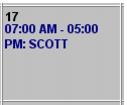 | EventDesc, MonthDescFull, ResourceDesc |
[GroupScheduling] | Resource Scheduling | MonthDescFull | Recap language | <arrive_time> - <depart_time>: <acct_desc> - <first_name> <last_name> | Used to specify what information is displayed on the month view calendar in a tooltip (hover effect) when moving the cursor over a schedule event. Uses fields from the resrvatn table. Example: MonthDescFull=<arrive_time> - <depart_time>: <acct_desc> - <event_name> - <first_name> <last_name> produces: 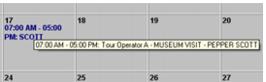 | EventDesc, MonthDesc, ResourceDesc |
[GroupScheduling] | Resource Scheduling | ReadOnlyCalendar | TRUE / FALSE | An operator can use the Resource Scheduling main action button as “read only” to view the calendar, but not modify. The settings are below: [GroupScheduling] Enabled=TRUE ReadOnlyCalendar=TRUE | Enabled | |
[GroupScheduling] | Resource Scheduling | ResourceDesc | Recap language | <resrvatn->last_name> | Used to specify what information is displayed for an event from the Resource screen. Example: ResourceDesc=<resrvatn->event_name><cr> <resrvatn->acct_desc> - <resrvatn->last_name> <cr><resrvatn->descrip1><cr>People:<resrvatn->descrip;;2><cr>Notes:<resrvatn->notes><cr> <message> Displays: 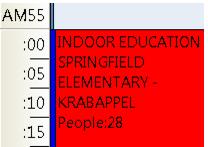 | EventDesc, MonthDescFull,MonthDesc |
[GroupScheduling] | Resource Scheduling | DayStart | Minutes since midnight | 420 | Sets the start time of the day on the calendar on the Group Scheduling dialog. | DayEnd PrimeStart PrimeEnd |
[GroupScheduling] | Resource Scheduling | DayEnd | Minutes since midnight | 1320 | Sets the end time of the day on the calendar on the Group Scheduling dialog. | DayStart PrimeStart PrimeEnd |
[GroupScheduling] | Resource Scheduling | PrimeStart | Minutes since midnight | 540 | Sets the start primetime of the day on the calendar on the Group Scheduling dialog. | DayStart DayEnd PrimeEnd |
[GroupScheduling] | Resource Scheduling | PrimeEnd | Minutes since midnight | 1020 | Sets the end prime time of the day on the calendar on the Group Scheduling dialog. | DayStart DayEnd PrimeStart |