Item configuration
Next, you need to configure items to be used in your In-House Cards programs. Pass items are configured for the actual In-House Cards programs and a couple of regular are configured to deal with activations and re-loads. These steps are detail in the following sections.
How to configure a pass for an In-House Cards program:
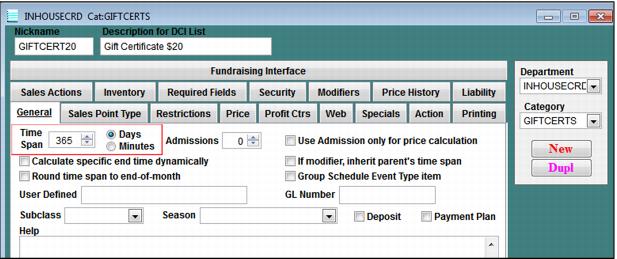
1. Determine the valid dates of the program. If the card expires X days from purchase, set the Time Span spinner on the SysManager > Activities > DCIs > New/Edit > General tab for your pass item or
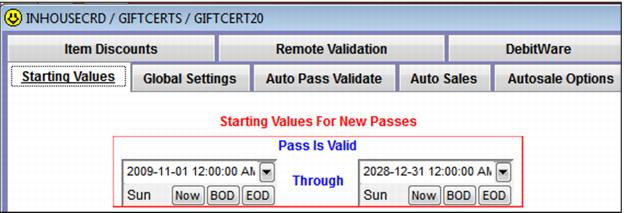
Or if the card is valid from X date to Y date, set these values on the SysManager > Activities > DCIs > New/Edit > Action tab > Create Pass radio button > Action Specifics button > Starting Values tab:
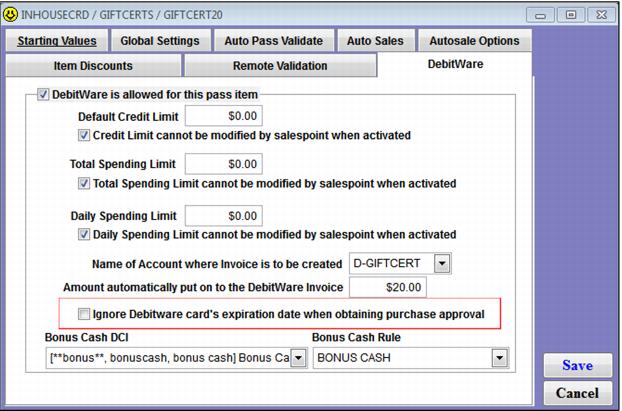
Note: There is a configuration option that may be used to bypass the expiration date check. With this option enabled, an expired card is still valid for purchases, assuming that the card is active, has not been voided and sale total does not exceed the remaining funds or spending limits set for the card. This option is implemented using the SysManager > Activities > DCIs > New/Edit > Action tab > Create Pass radio button > Action Specifics button > DebitWare tab > Ignore DebitWare card’s expiration date when obtaining purchase approval. An expired card is not valid for reloads.
2. On the SysManager > Activities > DCIs > New/Edit > Action tab, select the Create Pass radio button and click on the Action Specifics button. You are presented with the Starting Values tab.
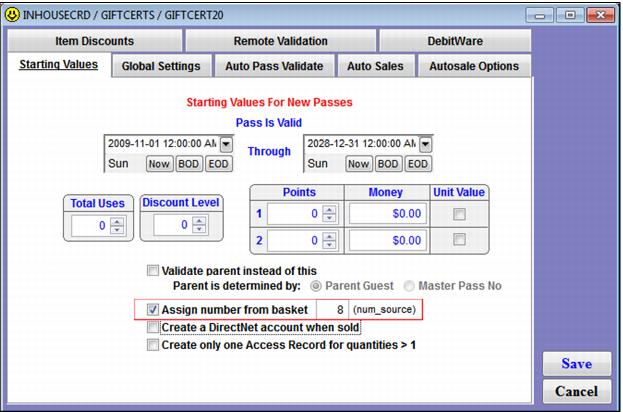
3. If assigning card numbers from the server
assign_no table at the time of the In-House Cards card sale, which is subsequently encoded on a card during the print process. Check the
Assign number from basket check box and select the appropriate
num_source. If ordering pre-printed and pre-encoded cards from Siriusware this step is not necessary. With pre-printed/pre-encoded cards, the operator swipes the pre-encoded card into the pass record at the time of sale in order to attach a card number to the pass sale, as opposed to having the server assign a card number to the pass automatically
. In-House Cards numbers can be up to nineteen digits. Valid and unique card numbers may be purchased from Siriusware Technical Support. For more information on the num_source field, see More information on using server assigned card numbers.
Note: If pre-printed by an outside vendor, the information to be encoded is %B followed by the up to nineteen digit number on track 1. The information can also be put on track 2 if track 1 is needed to encode a pass or some other number on the cards.
Note: If selling In-House Cards items with the Salesware E-Commerce product, cards that have numbers assigned from the server assign_no table are finalized when Sales Host utility processes the web sale. The cards may then be printed in Sales or by using the BatchPrint utility. If the cards sold on-line do not have numbers assigned from the server assign_no table (the cards sold on-line are issued to visitors/guests from a pre-printed and pre-encoded batch of cards), then a saved sale is created when Sales Host utility processes the web sale. These saved sales need to be recalled so that an operator can swipe a pre-encoded card into the DebitWare tab for all In-House Cards items. Once card numbers have been entered for all In-House Cards items included in the saved sale, the operator may finalize the sale.
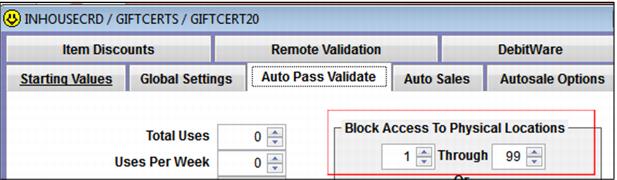
4. If using cascading validation, it is a good idea to Block Access to Physical Locations (located on the Auto Pass Validate tab) for the In-House Cards programs so the card is not included for validations that may occur at a lift or entrance gate. For information on cascading validations, see the Salesware Validation document.
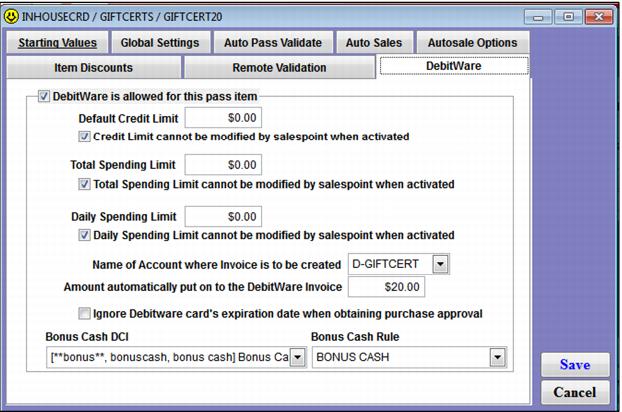
5. On the DebitWare tab, check the DebitWare is allowed for this pass item check box and configure the appropriate values on the tab, as described in the following table.
Value | Description |
Default Credit Limit | Allows a guest to accumulate a positive balance on the card up to the amount specified. If left at $0, the guest may not accumulate a positive balance (prepayment must be made on the card). |
Total Spending Limit: | The total amount allowed to be spent with the card. If left at $0.00 there are no total spending limits enforced. This is useful in family or group packages. Example: A family purchases five In-House Cards items, one for each family member. The family wants all cards linked to the same invoice (for easy tracking and re-loads), but each member of the family is allowed only $200 of the total $1000 loaded onto the card. Think of this as a way to budget spending per card when multiple cards are linked to a single invoice. |
Daily Spending Limit: | This is another way to “budget” money for guests. If left at $0.00, there are no daily spending limits enforced. Example: A dad purchases In-House Cards items for his son and daughter. The dad decides to limit both children to $15 dollars per day so that they do not spend all of their money in one visit to the resort/attraction. |
Credit limit cannot be modified by salespoint when activated: Total spending limit cannot be modified by salespoint when activated: Daily spending limit cannot be modified by salespoint when activated: | These boxes determine whether or not the operator can modify the credit, total spending or daily spending limits when In-House Cards items are activated. Example: Gift certificates would typically have $0.00 in all limits and all boxes checked so that operators cannot extend credit to the card holder and so that operators do not inadvertently prevent the purchaser of the gift certificate from being limited in how much of the certificate’s value may be redeemed in a given day or in total. A family package program (multiple cards all linked to the same invoice) may have $0.00 credit and have the Credit limit cannot be modified by salespoint when activated check box checked. But the Total spending limit cannot be modified by salespoint when activated and Daily spending limit cannot be modified by salespoint when activated check boxes are unchecked so that the guest has the option of “budgeting” money to the various family members at the time of activation. |
Name of Account where Invoice is to be created: | Invoices created at activation of the In-House Cards card of this specific DCI are generated under the account listed in this field. The dropdown selection displays only accounts that are **DEBITWARE** accounts (account type is **DEBITWARE**). |
Amount automatically put on to the DebitWare Invoice: | This is the amount that is always loaded onto the card at activation and on subsequent re-loads. For most In-House Card programs this is $0.00 because the guest typically determines the value of their card, but this field is useful when issuing gift certificates that are sold for specific values ($20, $25, $30, etc.). This is also referred to as the pre-load amount in Sales. When selling In-House Cards items on-line with the Siriusware E-Commerce product, this pre-load amount is used to generate the cost of the item for on-line purchases. |
Ignore DebitWare card’s expiration date when obtaining purchase approval: | With this option enabled, an expired card is still valid for reloads and for purchases assuming that the card is active, has not been voided and sale total does not exceed the remaining funds or spending limits set for the card. |
Bonus Cash DCI | A dropdown control is called Bonus Cash DCI. This dropdown displays a list of all non-hidden DCIs in the **BONUS** department and their descriptions (items created in the **BONUS** department are used to track the offsetting records for Bonus Cash for accounting purposes). The dropdown list also includes a <None> value at the top. |
Bonus Cash Rule | A second dropdown control is called Bonus Cash Rule. This dropdown displays all Dynamic Pricing Rules that are configured as rule type Any or Dynamic Pricing Rule. This is used to select the Dynamic Pricing Rule to use for calculating Bonus Cash amounts. |
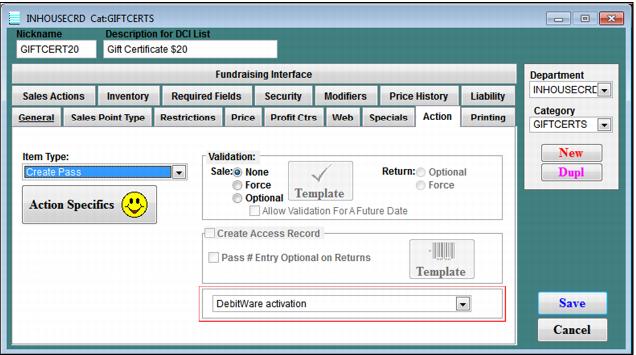
6. Determine whether or not the In-House Cards card is activated at the time of sale or in a separate step. If the In-House Cards item is activated at the time of sale, select DebitWare activation from the dropdown box on the Action tab. If the In-House Cards card is activated at a later time (separate from the sale of the item), select No DebitWare action from this dropdown.