Linking invoices/transferring balances
This section discusses the purpose and steps required to link cards to the same invoice.
To link cards to the same invoice:
1. By default, In-House Cards items activated on separate line items in a sale (or even on the same line item based on the DWLineItemLink .INI setting) create their own invoices in the account specified in the In-House Cards DCI. However, when activated, passes may also be linked to existing invoices. This is helpful when it is necessary to transfer a balance from an expired or voided pass/card or when it is necessary to link another pass/card to the family or group invoice.
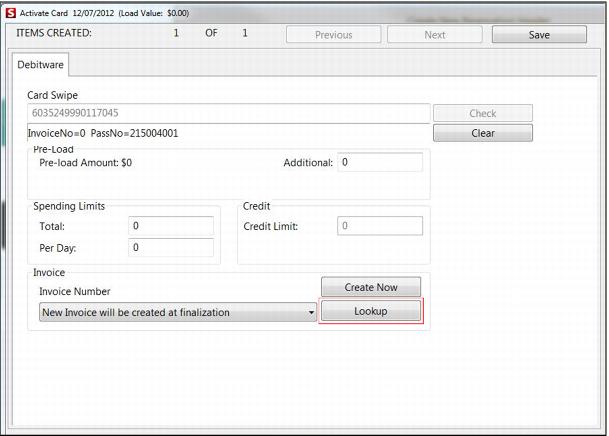
2. To link a pass/card to an existing invoice, sell the activation item, enter the card number and click Check.
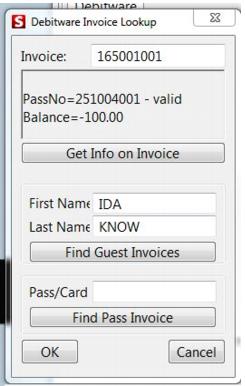
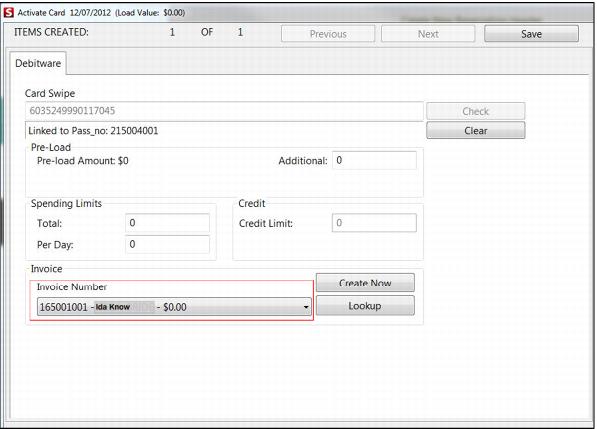
3. Use the Lookup button to find existing invoices for the current guest or enter a guest name to locate invoices for a different guest. Pass numbers may also be used to locate existing invoices. In the following example, Nani Know’s pass/card was activated, but instead of creating a unique invoice for Nani, she is linked to another guest’s invoice (Ida Know).
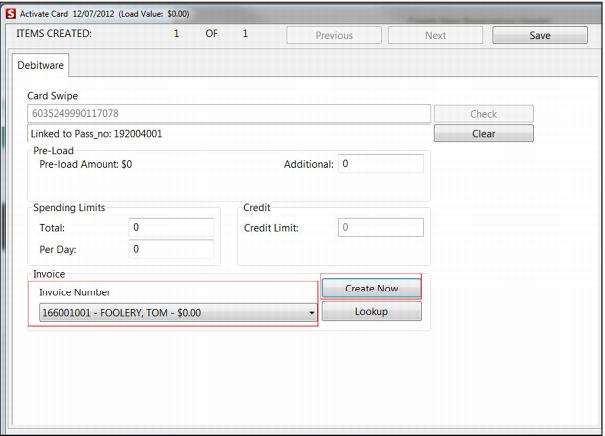
4. To link multiple activation line items in a sale to the same new invoice, click on the DebitWare tab of the first item, swipe the card if this is a separate activation or the card number is assigned from a stack of pre-printed/pre-encoded cards, click Check, and then click the Create Now button. This creates an invoice for the card immediately, as opposed to waiting until finalization and makes the new invoice available for selection for the other activation items in the sale.
5. There are two Sales32c.INI settings available to help the operator remember to look for existing balances for the guest. This prompt can be triggered per DCI activation so that membership or season pass cards prompt the operator to look up existing balances without having this prompt appear for items such as gift certificates.
.INI setting | Description | Example |
DWActivateCond | Used to specify the DCI of the In-House Cards card that triggers the message to the operator. | DWActivateCond=(DCI(DEBITWARE,DBT PASSES,ALL-IN-ONE) OR DCI(DEBITWARE,DBT PASSES,SEP-ACTIV) OR DCI(DEBITWARE,DBT PASSES,CHARGECRDS)) |
DWActivatePrompt | The message that is displayed. | DWActivatePrompt=Don't forget to transfer existing balances for the guest! |
6. There is also a setting available that triggers an automatic lookup of existing In-House Cards invoices for a guest: [Preferences] AutoDebitwareInvoiceLookup=TRUE. With this setting in place, once an operator activates a card for a guest (either during the initial sale of the card or in a separate activation step depending on the program configuration) the system looks for any In-House Cards invoices that exist on expired In-House Cards passes for the guest.
• If exactly one is located, then the card being activated is automatically linked to that existing invoice.
• If there is more than one match, the operator is prompted to select which existing invoice to use for the card being activated after clicking on the DebitWare tab.
• If no matches are found, a new invoice is created for the card being activated.