Using In-House Cards items for payment
This section discussed how to use In-House Cards items for payment.
How to use In-House Cards items for payment:
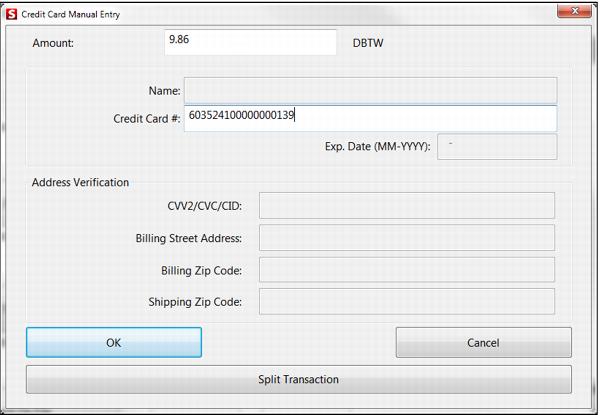
1. In-House Cards items are used just like credit cards at the POS. The operator simply swipes the In-House Cards card to use it as a form of payment. An operator can also manually enter a card number by clicking the Finalize/Save/Pay button and selecting the payment type configured for In-House Cards items.
Note: Only the card number is entered on the Credit Card Manual Entry dialog; there is no need to enter an expiration date.
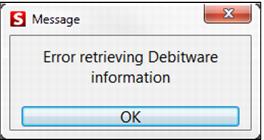
2. If an In-House Cards card is expired or voided, an error message is displayed to the operator.
3. The amount to be charged to an In-House Cards card swiped or manually entered for payment is automatically adjusted down to the maximum charge allowed for that card if the balance of the sale exceeds the available balance on the In-House Cards card. If the card has not been activated, then the amount to be charged to the card is always adjusted to $0.
Note: This auto-adjustment happens immediately upon entering the card number on the Credit Card dialog in order to facilitate the speed of In-House Cards transaction. The operator does not have to wait until after clicking Finalize/Save/Pay to find that the amount to be charged to the card exceeds the available balance. All credit limits, daily spending limits, total spending limits and invoice balances are checked when the auto-adjustment is calculated. For instance, a sale total is $100. The card swiped for payment has an available invoice balance of $250. But, the card also has a daily spending limit of $50. The amount to be charged to the card is adjusted to $50.
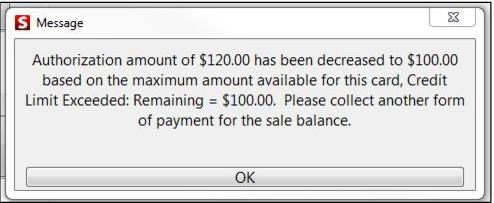
Note: By default, the operator is not prompted with a message that an adjustment has occurred. The .INI settings AlwaysSure=FALSE and/or AutoChange=FALSE are often all that is necessary to alert the operator to the fact that there is still a balance remaining on the sale that must be collected. But in situations where Cash is the assumed payment type if nothing is specified by the operator (AutoChange=TRUE) or the salespoint is not configured to ask for verification via the Are You Sure? prompt (AlwaysSure=TRUE), it is helpful to add the following setting within the [Preferences] section of the Sales32c.INI file (or the appropriate section of the SysManager > Preferences > Miscellaneous > Global Salespoint INI tab): DebitwareAdjustMessage=TRUE. This setting prompts the operator with a message that provides information regarding the auto-adjustment. In the following example, an In-House Cards card with an available balance of $135 was swiped for payment on a sale totaling $150.
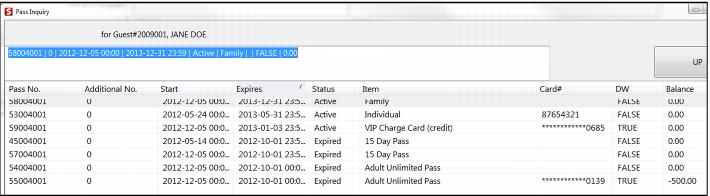
4. To check a card holder’s balance in Sales, simply look up the guest with the Guest Lookup button, click the Pass Inquiry button, and then look for the last four digits matching the card number (or look at the pass number if the card number is not printed on the pass). The In-House Cards invoice balance is displayed in last column on the Pass Inquiry dialog.
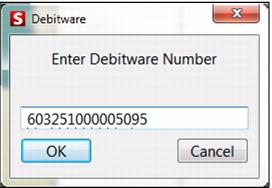
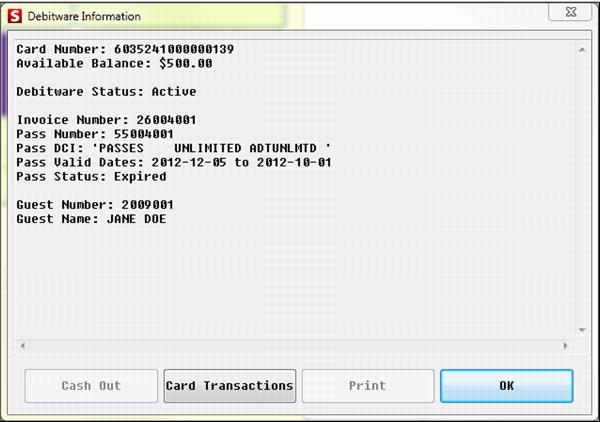
5. A main action button can be configured to retrieve In-House Cards information or a keyboard shortcut may also be used: Ctrl-d.
6. Credit card receipts print with each In-House Cards transaction. This provides a signature line for the guest. The invoice balance may be included on the credit card receipt by including the following line in the Credit Card Receipt layout:
<|show('','','','','center','40',IIF(ccauth->gc_balance=0.0000,' ','DEBITWARE BALANCE:'+STR(ccauth->gc_balance,10,2))|>