Configure your gift certificate item(s)
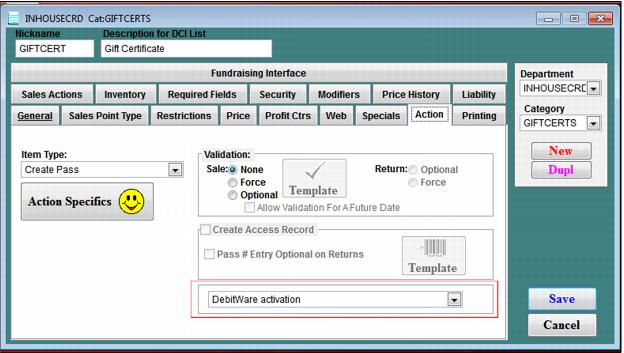
1. Typically, gift certificates are activated at the same time they are sold, so select DebitWare activation from the dropdown list on the Action tab.
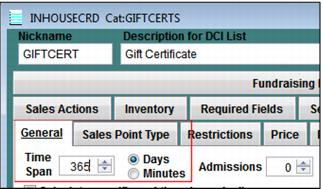
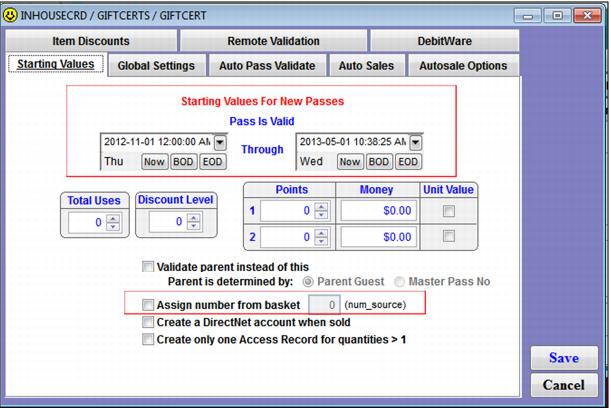
2. If the gift certificates expire one year past purchase, configure a time span of 365 on the General tab and do not enter pass valid dates on the Starting Values tab within the Action Specifics button located on the Action tab for the pass.
3. If gift certificates purchased any time during the season expire on a specific date, enter 0 for a time span and enter pass valid dates on the Starting Values tab within the Action Specifics button located on the Action tab for the pass.
4. In this particular situation, gift certificate cards are ordered pre-printed and pre-encoded with card numbers from a printing vendor – which means that the operator assigns the card number at the time of sale/activation – so leave the Assign number from basket check box un-checked on the Starting Values tab.
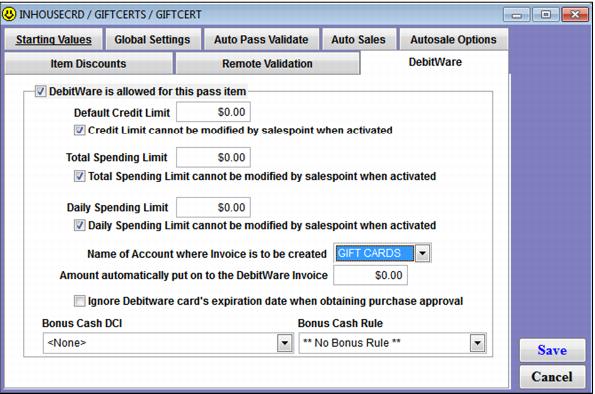
5. After all other configuration is complete for the gift certificate, click on the DebitWare tab and check the DebitWare is allowed for this pass check box.
6. Usually gift certificates are not limited as far as daily and total spending limits and are never issued any credit, so enter $0.00 for all limits and check all the boxes to prevent operators from editing these limits when gift certificate items are sold and activated.
7. Select the account configured to track gift certificate invoices.
8. Enter an amount to pre-load on the card if applicable. For instance, if gift certificates items are configured that are valid for exactly $20, then $20 would be entered in the Amount automatically put on to the DebitWare Invoice field. If one generic gift certificate item that can be valid for any amount is configured, leave this field at $0. The operator enters the amount to load on the gift certificate at the time of purchase/activation.