Selling gift certificates
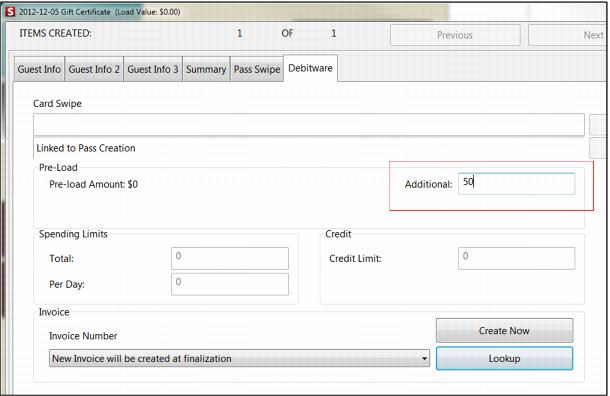
1. To sell the gift certificate, select the gift certificate item in the menu and click on the Set Guest button. Enter guest information and click on DebitWare tab. Enter the amount to load on the card.
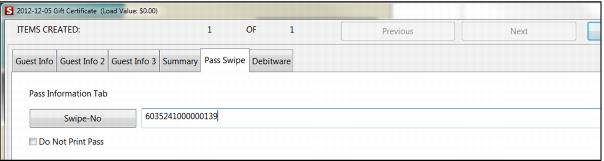
2. To assign a card number from the pre-printed/pre-encoded stack of cards, click the Pass Swipe tab and swipe a card into the Swipe-No field. Remember that the setting PassSwipeUnique=TRUE is helpful in enforcing the entry of unique card numbers in the Swipe-No field (helps in a situation where an operator has grabbed the same card twice).
3. At finalize you are forced to collect the amount loaded onto the card (in this example, $100) and an invoice is created in the account specified in the Gift Certificate DCI. The gift certificate may now be used for payment up until the $100 is used. The gift certificate may be re-loaded simply by selling a re-load item, swiping the card into the Card Swipe field and specifying an amount to re-load on the card.
Note: By default, all cards activated (in this case activation occurs at the time of the sale) on the same line item are linked to the same invoice. You need to either sell multiple gift certificates in the same sale on different line items (use min/max sale restrictions to help with this limitation) or make the decision to never link invoices by default and insert the setting DWLineItemLink=FALSE in your SysManager > Preferences > Miscellaneous > Global Salespoint INI settings in order to prevent all gift certificates sold/activated on the same line item from getting linked to the same invoice. DWLineItemLink=FALSE changes the default invoice linking behavior – but it is still possible for an operator to manually link passes to the same invoice even with this setting set to FALSE.