Configure your charge card item(s)
1. First, decide whether or not to activate the charge cards at the time of sale. If you need to activate the charge cards at the time of sale, select DebitWare activation from the dropdown box on the Action tab. To activate the charge cards in a separate step, select No DebitWare action.
2. If your charge cards expire one year past purchase, configure a time span of 365 on the general tab and do not enter pass valid dates on the Starting Values tab within the Action Specifics button located on the Action tab for the pass.
3. If your charge cards purchased any time during the season expire on a specific date, enter 0 for a time span and do enter pass valid dates on the Starting Values tab within the Action Specifics button located on the Action tab for the pass.
4. Make sure to check the Assign number from basket check box and enter the correct num_source from your AssignNo table (Starting Values tab), assuming that the card numbers for the charge cards are assigned from the server.
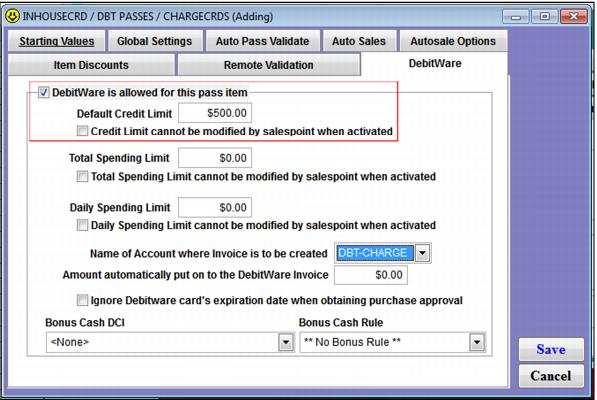
5. After all other configuration is complete for the charge card (such as valid dates or layout), click the DebitWare tab and check the DebitWare is allowed for this pass check box.
6. Charge Cards have credit extended (no pre-payment is necessary) so set the Credit Limit field to an amount greater than $0. Based on the program rules, the operator may or may not be able to edit the credit limit at the time of activation, so check this box as appropriate for your program. Total spending and daily spending limits may also be set at the pass DCI level or per card, so set these limits as appropriate for the charge card program.
7. Select the account configured to track charge card invoices.
8. Do not enter an amount in the Pre-load field, because pre-paying prior to using the charge card is not necessary with a credit limit greater than $0.