CASHOUT of cards with Bonus Values
Bonus cash is spent last and cannot be cashed out, but multiple bonuses throughout the life of a card do not stack until the very end. To borrow from a retail inventory example, it mimics a First-In-First-Out method. Additionally, when a card is cashed out, any remaining bonus balance is wiped out. This ensures that recycled gift cards have a clean $0 balance for the next customer, clever customers can’t load $100 > get $110 worth of value > cash out $100 > and still have $10 available to redeem, and probably the most important reason, accounting departments do not have to manage and track the remaining bonus balances as liabilities.
For example, using a 10% bonus on all loads, the following chart shows overall Balances and Cash outs allowed.
Date Activity Bonus Balance Card Balance Cash out
1/1/2011 $50 loaded $5 $55 $50
1/2/2011 $25 purchase $5 $30 $25
1/3/2011 $25 purchase $5 $5 $0
1/4/2011 $40 load $9 $49 $40
1/5/2011 $20 purchase $4 $29 $25
1/6/2011 Cash out -$4 $0 -$25 cash to customer
A salespoint must be enabled to perform cash outs by inserting the following Sales32c.INI [Preferences] settings:
DisableCashout=FALSE
CashlessReloadDCI=INHOUSECRDACTANDLOADCASHOUT
DisableCashout=FALSE is the default value, so there is no need to add the setting unless you need to set it to TRUE.
Note: This must be set to TRUE at the DebitWare kiosk as those computers cannot dispense cash and should not be used to cash out cards.
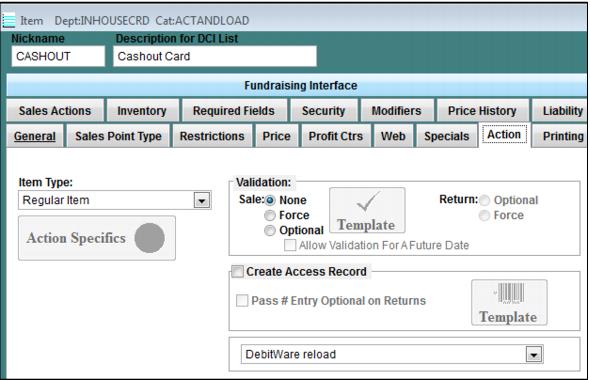
CashlessReloadDCI needs to be configured as a DebitWare reload item in SysManager and can be the same DCI used to perform normal reloads of IHC cards, although it might be helpful to configure a new item for cash outs for the sole purpose of having a more descriptive item name on reports, such as Cashout Card.
To Cash out a card:
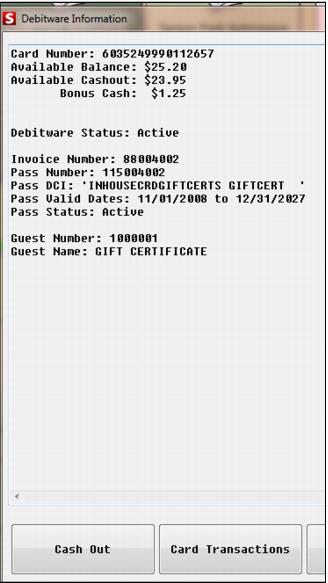
1. Lookup the card number using the DebitWare main action button (or CTRL-D keyboard shortcut) or simply scan/swipe a DebitWare card in an empty sale.
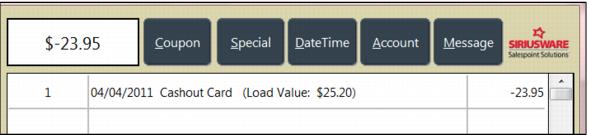
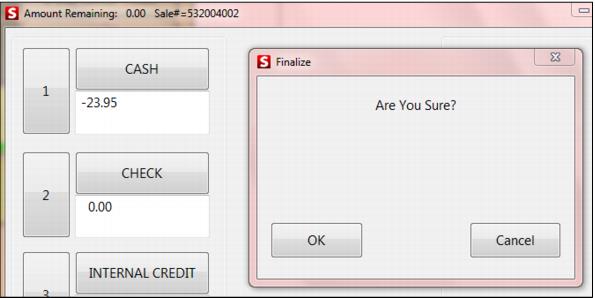
2. Select the Cash Out button from the DebitWare Information dialog, and then Finalize the sale to return the money to the customer.
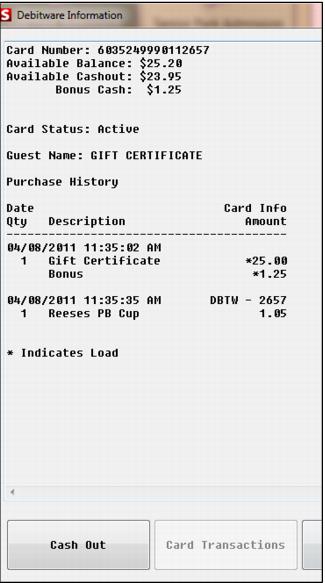
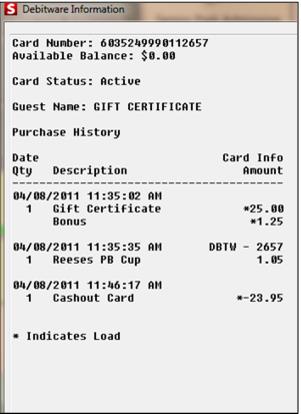
3. To review a list of transactions for the card, the Card Transactions button can be pressed from the DebitWare Information dialog. The Purchase History shows card loads (including bonus loads) as well as the total amount of sales put on the DebitWare card along with the price of each line item in the sale. The Purchase History can be printed for the customer by pressing the Print button. The report prints to the receipt printer configured for the salespoint.
Note: The sixteen digit card numbers are normally masked on the DebitWare dialog. The logged in operator in the screen captures below is ADMIN and has security to see full numbers.)
4. The summary or full card transactions can be printed for the customer by pressing the Print button. The report prints to the receipt printer configured for the salespoint.
5. Select the Cash Out button, and then Finalize to return the money to the customer.