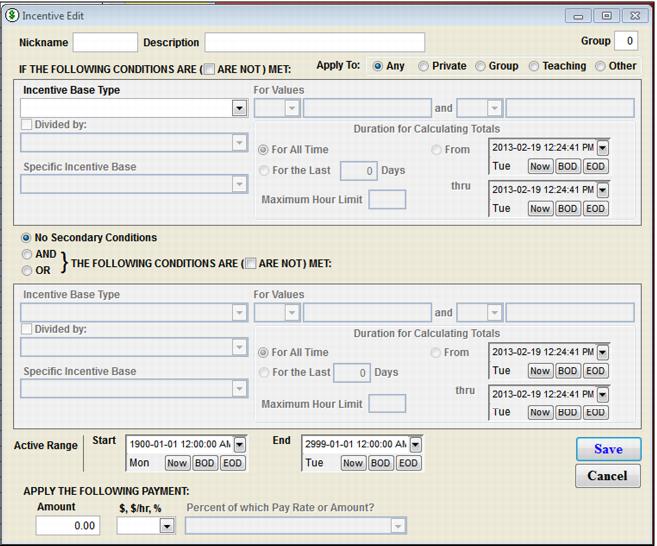
Incentive Base Type | Explanation |
Group – Headcount | The Incentive is satisfied if the number of students associated with the event satisfies the specified criteria. |
Group – Level | The Incentive is satisfied if the Level for the event satisfies the specified criteria. |
Group – Return | The Incentive is satisfied if the student is marked as a Return. This can automatically be determined based on the criteria specified in SysManager or can be set manually. |
Group Lesson | This Incentive is satisfied if the Lesson Type category of the event is G. |
Hours – Group | This Incentive is satisfied if the event (or part of the duration of the event) falls within or crosses the threshold set for the number of Group Hours (i.e., events with a Lesson Type category of G) that has been taught by the Instructor. Note: All hour calculations can be expressed as a percent by selecting another hour calculation as a denominator (i.e., Hours – Private Request / Hours – Private yields the percent of private lessons that are requests). |
Hours – Group Return | Same as above except the calculated number of Hours is for a Lesson Type category of G and it is marked as a Return. |
Hours – Lesson | Same as above except the calculated number of Hours is for the specified Lesson. |
Hours – Lesson Type | Same as above except the calculated number of Hours is for the specified Lesson Type. |
Hours – Private | Same as above except the calculated number of Hours is for events with a Lesson Type category of P. |
Hours – Private Request | Same as above except the calculated number of Hours is for events with a Lesson Type category of P and the event was a Request (i.e., requested Instructor matches the assigned Instructor, which also matches the event Instructor). |
Hours – Taught | Same as above except the calculated number of Hours is for events with a Lesson Type category of G or P. |
Hours – Worked | Same as above except the calculated number of Hours is for events with a Lesson Type category of G or P or O (but not blank). |
Instructor – Experience | The Incentive is satisfied if the Instructor has an Experience falling within the range of the specified criteria. |
Instructor – First Day | The Incentive is satisfied if the Instructor’s First Day falls within the range of the specified criteria. |
Instructor – Hire Date | The Incentive is satisfied if the Instructor’s Hire Date falls within the range of the specified criteria. |
Instructor – Part Time | The Incentive is satisfied if the Instructor is marked as a Part Time instructor. |
Instructor – Status | The Incentive is satisfied if the Instructor is assigned the Status that matches the specified criteria. Note: The Statuses are configured in the Payroll tab of the Instructor Preferences in SysManager. |
Lesson | The Incentive is satisfied if the event Lesson matches the specified criteria. |
Lesson – Duration | The Incentive is satisfied if the event Duration falls within the range of the specified criteria. |
Lesson – End Time | The Incentive is satisfied if the event End Time falls within the range of the specified criteria. |
Lesson – Level | The Incentive is satisfied if the event Level falls within the range of the specified criteria. |
Lesson – Location | The Incentive is satisfied if the event Location matches the specified criteria. |
Lesson – Price | The Incentive is satisfied if the Price of the event falls within the range of the specified criteria. |
Lesson – Start Time | The Incentive is satisfied if the event Start Time falls within the range of the specified criteria |
Lesson Type | The Incentive is satisfied if the Lesson Type of the event matches the Lesson Type specified in the incentive. |
Level – Alpine | The Incentive is satisfied if the Instructor has an assigned Alpine that falls within the range of the specified criteria. |
Level – Other | The Incentive is satisfied if the Instructor has an assigned Other level that falls within the range of the specified criteria. |
Level – Snowboard | The Incentive is satisfied if the Instructor has an assigned Snowboard level that falls within the range of the specified criteria. |
Level – Telemark | The Incentive is satisfied if the Instructor has an assigned Telemark level that falls within the range of the specified criteria. |
Private – Headcount | The Incentive is satisfied if the # of additionals value of the event falls within the range of the specified criteria. |
Private – Request | The Incentive is satisfied if the event is a Private lesson and the event is a fulfilled Request (i.e., the requested Instructor matches the assigned Instructor). |
Private – Unfulfilled Req | The Incentive is satisfied if the event is a request, but the assigned Instructor is not the requested Instructor. |
Private Lesson | The Incentive is satisfied if the Lesson Type category of the event is P. |
Revenue Earned Paid | Designed to be used with the base type Lesson Amount Paid. This incentive will calculate for the instructor in the resource1 field in b_sched and p_sched records. If the If conditions are used, the basis amount will consider the true lesson amount paid by the customer. This is the lesson price without taxes added in and with discounts taken out. Please see below for examples. |
Revenue Earned Price | Designed to be used with the basis type Lesson Price. This incentive will calculate for the instructor in the resource1 field in b_sched and p_sched records. If the If conditions are used, the basis amount will consider the lesson price by the customer, before taxes and regardless of discounts. Please see below for examples. |
Revenue Paid Requested | Designed to be used with basis type Lesson Amount Paid. This incentive will calculate for instructors which are in the resource1 field AND the resrc_req1 field. If the If conditions are used, the basis amount will consider the true lesson amount paid by the customer. This is the lesson price without taxes added in and with discounts taken out. Please see below for examples. |
Revenue Price Requested | Designed to be used with basis type Lesson Price. This incentive will calculate for instructors which are in the resource1 field AND the resrc_req1 field. If the If conditions are used, the basis amount will consider the lesson price by the customer, before taxes and regardless of discounts. Please see below for examples. |
Skills #1 | The Incentive is satisfied if the value of the Skills #1 matches the value for criteria1 of the event. The values are based off of the Captions for List 1 of the Private Booking Preferences as defined in the SysManager > Preferences > Private Bookings > Captions tab. |
Skills #2 | The Incentive is satisfied if the value of the Skills #2 matches the value for criteria6 of the event. The values are based off of the Captions for List 2 of the Private Booking Preferences as defined in the SysManager > Preferences > Private Bookings > Captions tab. |
Skills #3 | The Incentive is satisfied if the value of the Skills #3 matches the value for criteria7 of the event. The values are based off of the Captions for List 3 of the Private Booking Preferences as defined in the SysManager > Preferences > Private Bookings > Captions tab. |
Booking ID | Resource1 | Resrc_req1 | (Item) | (Price) | (Paid) |
101001 | LVONN | BMILLER | 1-Hour Private | 50.00 | 45.00 |
101002 | LVONN | LVONN | 2-Hour Private | 90.00 | 81.00 |
101003 | PSTREET | LVONN | 1-Hour Private | 50.00 | 45.00 |
101004 | LVONN | 2-Hour Private | 90.00 | 81.00 |
Booking ID | Resource1 | Resrc_req1 | (Item) | (Price) | (Paid) | Pay_status |
101001 | LVONN | BMILLER | 1-Hour Private | 50.00 | 45.00 | |
101002 | LVONN | LVONN | 2-Hour Private | 90.00 | 81.00 | |
101003 | PSTREET | LVONN | 1-Hour Private | 50.00 | 45.00 | |
101004 | LVONN | 2-Hour Private | 90.00 | 81.00 | ||
101005 | PSTREET | PSTREET | 1-Hour Private | 50.00 | 45.00 | A |
101006 | LVONN | 2-Hour Private | 90.00 | 81.00 | A | |
101007 | LVONN | LVONN | 2-Hour Private | 90.00 | 81.00 | A |
Booking ID | Instructor | Incentive | Incentive Amt | Basis | Explanation |
101005 | PSTREET | REPAID | None | 90.00 | Basis amount not > 300 |
REPRICE | $4.00 | 100.00 | Basis amount met, 8% of current timecard price of $50 | ||
RQPAID | None | 45.00 | Basis amount not > 100 | ||
RQPRICE | $5.00 | 50.00 | Basis amount met, 10% of current timecard price of $50 | ||
101006 | LVONN | REPAID | None | 288.00 | Basis amount not > 300 |
REPRICE | $7.20 | 320.00 | Basis amount met, 8% of current timecard price of $90 | ||
RQPAID | None | Instructor was not requested | |||
RQPRICE | None | Instructor was not requested | |||
101007 | LVONN | REPAID | $6.48 | 369.00 | Basis amount met, 8% of current paid amount |
REPRICE | $7.20 | 410.00 | Basis amount met, 8% of current price | ||
RQPAID | $8.10 | 162.00 | Basis amount met, 10% of current paid amount | ||
RQPRICE | $9.00 | 180.00 | Basis amount met, 10% of current price |
Calculation | Basis Subtotal |
Basis amount is calculated by summing the Paid amount for all P_SCHED records where LVONN is the Resource1 | $207 |
Now add any previous timecards in b_sched in which LVONN is the Resource1 | $0 |
Now add the Paid amount for the current timecard for which we are calculating basis amount ($81) | $288 |
Does $288 meet the incentive threshold of $300? No | |
No further calculation is done. |
Calculation | Basis Subtotal |
Basis amount is calculated by summing the Price amount for all P_SCHED records where LVONN is the Resource1 | $230 |
Now add any previous timecards in b_sched in which LVONN is the Resource1 | $0 |
Now add the Price amount for the current timecard for which we are calculating basis amount ($90) | $320 |
Does $288 meet the incentive threshold of $45? Yes | |
The current Price amount ($90) is multiplied by the incentive percent (8%) for an incentive of $7.20. |
Incentive Base Type | Specific Incentive Base List Source |
Hours – Lesson | The list includes all Lessons that are either private or pod bookings. |
Hours – Lesson Type | The list includes all Lesson Types as defined in SysManager > Activities > Lesson Lists > Lesson Types. |
Instructor – Status | The list includes all entries made into the six Option X text boxes on the Payroll tab in SysManager > Preferences > Instructors. One of these can be selected during Instructor setup as Employee Status on the SysManager > Activities > Instructors > New > Payroll tab. |
Lesson | The list includes all Lessons that are either private or pod bookings. |
Lesson – Location | The list includes all Lesson Locations as defined in SysManager > Activities > Lesson Lists > Lesson Locations. |
Lesson Type | The list includes all Lesson Types as defined in SysManager > Activities > Lesson Lists > Lesson Types. |
Skills #1 | This list includes all entries under Values for List 1 in the SysManager > Preferences > Private Bookings > Captions tab. |
Skills #2 | This list includes all entries under Values for List 2 in the SysManager > Preferences > Private Bookings > Captions tab. |
Skills #3 | This list includes all entries under Values for List 3 in the SysManager > Preferences > Private Bookings > Captions tab. |