Performing a sale
The Kiosk mode of Sales has been designed to be very user-friendly and help the customer complete a sale quickly. Here is the procedure that a customer goes through:
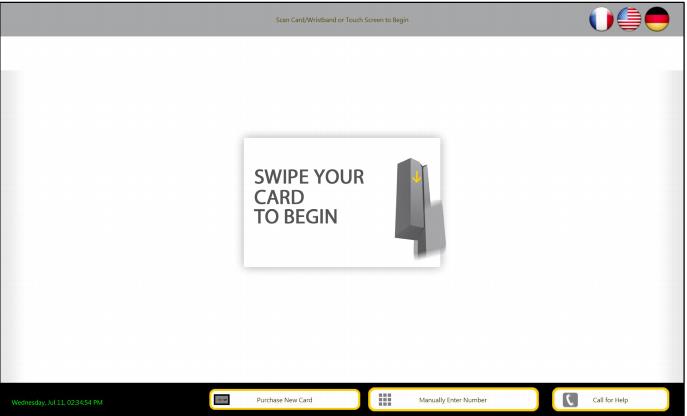
1. At the Ready screen, the customer either swipes his credit card or touches the screen (monitor) to begin.
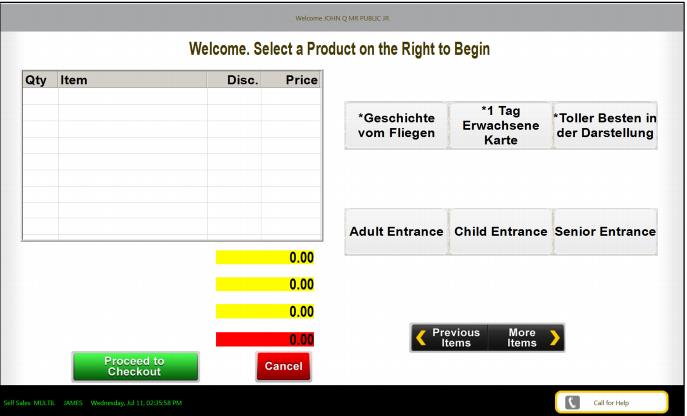
2. The Product Selection screen is now shown and the customer is asked to select a product for purchase. Also, if the customer successfully swiped his credit card, a message that says, “Welcome cardholder_name” is shown at the top of the screen. He can now select products that are available or press the Cancel button to return to the Ready screen.
3. After a product has been selected, the customer can continue to select products or press the Proceed to Check Out button to complete the sale. Or the customer can press the Cancel button to clear the sale and return to the Ready screen. To purchase a quantity of more than one of an item, add the item more than once.
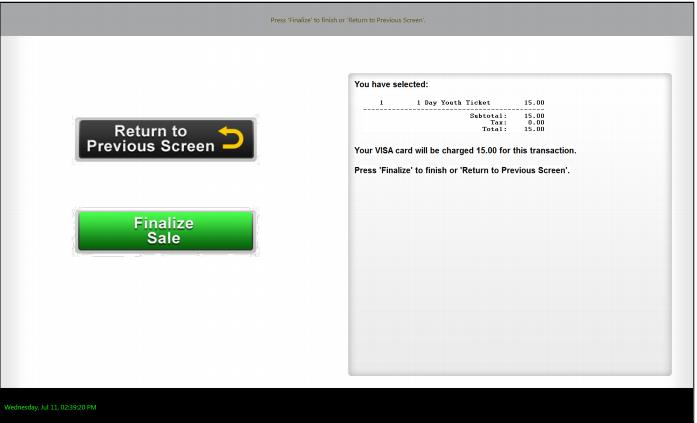
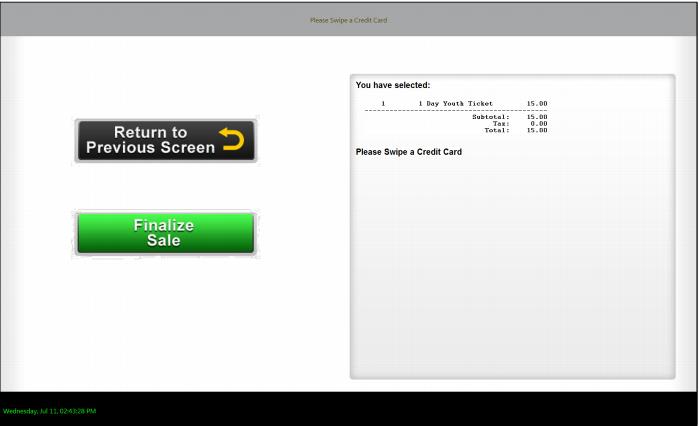
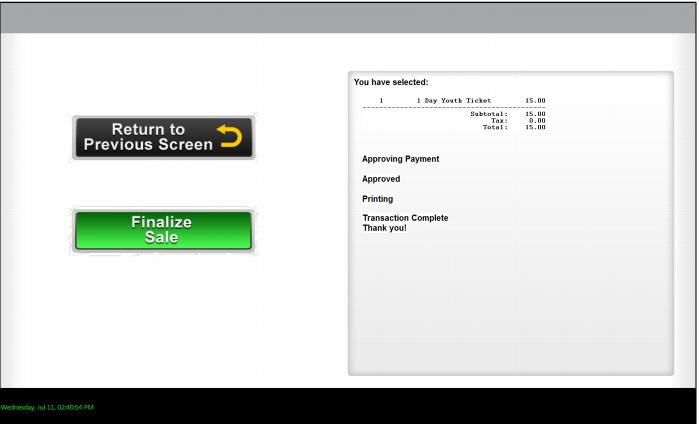
4. Pressing the Proceed to Check Out button brings the customer to the Finalize screen. At the Finalize screen, if the customer has already swiped his credit card, he is told to press the Finalize Sale button or the Return to Previous Screen button. If he has not swiped his credit card yet, he is prompted to do so at this point.
5. After pressing the Finalize Sale button, the credit card is processed and a response is shown. If the transaction was successful, a credit card receipt and ticket(s) are printed. Sales then returns to the Ready screen.