Use
1. Scan an IHC barcode or swipe a pass/gift card to start the process. Manual entry is also allowed and supports entering the modified numbers (e.g., only ten digits of the number based on the IhcPrefix setting). This entry screen also shows rotating bmp images (.bmp files named Intro01, Intro02, etc., that are saved in the local C:/ProgramData/Siriusware/Sales/Images folder). If the guest desires a new card, simply hit the Purchase New Card button.
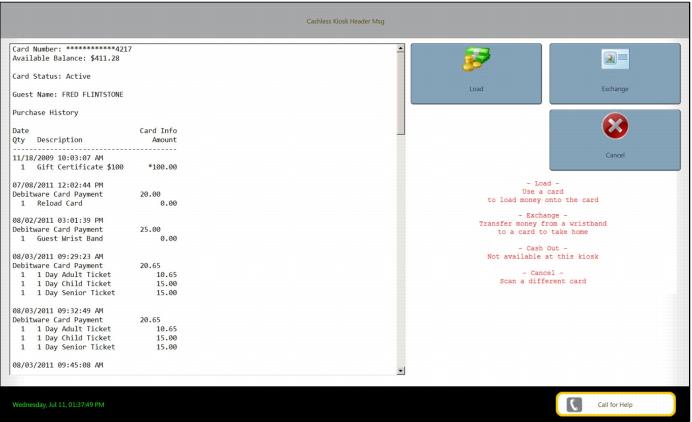
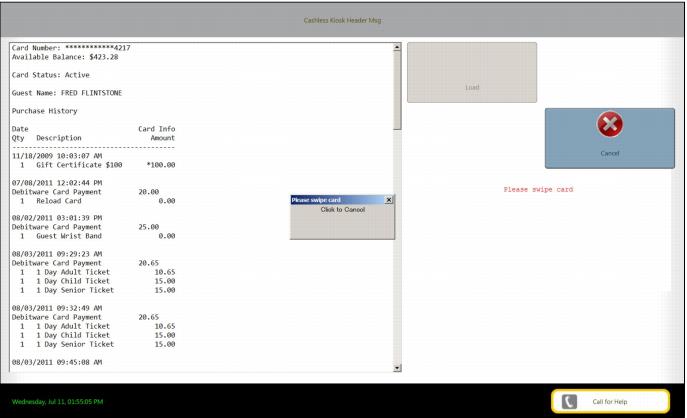
2. Transactional history for the card and activity options display.
Note: when selecting a Purchase New Card item, the user is prompted with a customizable message that provides instruction on selecting Cash or Credit for the new card purchase. This is similar to the prompt the customer receives after selecting the Load option when managing an existing card.
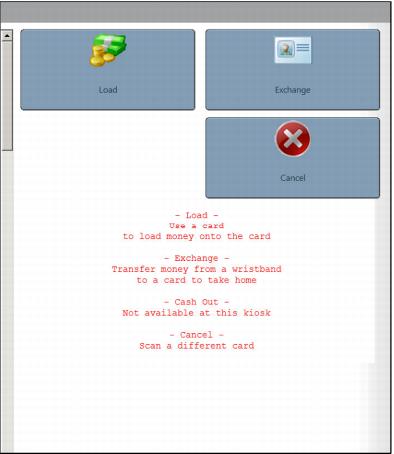
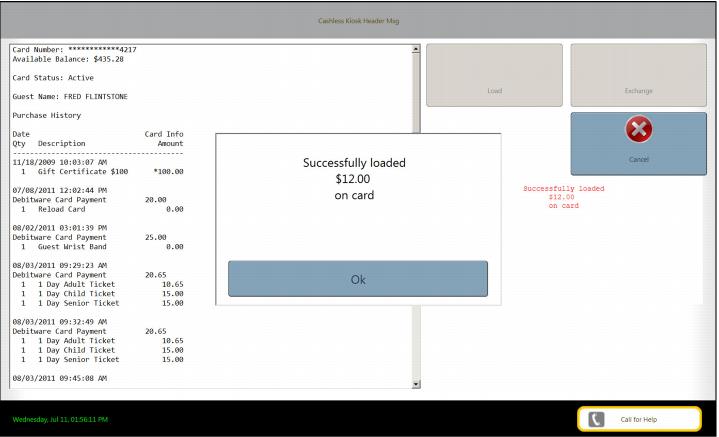
3. To load a card, press Load button.
If paying with cash, press Cash and insert cash into bill acceptor. After each bill is fed the customer is prompted with the options of DONE, INSERT ANOTHER BILL or RETURN (last bill).
Note: Each bill fed is assumed to be a load. There is no change dispensed.
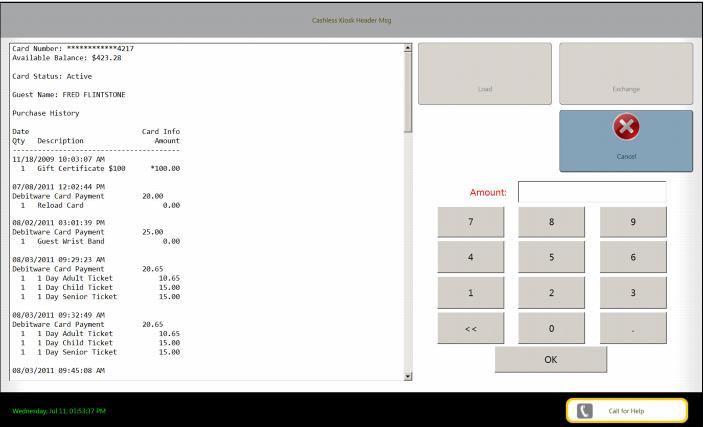
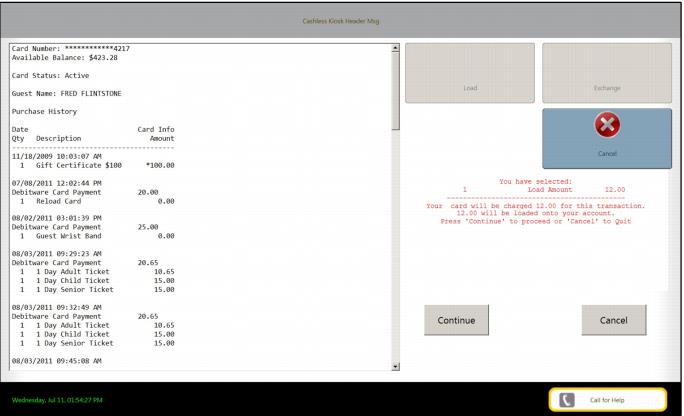
If using a credit card or another IHC item, press the Credit button and enter the amount to load. Press Continue and swipe a credit card or IHC item when prompted to pay for the load.
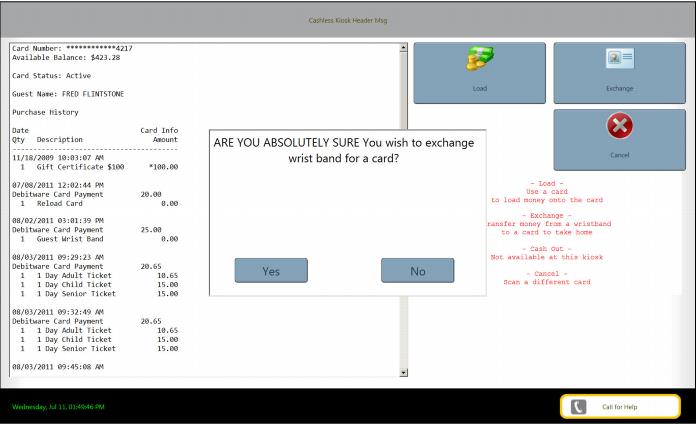
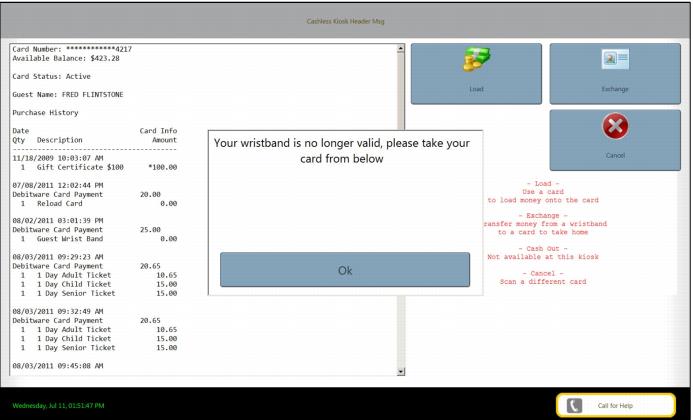
4. To Exchange a card, press the Exchange button. The current card/band is voided and a new card (new number) is printed on ten mil. card stock from the Boca printer in the Kiosk.
The new card is linked to the old invoice to preserve the balance, but the old card/band won’t be able to access the invoice balance because it has been voided.
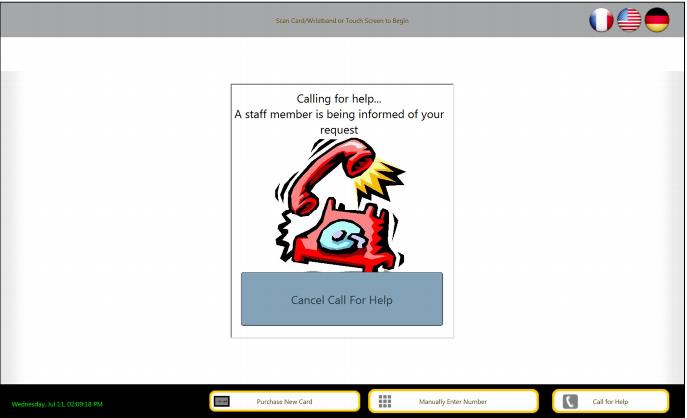
5. A Call for Help button can be pressed that alerts a staff member through the new Messenger Service. To cancel the call, press the Cancel Call for Help button.
6. When the bill acceptor hardware has a problem, only Credit loads and Exchanges are allowed and a notification is sent to the appropriate staff that there is a hardware problem (assuming notifications have been configured – see below for more info).
7. When the printer has a problem, the entire Kiosk is disabled and a notification is sent to staff.
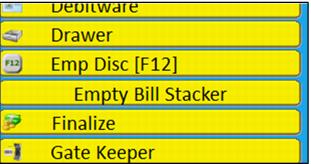
8. When the bill hopper has reached the specified bill count threshold, a notification is sent to staff (assuming notifications have been configured). After the staff member empties the bill collector, he/she needs to press F8 to access the Tools menu> Action > press the Empty Bill Stacker button to reset the threshold.
9. To Quit, hit ESC and enter the password.