Check in
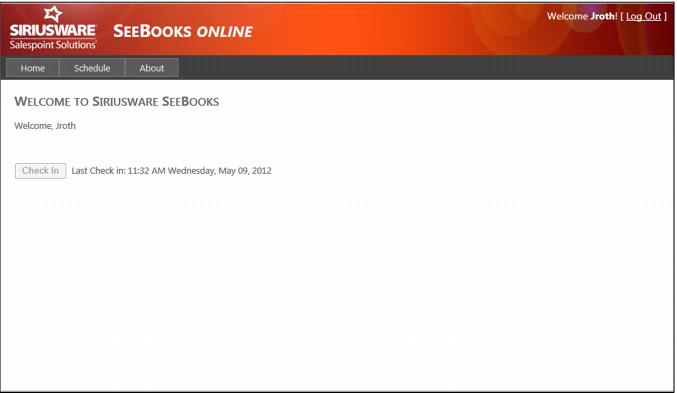
Once you log-in, the Check In button is displayed. Click this button to check in. Once the instructor checks in, the following appears next to the greyed out Check In button:
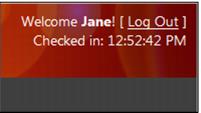
When an instructor has checked-in for the day, the words, “Checked-in” are displayed below his/her username in the header of the SeeBooks Online pages along with the time that the instructor checked in.