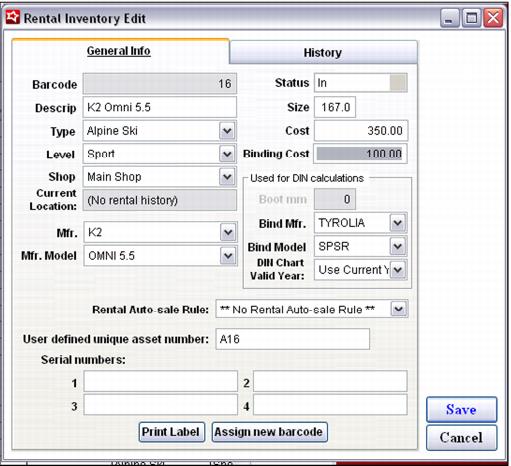
Entering rental inventory
To enter a new piece of rental inventory:
1. Click the New button to open the Rental Inventory Edit NEW dialog.
2. Enter a product Descrip.
3. Select the equipment Type from the dropdown list.
4. Select the equipment Level from the dropdown list.
5. Select the Shop to which the equipment belongs (the equipment’s “home” location) from the dropdown list.
6. Select the item’s manufacturer from the Mfr. dropdown list.
7. Select the item’s model from the Mfg. Model dropdown list.
8. Enter the product’s Size.
9. Enter the Cost associated with the item if appropriate.
10. Enter the Binding Cost associated with the item if appropriate.
11. Select a Rental Auto-sale Rule to attach to a rental inventory item.
The Used for DIN calculations section is specific to skis and ski boots. All other rental inventory ignores this section.
To enter the data required for a DIN calculation:
1. Boot mm – Enter the sole length of the ski boot in millimeters.
2. Bind Mfr. – Select the binding manufacturer from the dropdown list. This list is generated based the data entered at SysManager > Activities > Rental Lists > Binding DIN Charts.
3. Bind Model – Select the binding model from the dropdown list. This list is generated based on the models entered within the Heel-Track Settings tab at SysManager > Activities > Rental Lists > Binding DIN Charts.
4. DIN Chart Valid Year: – Leave this field blank in order to always use the current year’s DIN chart or enter the valid Year of the DIN chart that this piece of inventory always uses (for example: 2012-13).
User defined unique asset number: This field is optional and may be used to store a unique asset number as defined by internal business practices or from existing equipment numbering schemes in place prior to the implementation of the Salesware Rentals module. Asset numbers must be unique throughout the rental inventory as asset numbers may be used in searches performed within the TechStationPC/PPC applications.
Note: Asset numbers must be entered in all caps!
Serial numbers: These fields are optional and may be used to store up to four unique equipment serial numbers or to track other information about the equipment as necessary. The Serial Number 1 field is available for use as a filter on the main rental inventory grid.
A unique barcode number is generated for each piece of rental inventory.
Note: The Barcode field is the default field used in rental inventory searches although the asset number can be specified as the default field for searches performed within the TechStationPC/PPC applications via RentEZ.
The Assign new barcode button may be used to assign a new barcode number to an existing piece of rental inventory or to assign a barcode number to a newly created piece of rental inventory.
The Print Label button prints an equipment label that can be attached to the piece of rental inventory for scanning at the rental shop. The Label layout used is determined by the Equipment Type configured for the rental inventory item.
Example:
Completed rental item:
Basic history for each piece of rental inventory, including statistical information regarding the total number of rentals, may be viewed by clicking the History tab. The last guest associated with the rental inventory item may be viewed and even edited by clicking the Guest Info button.