Duplicating rental inventory
To speed the entry of large quantities of rental inventory items, use the Dupl (duplicate) functionality. Duplicating rental inventory duplicates all fields within the selected inventory record except for Barcode, Asset and Serial Numbers fields because all of those fields are designed to hold unique entries.
To duplicate rental inventory:
1. Enter a new piece of rental inventory into the system by following the steps outlined above. Ensure that all relevant information is entered and save the new rental inventory item.
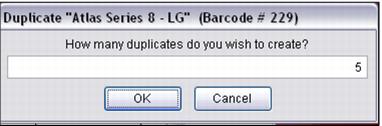
2. Select the rental inventory item just created and click the Dupl button. Enter the number of times that this inventory item is duplicated. For instance, if there are five pairs of snowshoes that are exactly the same (same size, same manufacturer, same model, same cost, etc.,) enter 4 because one record has already been created.
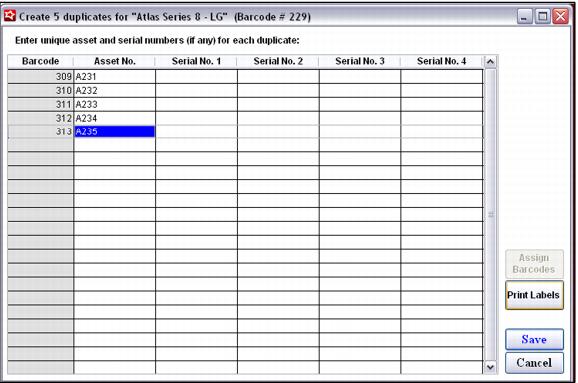
3. Once the number of duplicates has been entered, hit OK. A grid where unique asset and serial numbers may be entered is displayed.
4. Once the unique asset and serial numbers have been entered for each duplicate entry (if necessary), click the Assign Barcodes button.
5. Equipment labels for the new rental inventory records may be printed by clicking the Print Labels button.
6. Finally, click Save to complete the process or Cancel to stop the duplication process.