Pay-up-front: Rental component configuration
Rental components consist of the individual pieces of equipment that may be rented by a guest based on unique combinations of equipment levels and equipment types.
Example:
• Basic (level) Snowboard (type)
• Basic (level) Snowboard Boot (type)
• Basic (level) Alpine Ski (type)
• Basic (level) Alpine Ski Boot (type)
• Sport (level) Alpine Ski (type)
• Sport (level) Alpine Ski Boot (type)
• Demo (level) Alpine Ski (type)
• Demo (level) Alpine Ski Boot (type)
• N/A (level) Touring Ski (type)
• N/A (level) Touring Boot (type)
• N/A (level) Mountain Bike (type)
• N/A (level) Helmet (type)
Only one rental component per unique level and type combination may be configured. While it is possible to sell rental items that are configured as components to guests, it is better to create a separate category of all rental components, and then use these configured rental components to create rental “package” items which are then sold to guests.
To configure a rental component item:
1. Create a new Item within a Category configured for rental component items.
2. Click on Action tab and select Begin Rental from the Item Type dropdown.
3. When Begin Rental option is selected, a new Require Guest Information check box becomes visible. This check box, and the Birthdate, Height, Weight, Shoe Size and Skier Ability on the Required Fields tab are now selected by default for Rental Items. They can be manually disabled if desired.
Note: If there are any settings which make a guest optional (e.g., DeferRentals=TRUE), the guest is optional. All settings must require the guest in order for the guest to be required.
4. Click on Action Specifics button.
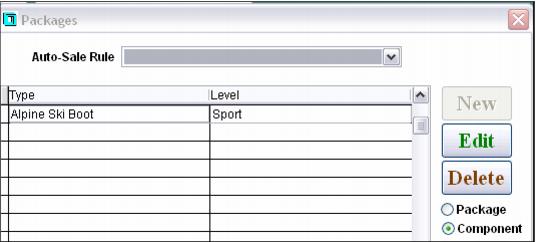
5. Make sure that Component is selected and click New.
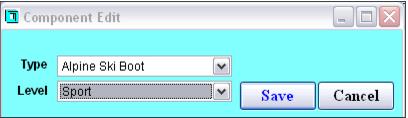
6. Select the appropriate values from the Type and Level dropdown boxes and click the Save button. If a rental component item configured with the same Type and Level already exists, a message alerts the operator regarding which item already contains these values and the changes are not saved.
7. Repeat this process until all of the necessary rental components have been configured.