Pay-up-front: Rental package configuration
Rental package items are typically the items that are sold to guests. Rental packages are configured by attaching a list of previously configured rental components to each rental package item as appropriate. This allows anywhere from one to multiple pieces of equipment to be rented by a guest on the same Rental form. The components attached to a package determine the type and level of equipment that may be rented by the guest based on what the guest purchased. For example, a guest who purchases a Demo Ski Package is allowed to rent both a Demo Ski (component) and a Demo Ski Boot (component). All Kids Rental Packages come with a free helmet rental, so all Kids Rental Package items would include the Helmet rental component within their configurations.
Rental packages that represent each combination of equipment that could be rented by guests are configured.
Example:
• Basic Ski Package
• Basic Ski Package with Boot Upgrade
• Basic Skis Only
• Basic Boots Only
• Demo Ski Package
• Demo Ski Package with Boot Downgrade
• Demo Skis Only
• Demo Boots Only
• Etc.
To configure a rental package Item:
1. Create a new Item within the appropriate Department and Category.
2. Click on Action tab and select the Begin Rental radio button under the Item Type section.
3. Click on Action Specifics button.
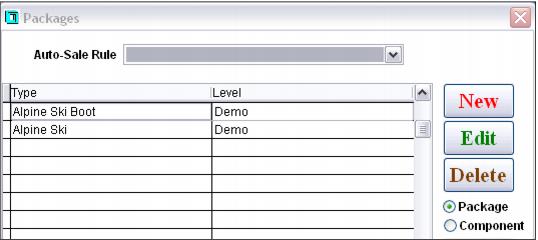
4. Make sure that Package is selected and click New.
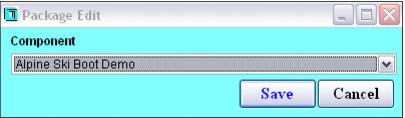
5. Select the appropriate value from the component dropdown box. This list of values is generated based on the previously configured rental components. Save the new entry.
6. Repeat this process until all components that are allowed to be attached to a Rental form when this package is purchased are listed in the package grid.
Another rental package configuration task includes setting an optional “return time” on the Action tab that may be used to specify at what time of the day the rentals are due.
Also, because rental package items are sold to guests, the appropriate price and profit center information must be entered along with any other required configuration such as specials, sales actions, printing specifications or adding the package items to the appropriate item trees, etc.
When using the Salesware Self Entry product, one other configuration is required on the rental package item that is sold to guests. This is the configuration of the Sales screen action macros: SELECTLAST()CHECKSELFENTRY().
This Sales screen action macros automatically pulls up a list of available self-entry records when the item is added to the sale. The guest selected from the list of self-entry records are then attached to the item.
Note for E-Commerce: Rental items may only be sold with a line item quantity of 1. In order to enforce this for web purchases, set the both the minimum and maximum quantity restrictions to 1 for all rental items sold on the web.