Pay-upon-return: Rental contract (package) configuration
In a pay-upon-return process, the rental package configuration (also referred to as the rental contract item) is very simple. It consists of creating a rental package that uses the *UNLIMITED* rental component. In order to generate the auto-sale of the appropriate modifiers based on rental activity, the appropriate Auto-Sale Rule is also selected. As many rental contract items as necessary may be configured based on variances in Auto-Sale Rules per rental shop.
Example:
The Nordic Center has different Auto-Sale Rules than the Alpine Center, so a NORDIC CENTER contract item and an ALPINE CENTER contract item are each configured with the appropriate Auto-Sale Rule selected.
To configure a rental package/rental contract item:
1. Create a new Item within the appropriate Department and Category.
2. Click on the Action tab and select the Begin Rental radio button under the Item Type section.
3. Click on the Action Specifics button.
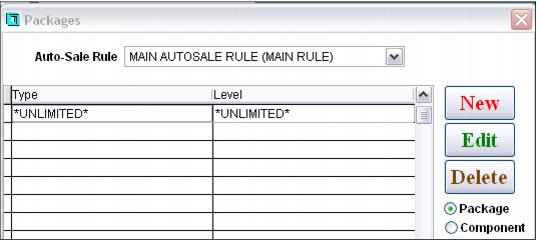
4. Make sure that Package is selected and click New.
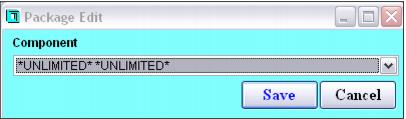
5. Select the *UNLIMITED* component from the dropdown box.
6. Select the appropriate Auto-Sale Rule for this rental package/contract item.
7. Save the changes.
When using the Salesware Self Entry product, one other configuration is required on the rental contract items that are sold to guests. This is the configuration of the Sales screen action macros: SELECTLAST()CHECKSELFENTRY().
This Sales screen action macros automatically pulls up a list of available Self Entry records when the rental contract item is added to the sale. The guest selected from the list of self-entry records is then attached to the rental item.