Pay-upon-return: Configuration of the contract station (salespoint)
Any salespoint that is used to start rental contracts needs to have the following inserted in the local Sales32c.INI file:
[Server]
RentEZ=0.0.0.0:4207
StartupRentEZ=TRUE
Replace the 0.0.0.0 with the IP address of the computer where RentEZ application is installed (RentEZ is usually installed on the rental shop server, so make sure to configure the correct IP address if there is more than one rental shop/RentEZ install.)
In order to activate Self Entry in Sales, there are a couple of settings that need to be added to the Sales32c.INI file or SysManager > Preferences > Miscellaneous > Global Salespoint .INI.
[Rental]
SelfEntry=TRUE
SelfEntryPath=C:\Program Files\Siriusware\SelfEntryRecords\
The Sales32c.INI SelfEntryPath setting points to the same directory specified within the web.config DataFilePath setting. The Sales screen action macros SELECTLAST()CHECKSELFENTRY() must be configured on all rental contract items that can have Self Entry records attached. This macro is used to pull up the list of un-used Self Entry records when a rental contract item is added to a sale so that the operator can select the appropriate guest from the list of Self Entry records.
In addition to the process of first selecting a rental contract item from the Sales menu, and then adding the appropriate Self Entry guest to the selected contract item when prompted, an alternative method may be used if a DefaultDCI is specified within the web.config file for the Self Entry pages. With a DefaultDCI in place, the operator can directly select guests from on the Sales Self Entry dialog without first selecting a contract item from the Sales menu. For each guest selected directly on this dialog, the DCI specified in the web.config file is auto-sold with the corresponding guest record attached. To use this method, set up a main action button for this purpose:
[Interface]
MainButtonX=GSE
Where X is the number of the button to be used for this purpose (value may be 1-12).
When an operator clicks the Import Self Entry button, a list of all available Self Entry records is displayed. One guest at a time may be selected or multiple records may be selected by holding the Ctrl key while selecting multiple guests. Once the guests have been selected, items of the specified DCI are added to the sale, each with the corresponding guest record attached. The Dismiss button can be used to delete Self Entry records from the queued list.
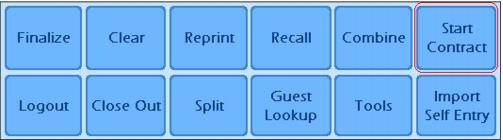
Another setting required at the contract station (salespoint) is the main action button Start Contract. When pressed, this button saves the current sale for later recall (for use when the guest is ready to pay for the rentals), prints the appropriate Rental Contract layout (configured per rental contract item in SysManager) and creates all of the rental data necessary for the rental to continue. To set up this button, enter the following into either the SysManager > Preferences > Miscellaneous > Global Salespoint .INI or the local Sales32c.INI file:
[Interface]
MainButtonX=RCO
Where X is the number of the main action button (values of 1-12 may be entered).
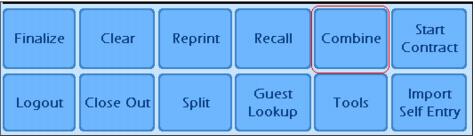
Another main action button that is useful is the Combine button. This allows different saved sales to actually be combined into one sale. This can be helpful when consolidating rental contracts for family or group members that were initially created in separate sales. To set up this button, enter the following into either the SysManager > Preferences > Miscellaneous > Global Salespoint .INI or within the local Sales32c.INI file:
[Interfact]
MainButtonX=CMB
Where X is the number of the main action button (values of 1-12 may be entered).
There are three other optional settings:
[Rental]
RentalShop=Main Shop
RequireShoeSize=TRUE
DefaultLevel=1
The RentalShop setting can be used to automatically select the appropriate rental shop based on where the sale takes place. If a guest is purchasing rentals from within a rental shop, it makes sense to insert the name of the current shop so that operators do not have to specify the shop location for rental purchases. However, in reservation centers that save rental sales for later recall at the appropriate rental shop, it is good to remove this setting. This forces the reservation center operator to select the appropriate rental shop for the guest. Then, reports such as the Rentals Arrivals Report can be run per shop based on the rental shop selection made during the reservation process.
The RequireShoeSize setting is used to force the entry of a shoe size for a guest.
The DefaultLevel setting is used to always assume a certain skier type (1, 2 or 3) as opposed to forcing the operator to select a type. Skier types for existing guests are maintained even with this setting in place.
If the contract station is also used to collect money from guests after rentals are returned, it is helpful to add descriptive settings to the line items in the sale that provide information such as the number of rentals days, type of rental day and checkout date. These settings are added to the ItemDescMod setting because the items that generate rental charges are added as modifiers to the main contract item. The following rental related information is available:
Setting | Description |
<r_checkout> | Date of rental check-out; corresponds to line item date of rental contract item |
<r_daytype> | Type of day based on definition in rental Auto-Sale Rules; typically Half or Full |
<r_days> | Number of days |
<r_type> | Equipment type |
<r_level> | Equipment level |
Example:
ItemDescMod=<items->descrip> <r_days> <r_daytype>
Produces this result: