Next-day arrival preparation
Rental contracts included in a reservation or saved sale are not actually started until an operator clicks the Start Contract main action button for the reservation/saved sale; this typically occurs within the rental shop, not in the reservation center. This means that a reservation may be saved with payment and non-rental items within that reservation/saved sale may even be finalized in order to print tickets, but the actual contracts for the rentals in the reservation are not created until the guests reach a contract station within the appropriate shop. There is no need for a guest to stop at the Self Entry station in this situation; the operator at the contract station can simply recall the reservation/saved sale for the guest in order to start the rental contracts included in the reservation/saved sale.
Preparation for next-day arrivals may be done by starting contracts for reservations for a specific rental shop based on reservation arrival dates; this streamlines the contract station process for reservations (for both individuals and groups) and even allows rental technicians to pre-set equipment for reserved equipment if necessary.
1. Make sure that the salespoint where the mass “start contract” process takes place includes the Sales32c.INI setting [Rental] RentalShop=name of shop. The shop name specified in this .INI setting is used as part of the recall criteria for starting contracts on reservations.
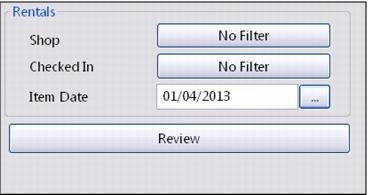
2. Click on the Recall button. Filter by Shop and enter an Item Date equal to the next day (or whatever date the preparation is for). Enter any other necessary recall information (if applicable) and click on the Review button.
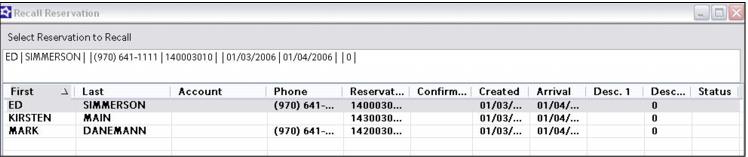
3. A list of reservations matching the recall criteria is displayed.
4. One or more reservations may be selected by holding the Ctrl key while selecting multiple reservations in the list.
5. Once all reservations have been selected, click the Contract button that is present at the bottom of the matching Reservation Recall dialog.
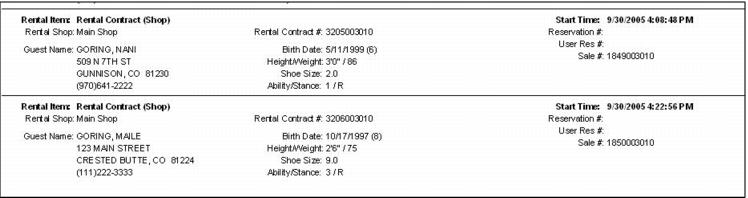
6. All rental contract items for the selected reservations have contracts started once the Contract button is clicked. This includes the printing of any rental contract Text Merge layouts configured for the rental contract items. The operator is notified when all selected contracts have been started.
7. The operator can then either file the printed rental contracts for use the next day or rental technicians can actually complete the rental process by scanning the rental contract barcodes (form number barcodes) on the printed rental contracts in order to attach equipment to Rental forms for reserved guests, including pre-setting all equipment scheduled for pick-up the next day.
Another useful tool when preparing for next-day arrivals is the Rentals Arrival Report. This report can be used to get a general idea of how much traffic to expect for the date and shop specified along with providing specific guest information necessary to pre-set equipment; this can significantly decrease the amount of time required to process groups.