Auto-return from storage
The Auto-Return from Storage functionality activates the process of marking all equipment currently in storage as “returned” to the home location of the equipment at the time of day specified for the rental shop. For example, at the main rental shop all equipment still in storage as of 10:30 AM is automatically returned. This allows guests to drop their skis in storage the night before and leave the equipment there if they decide not to ski the next day. Implementing this functionality involves configuring the rental shop with the appropriate return time and setting up the following SQL Server Agent job.
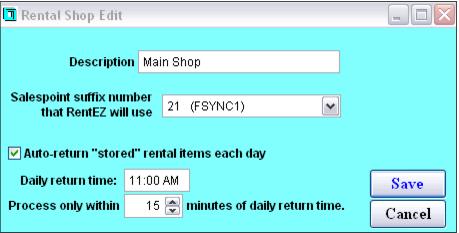
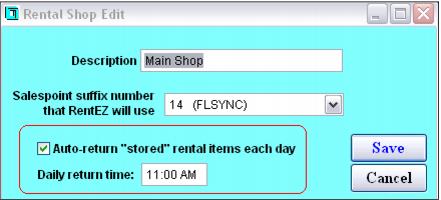
To configure a rental shop for an “auto-return” from storage:
1. Check the Auto-return “stored’ rental items each day check box.
2. Specify the Daily return time.
3. Enter the appropriate value within the Process only within… field. The Process only within… setting is used to limit the auto-return activity to within X minutes of the daily scheduled return time. It prevents equipment from being returned at the incorrect time if the auto-task stored procedure was shut down for a while (days) and once started again tries to immediately run the pending tasks.
To set up a SQL Server Agent job:
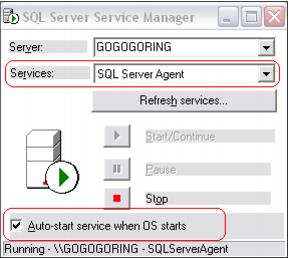
1. Make sure SQL Server Agent is running.
2. To make the system more robust, check this setting within Enterprise Manager > Management > SQL Server Agent > (Right-click) > Properties > Advanced tab.
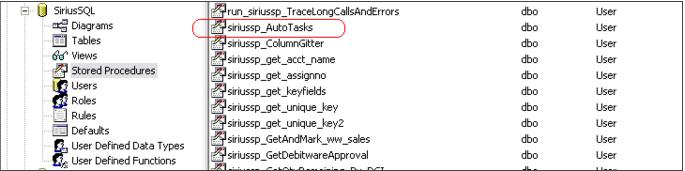
3. In Enterprise Manager, make sure that the siriussp_AutoTasks exists in the Stored Procedures folder under the SiriusSQL database.
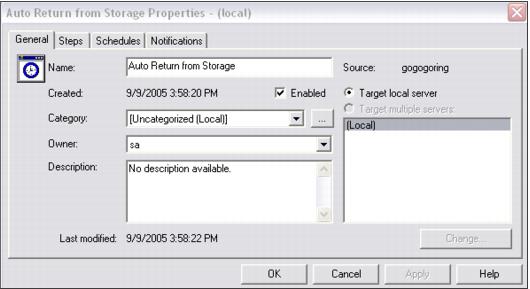
4. In Enterprise Manager > Management > SQL Server Agent > Jobs > (Right-click) > New > Job…
• In the General tab:
• Enter a name for the job
• Make sure the Enabled box is checked
• Make sure sa is the owner
• (Optional) Enter a description
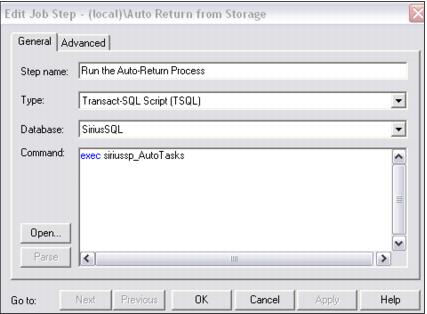
5. In the Steps tab, click the New button:
• Enter a Step name for the job
• Leave the Type as it is (see below)
• Click on the dropdown list to select the correct Database for the job
• Enter exec siriussp_AutoTasks in the Command box
6. Leave the Advance tab info as is and click OK to finish.
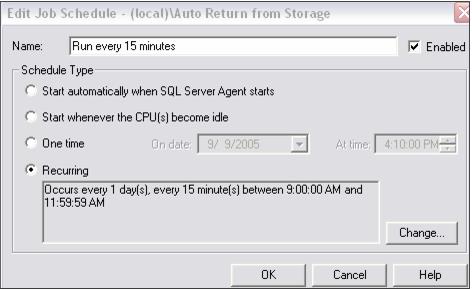
7. In the Schedules tab, click the New Schedule button:
• Enter a Name for the schedule.
• Make sure the Enabled check box is checked.
• Select Recurring under Schedule Type.
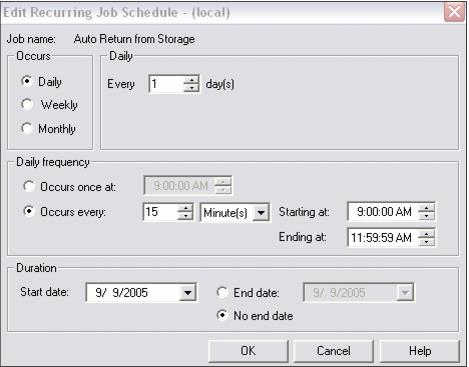
• Click the Change button to edit the schedule if you don’t want to use the default.
• Click OK > OK > Apply (an ID is assigned to the new schedule)
8. The Notifications tab can be left as is or changed any way you want to notify the proper person in case the job executes with errors.
9. Click OK to finish
10. In SysManager, edit the rental shops that runs this auto-task. Enter the time of day when this auto-return from storage occurs for each shop.
To test if this job works:
1. Using the TechStation, store several items at a certain rental shop.
2. In SysManager, edit the rental shop where the items are stored and check the Auto-return “stored” rental items each day check box (if not already checked) and set up the appropriate Daily return time. A record is created in the autotask table after the rental shop editing (above) is saved.
3. In the autotask table, note the nextrun, lastcheck, lastrun field values for the rental shop edited in step 2.
4. Go to the job in Enterprise Manager and manually run it by right-clicking on the Job > Start Job.
5. Go back to the autotask table and refresh it. All the values of nextrun, lastcheck, lastrun for the shop specified in step 2 changes.
6. Verify that the equipment that had been marked as “stored” at the specified rental shop is now marked as “in” and currently located at the equipment’s home location.