Using dynamically controlled Max4Sale capability
This functionality is used to allocate X number of rentals for reservations.
Managing available rental inventory can be challenging, especially when factoring in the number of reservations against the estimated number of walk-in customers. Restricting the sale of rental items configured for use with reservations is a simple way to allocate a certain number of rentals, even per type of rental, to advanced sales.
Because rentals are typically taken out of inventory throughout a range of days, dynamic Max4Sale restrictions may be used in order to decrement inventory over a time span, either in minutes or days.
To implement dynamic time span restrictions:
1. Check the Calculate specific end time dynamically check box on the General tab for an item in SysManager. If appropriate, also check the If modifier, inherit parent’s time span check box. This additional option is helpful in situations when the dynamic Max4Sale controlled item is sold as part of a package.
2. If appropriate, set the Time Span on the General tab to be equal to the number of days/minutes for this rental. For example, if setting up a 3 Day Demo Rental item, the time span is set to 3 days.
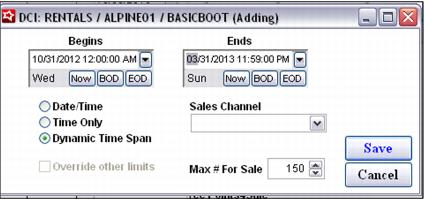
3. On the Restrictions tab, check the Enforce Max4Sale check box and click on the Max4Sale button in order to set up a limit.
4. Enter a limit equal to the total number of inventory items available. For example, if 150 demo rentals are available, enter 150. Make sure that this number reflects the number of pieces of inventory to be allocated to advanced sales. For example, the total number of demo rentals may actually be 200, but the reservation center may only be allowed to reserve 150 demo rentals out of the total 200 available.
5. Enter the first date when this particular item could be rented in the Begins date field and enter the very last date when this particular item could be rented in the Ends date field.
6. Finally, select the Dynamic Time Span option and Save the new limit.
When an operator adds this item to a reservation/sale, the Max4Sale inventory is decremented through the number of days/minutes specified by the item’s time span configuration starting on the start date/time of the line item. If a time span has not been configured for the item, the operator can manually set the start and end dates/times in order to decrement the Max4Sale number throughout the date/time range specified.
Example:
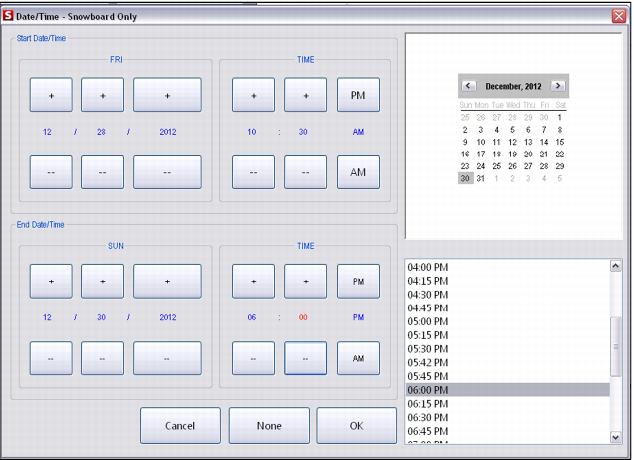
In the following, a Demo Rental item is controlled by a dynamic Max4Sale restriction of 150. This particular demo item is not configured with a specific time span, but instead the operator determines the start and end dates for the item (instead of using a 3 Day Demo Rental item, the operator uses a more generic Demo Rental item that does not have a pre-defined rental duration).
The operator adds the Demo Rental item to the sale and enters the start date/time and end date/time in order to decrement inventory over the entire rental duration.
If this item had actually been configured with a time span, the end date/time would have automatically been calculated based on the start date/time of the line item plus the item’s time span.
Once the reservation is saved, the number of available Demo Rental items decrements by 1 throughout the entire duration of the reserved demo item. Based on the example above, the Demo Rental item would show an availability of 150 up until 8:59 AM on 1/05/2013, and then 149 from 9:00 AM on 1/05/2013 through 4:00 PM on 1/07/2013, and then back up to 150 at 4:01 PM on 1/07/2013.
Remember, as many rental items as necessary may be configured in order to facilitate the sale of rental items within reservations.
Note: For pay-upon-return shops, a rental contract named 3 Day Demo Rental may still be configured to allow unlimited type/levels of rentals; the name and configuration of time span is simply used to help allocate inventory for advanced sales.