Using dynamic time span for multi-day rentals
This functionality is used to minimize the number of items that must be configured in a pay-up-front rental shop.
Different rental package items can be configured to handle multi-day rentals. However, when the majority of rentals are one-day rentals and a multi-day rental is the exception, the option below can help to minimize the number of items that must be configured. Prior to implementing this option, a careful review of the reporting implications take place.
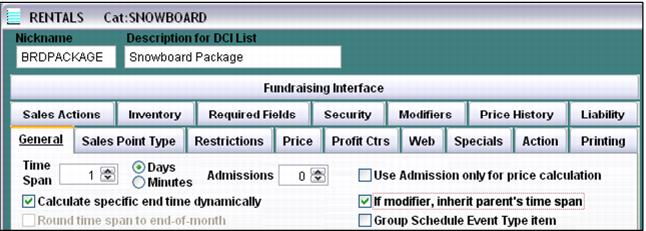
1. Set up your one day rental items with a Time Span of 1 and check the Calculate specific end time dynamically check box. By default, this sets the rental duration to 1 day, but it also allows your operators to set an alternative return date when they need to sell a multi-day rental.
Example:
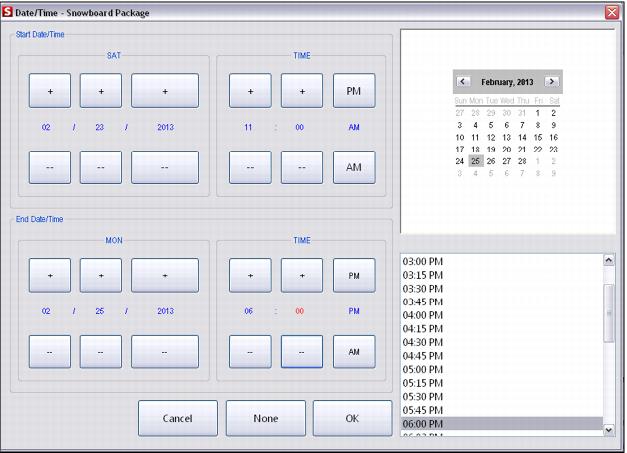
In Sales, the return date is assumed to be one day out from the current date (the return time is based on the return time specified for that product on the Action tab in SysManager). If the DateTime button is clicked, a different Start and End date can be set. If this was a two-day rental starting on September 29, the operator would set the dates like this:
Using Calculate specific end time dynamically also sets the due date for the rental within the TechStation. In the example above, if the equipment checked-out to this form is scanned back in after 5:00 PM on 9/30, it shows up as overdue on the TechStation.
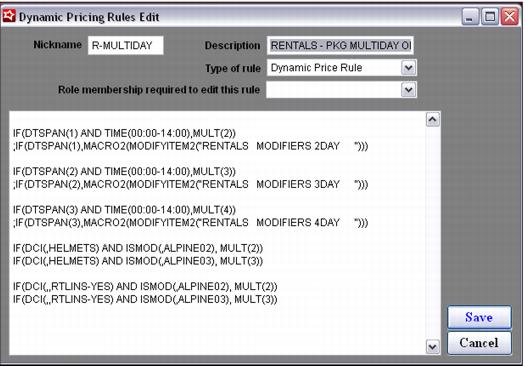
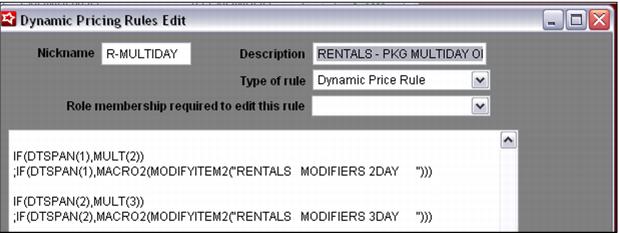
2. In order to price multi-day rentals correctly, create a Dynamic Pricing Rule based on the dynamic time span and attach that rule to the rental packages. Please refer to the Salesware Dynamic Pricing document for more information on configuring Dynamic Pricing Rules.
Note: When using the DTSPAN condition, you actually specify one less day than what you would think, For instance, the rental in the example below is a two-day rental, but in the code the time span is interpreted as 1; thus 1 is specified within the parenthesis for a two-day rental and a 2 between the parenthesis for a three-day rental, etc.
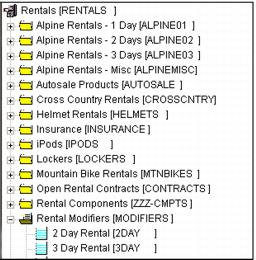
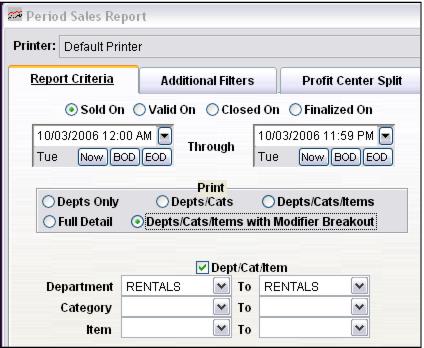
In addition to just setting the price, you can auto-add a modifier via the Dynamic Pricing Rule in order to represent the number of days included in the rental. In this particular situation, the modifier is used only to provide additional information regarding the rental (such as printing the modifier information on the rental ticket, recording the information in the guest history, etc.,) because the dynamic time span and Dynamic Pricing Rules have already set the due date and the price of the item. The modifier can also be helpful for reporting the number of multi-day rentals sold throughout the season.